
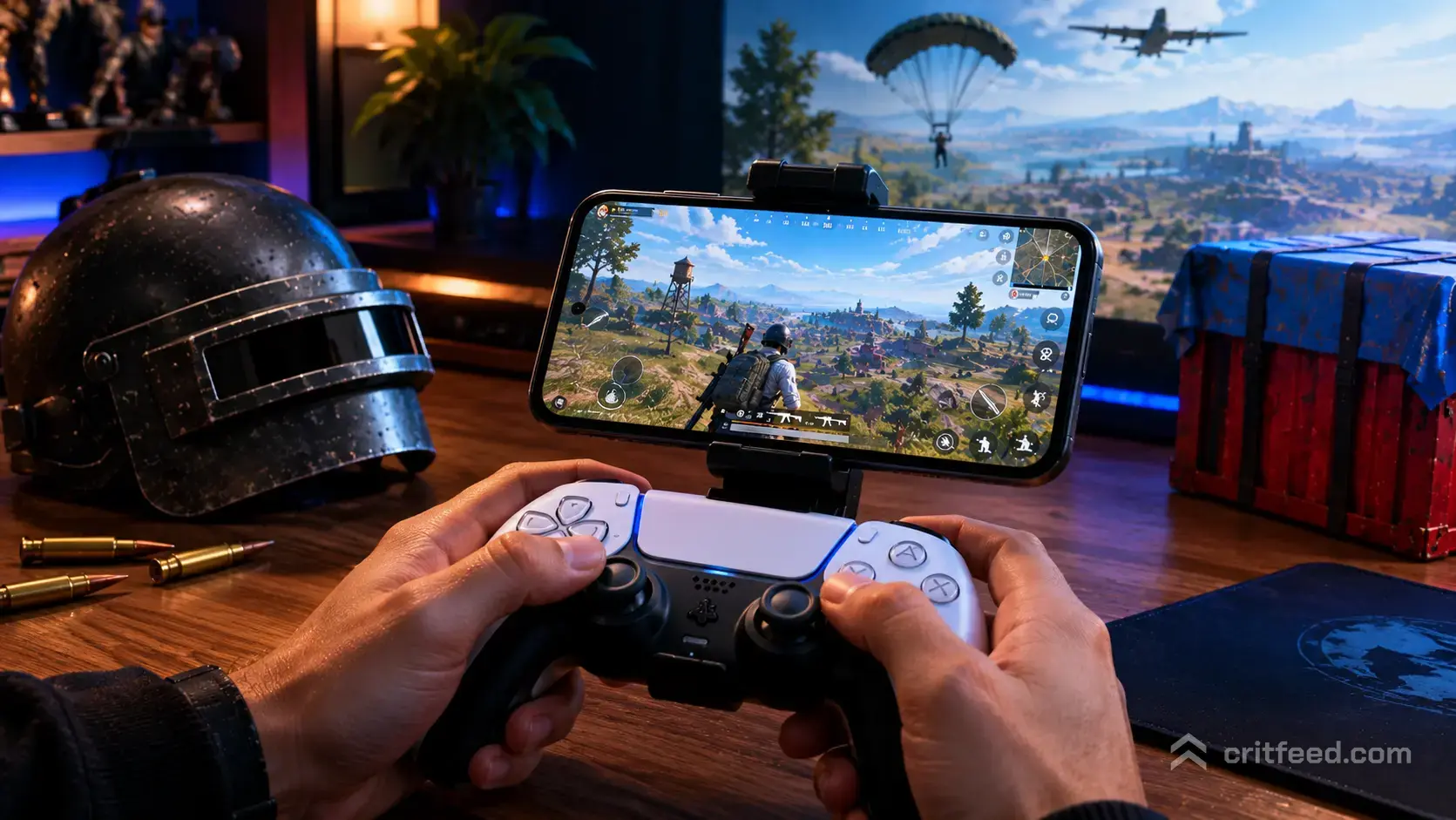
Short answer: no, PUBG Mobile does not officially support gamepads for in-match play. So when players ask can you use a controller on PUBG Mobile, the honest truth is that the game is built around touch and gyroscope, and plugging in an Xbox or PlayStation pad will not just “work” the way it does on console shooters. Below, we break down exactly what the game accepts, what the workarounds actually do, and why the pros still thumb-tap on glass.
The Official Stance: Touch and Gyro Only
PUBG Mobile is designed as a touch-first battle royale. The HUD, aim assist behavior, and sensitivity systems are all built around fingers on a screen plus optional gyroscope input from the device itself.
Krafton and Tencent have never shipped a native controller mapping menu inside the match UI. You can scroll the settings top to bottom and you will not find a “Controller” tab the way you would in a console port.
Why it matters: the game actively detects non-touch input in some regions and sessions. Players who connect a pad often find the sticks move the camera but trigger buttons and face buttons do nothing in-game, leaving them half-controlled and useless in a firefight.
What Happens If You Just Plug a Controller In
If you pair an Xbox, PlayStation, or generic Bluetooth gamepad to your phone and launch PUBG Mobile, one of three things usually happens:
- Nothing responds at all. The game ignores the controller entirely.
- Partial input only. The right stick might pan the camera in the lobby, but shooting, ADS, and movement buttons stay dead.
- Lobby works, match does not. You can navigate menus, then lose all input the moment you drop from the plane.
This is not a bug you can patch around with a firmware update on the pad. It is the game refusing the input stream on purpose.
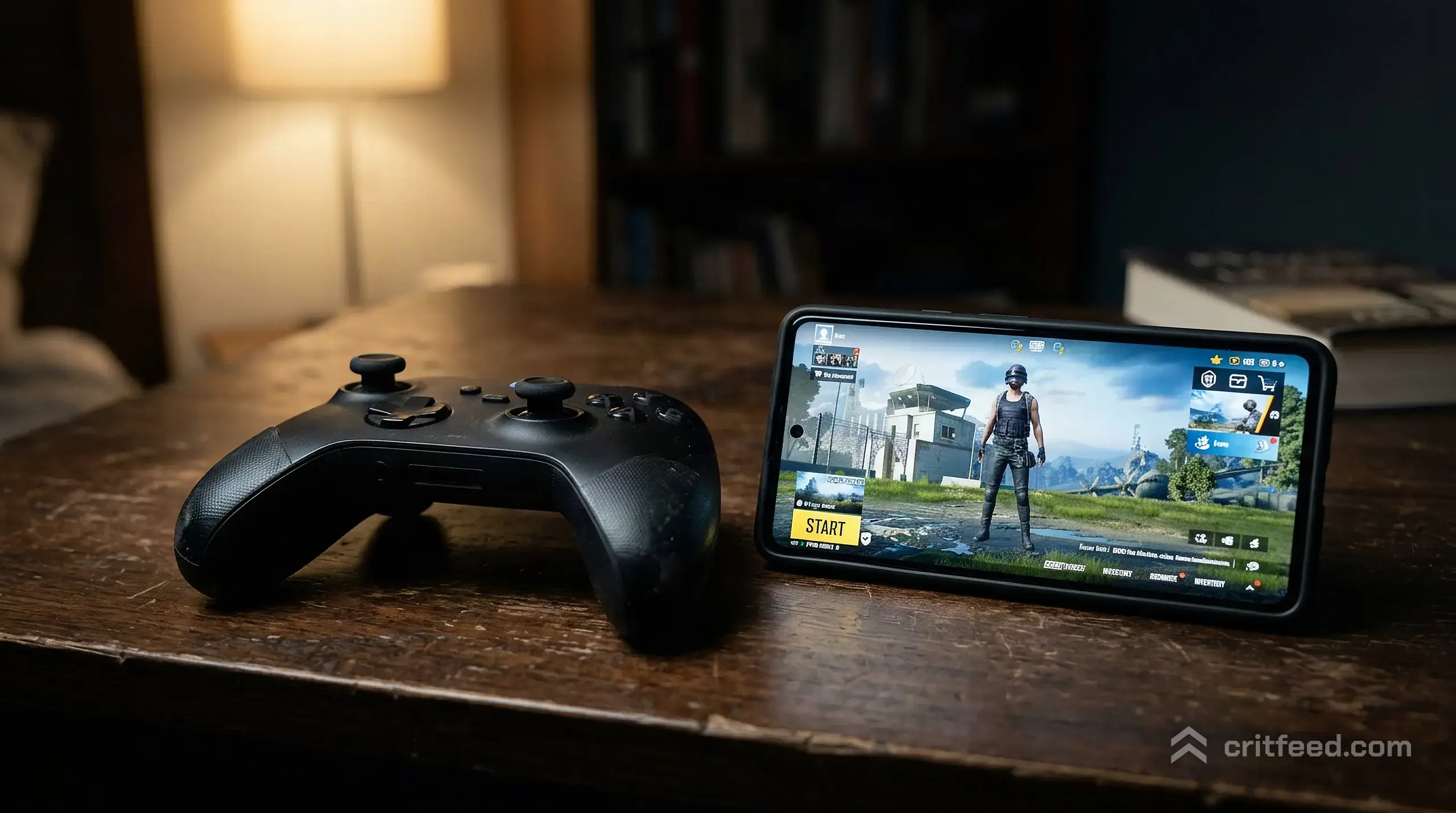
The Workarounds People Actually Use
There are three categories of workaround, and each has real trade-offs. We will walk through them honestly so you know what you are signing up for.
1. Physical Trigger Clips (The Safe Option)
Trigger clips are small spring-loaded buttons that clamp onto the top corners of your phone and physically tap the screen when you press them. They are not controllers. The game sees them as regular finger taps.
- Fully allowed. No ban risk because the game only ever sees touch input.
- Give you true four-finger or six-finger claw control without finger cramp.
- Cheap, usually under 15 dollars for a decent pair.
For most players asking about controller support, this is the real answer. Pair clips with the best PUBG Mobile settings for your device and you get most of the ergonomic benefit a gamepad would give you.
2. Phone-Grip Controllers With Mapping Apps
Devices like Razer Kishi or Backbone grips physically hold your phone and expose gamepad buttons. On their own, they still face the same wall: PUBG Mobile ignores the pad.
To make them work, players use third-party key-mapping apps that translate button presses into fake touch events on specific screen coordinates.
- Ban risk is real. Krafton’s anti-cheat has flagged key-mapping tools in the past, and accounts have been suspended for using them in ranked.
- Setup is fiddly: every HUD change means remapping touch points.
- Aim feels off because thumbsticks drive what the game thinks are drag gestures, not true analog aim.
3. Emulator or Handheld PC (Not Mobile Anymore)
If your real goal is controller play, you are not playing PUBG Mobile proper, you are playing PUBG Mobile on an emulator. Krafton’s official Gameloop emulator supports keyboard and mouse, and players also run the game on handheld PCs like the ROG Ally and Steam Deck through emulation.
The critical catch:
- Emulator players are matched into a separate emulator pool. You do not face regular mobile players, which is by design to protect touch users from input advantage.
- Rewards, Royale Pass progress, and your account carry over, but your rank on emulator does not translate to competitive mobile credibility.
If this is the route you want, our guide on how to play PUBG Mobile on PC walks through the setup properly.
Why PUBG Mobile Refuses Controllers (And Won’t Change Soon)
The reason is competitive integrity. PUBG Mobile’s entire ranked ladder, from Bronze to Conqueror, and its esports scene including PMGC, assume everyone is on touch plus gyro.
A thumbstick gives smooth, consistent aim arcs that are harder to replicate with a thumb dragging across glass. Allowing controllers in the general pool would collapse the skill expression that separates top mobile players from everyone else.
This is also why you cannot “cheat” your way around it with Bluetooth tricks. The game’s anti-cheat is explicitly watching for non-touch input patterns in competitive queues.
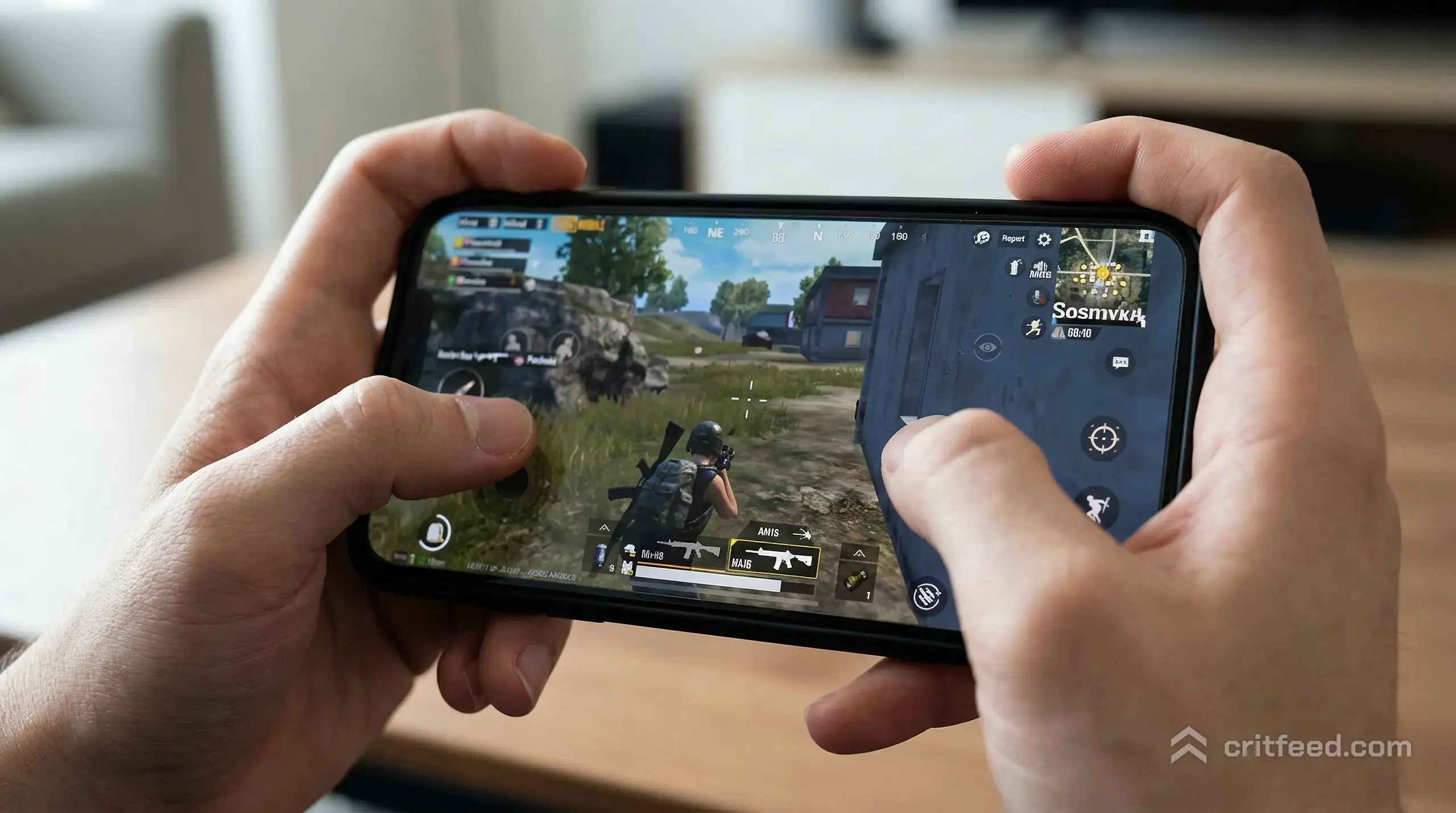
Controller vs Touch vs Gyro: What’s Actually Better on Mobile?
Here is the honest performance picture based on how the game is built:
| Input Method | Aim Precision | Movement | Legal in Ranked | Learning Curve |
|---|---|---|---|---|
| Two-finger touch | Low | Limited | Yes | Easy |
| Four-finger claw | Medium | Full | Yes | Medium |
| Claw + Gyroscope | High | Full | Yes | Hard |
| Trigger clips + Gyro | Very High | Full | Yes | Medium |
| Mapped controller | Medium | Full | Risky | Hard |
| Emulator + Mouse | Highest | Full | Emulator pool only | Easy |
The data point most new players miss: gyroscope aim, when tuned properly, beats a controller on this specific game. Top ranked and PMGC-level players almost universally run gyro on “Always On” with high sensitivity, because small wrist movements track targets faster than any thumbstick could.
If you are new to gyro, start with our PUBG Mobile beginner guide and ease into it one sensitivity set at a time.
What To Do Instead of Chasing Controller Support
If your real problem is “my thumbs cramp” or “I can’t aim and move at the same time,” here are the fixes that actually work on mobile:
- Switch to claw grip. Index fingers on the shoulder-area buttons, thumbs free for sticks and aim. Takes about a week to feel natural.
- Buy trigger clips. The single biggest ergonomic upgrade you can make without changing how the game sees your input.
- Turn on gyroscope. Start with “Scope On” mode so it only activates when you ADS, then graduate to “Always On” as you get used to it.
- Customize your HUD. Drag buttons to where your fingers actually rest. The default layout is a compromise, not a recommendation.
- Lower your DPI expectations. You will miss shots for the first few hundred games on any new control setup. That is normal.
For deeper improvements, our PUBG Mobile tips and tricks covers the habit changes that separate stuck-in-Platinum players from Ace pushers.
The Bottom Line
Can you use a controller on PUBG Mobile? Not in a way that is officially supported, safe for your account, and competitive on the regular ladder. Trigger clips are the legal ergonomic upgrade, mapping apps carry a real ban risk in ranked, and emulator play puts you in a separate matchmaking pool.
If you want the hardware feel of a gamepad on this game, your two honest paths are trigger clips plus gyro for mobile, or an emulator setup if you are willing to leave the mobile pool entirely. For a fuller look at the hardware side, we keep a running breakdown of PUBG Mobile controller support as the situation evolves.
The one thing most players get wrong: they assume adding a controller will fix their aim. It will not. Gyroscope mastery on touch will take you further on this specific game than any pad ever will, which is exactly why the top of the ranked ladder looks the way it does.