
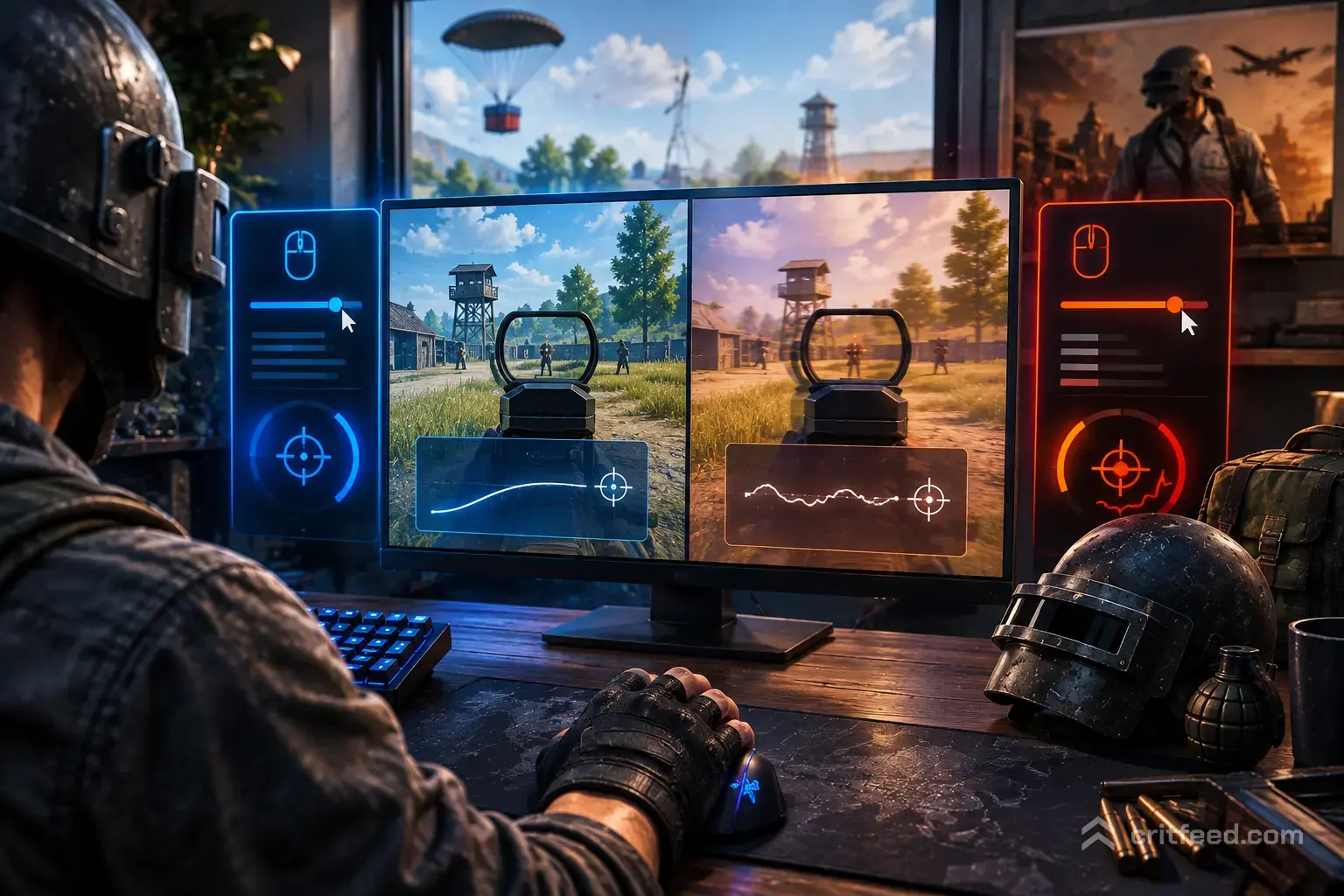
If your crosshair drifts past targets or your flicks feel wildly inconsistent, aim acceleration in PUBG is one of the first settings you should check. It changes how far your camera moves based on how fast you swing your mouse — not just how far you move it — and that inconsistency wrecks muscle memory. In this guide, we break down what the setting actually does, why most PC players turn it off, and the sensitivity settings that pair with it.
What Is Aim Acceleration in PUBG?
Aim acceleration links turn speed to input speed. Move your mouse slowly across a fixed distance and the camera rotates a little. Move it quickly across the same distance and the camera rotates a lot more.
Without acceleration, the relationship is linear: one inch of mouse movement equals the same in-game rotation every time, no matter how fast you flick.
That difference sounds small, but it decides whether your 180° flick lands on the enemy behind you or spins straight past them.
Should You Turn Aim Acceleration On or Off in PUBG?
Almost every competitive PUBG PC player runs aim acceleration OFF. Here’s why:
- Consistency — Muscle memory only works when the same mouse movement produces the same in-game turn. Acceleration breaks that.
- Tracking recoil — Weapons like the M416 and Beryl M762 require predictable spray patterns. Variable turn speed makes it harder to hold the compensator on target.
- Long-range shots — Micro-adjustments at 300m+ demand precise, slow mouse movement. Acceleration punishes slow inputs.
- Pro standard — Watch any PGC broadcast and you’ll see the same setting choice across rosters.
When acceleration might help: players on very small mousepads who need to flick 180° in a tiny physical space. Even then, most solve it by lowering DPI rather than enabling acceleration.
If you’re still learning the basics, our pubg beginner guide covers the full settings walkthrough before you start tweaking mouse behavior.
How to Disable Aim Acceleration in PUBG (PC)
There is no in-game aim acceleration toggle in PUBG on PC. The game reads raw mouse input by default. What most players actually mean by “aim acceleration” on PC is Windows mouse acceleration, called “Enhance pointer precision.”
Turn it off here:
- Open Windows Settings → Bluetooth & devices → Mouse
- Click Additional mouse settings
- Go to the Pointer Options tab
- Uncheck “Enhance pointer precision”
- Click Apply, then OK
Then confirm your mouse software (Logitech G Hub, Razer Synapse, SteelSeries GG) does not have its own acceleration layer enabled.
Console players have a dedicated “Aim Acceleration” toggle in the Control settings — that is a separate, controller-focused feature and doesn’t exist on the PC client.
Recommended PUBG PC Mouse Settings
With acceleration off, your DPI and in-game sensitivity do all the work. These are ranges used widely in the competitive scene — treat them as a starting point, not gospel.
| Setting | Recommended Range | Notes |
|---|---|---|
| Mouse DPI | 400–800 | 400 is the classic FPS baseline |
| General Sensitivity | 40–50 | Camera/UI navigation |
| Vertical Sensitivity Multiplier | 1.00 | Keep 1:1 with horizontal |
| Aim Sensitivity (ADS) | 35–45 | Right-click aiming, no scope |
| Scope 2x | 30–40 | Red Dot, Holo, 2x |
| Scope 3x / 4x | 25–35 | ACOG, 4x |
| Scope 6x | 20–30 | Kar98k / DMR range |
| Scope 8x | 15–25 | AWM sniping |
| Windows Pointer Speed | 6/11 (middle notch) | 1:1 sensor reading |
Rule of thumb: the higher the scope magnification, the lower the sensitivity multiplier. That gives you fine control at long range while keeping close-quarters flicks fast.
For a full settings breakdown including graphics and keybinds, check our best pubg settings guide.
Why Consistency Beats Speed
New players often crank sensitivity high thinking it improves reaction time. It doesn’t — it just amplifies every twitch, including bad ones.
Lower sensitivity + no acceleration = repeatable aim. Repeatable aim is what lets you:
- Pre-aim corners at the same crosshair height every time
- Hold recoil patterns without over-correcting
- Track moving players through smokes and vehicles
The players winning fights on Erangel and Miramar aren’t flicking harder — they’re flicking the same way every time.
Dialing In Your Per-Scope Sensitivity
PUBG lets you set a separate multiplier for every scope. This is one of the most under-used settings in the game.
How to tune it:
- Drop into the Training Mode
- Pick a stationary target at your typical engagement range for that scope
- Do a full 180° turn with your mouse
- If you overshoot, drop the multiplier by 2–3 points
- If you undershoot, raise it by 2–3 points
- Repeat until a full turn lands cleanly on the target behind you
Do this for every scope you use. It takes 20 minutes and pays off every match.
Common Aim Problems That Aren’t Acceleration
Before blaming settings, rule out these:
- Frame rate drops — inconsistent FPS creates the feeling of inconsistent aim. Our pubg lag fix guide covers the main causes.
- Polling rate mismatch — set your mouse to 1000Hz for smooth tracking.
- V-Sync enabled — adds input lag. Turn it off in the graphics menu.
- Wrong attachments — a stockless Beryl M762 sprays like a firehose no matter your sensitivity. See our breakdown of best pubg weapons and attachments.
- Bad mousepad — a small or worn-out pad forces you to lift and reset mid-fight.
Practice Routine to Lock In Your Aim
Once acceleration is off and sensitivity is dialed in, build the muscle memory:
- 10 minutes of tracking — follow a moving bot at 50m with an M416 red dot
- 10 minutes of flicks — pop static targets at random angles with a Kar98k
- 5 minutes of recoil control — full-mag sprays on a wall at 25m, focus on holding the crosshair, not just pulling down
- Live drop — apply it in a hot drop on Sanhok where fights happen fast and often
For more scenarios and drills, our pubg tips and tricks collection has drop-specific practice ideas.
The Bottom Line
Turn aim acceleration off, both in Windows and in any mouse software. PUBG on PC reads raw input by default, so once you kill “Enhance pointer precision,” you’re on a linear curve. From there, lower your DPI, set per-scope multipliers, and grind training mode until the settings feel invisible.
Consistency is the whole game. Once your aim does the same thing every time, you can start solving the fights themselves.
Want to put that aim to work? Head over to our pubg map guide to pick the right drop for practicing your new settings.