
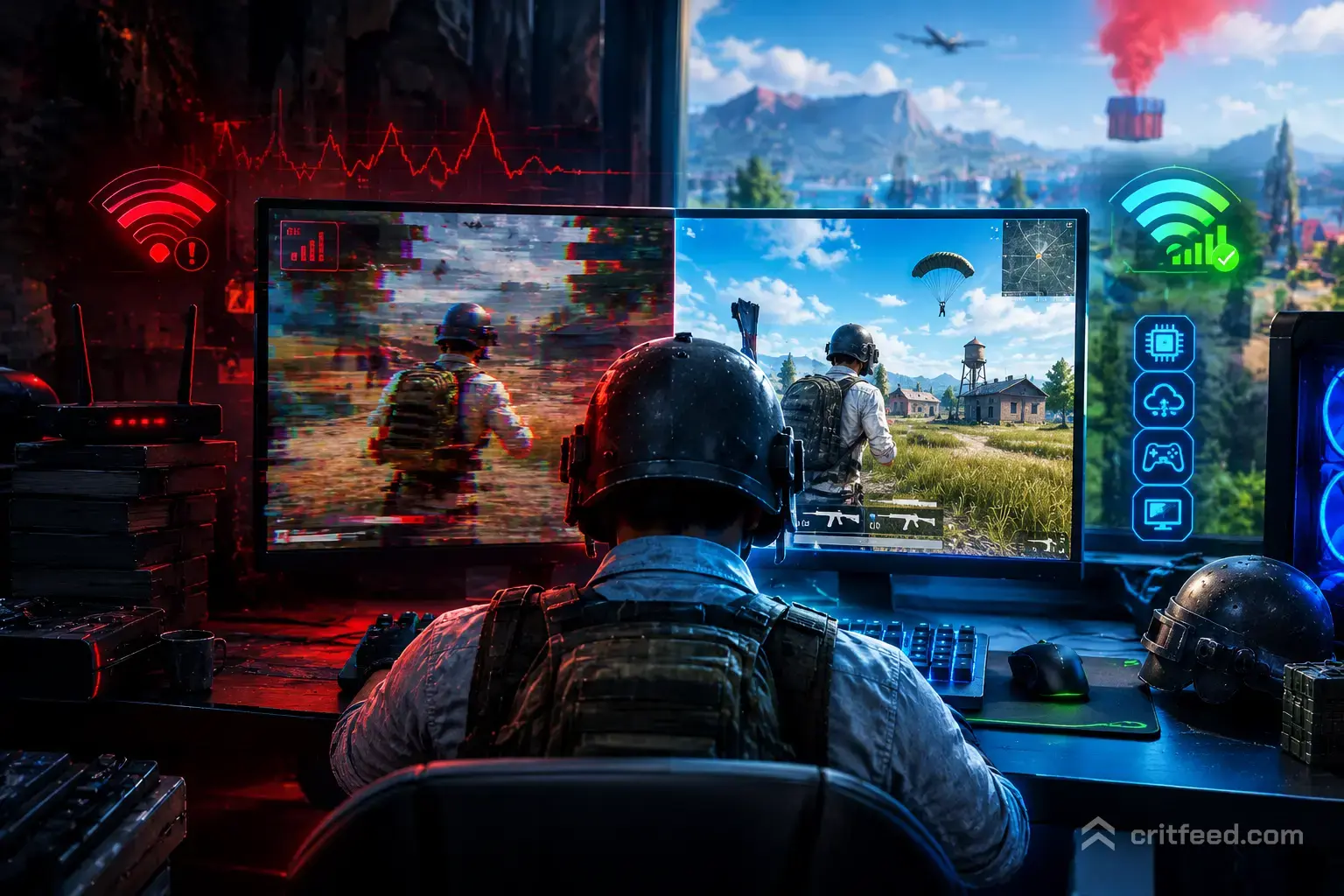
Nothing kills a chicken dinner faster than your screen freezing right as you push a compound. If you’re hunting a reliable PUBG lag fix, the first thing to know is that “lag” isn’t one problem — it’s usually three separate ones (network latency, frame stutter, and input delay), and each needs a different solution. We’ll walk you through how to diagnose which one you have, then fix it.
The Three Types of Lag in PUBG (And How to Tell Them Apart)
Most players lump every hitch into “lag,” but the fixes are completely different. Press Ctrl + F1 in-game to open PUBG’s net debug stats, then check what’s actually happening.
| Symptom | Likely Cause | Where to Look |
|---|---|---|
| Rubber-banding, delayed hit reg, players teleporting | High ping / packet loss (network) | Ping counter, packet loss % |
| Frame drops in cities, freezes on loot | GPU/CPU stutter (performance) | FPS counter, frame time |
| Mouse feels sluggish, aim floats | Input lag (display + settings) | V-Sync, monitor Hz |
Diagnose first, fix second. Applying network fixes to a GPU problem will waste your night.
Fixing Network Lag and High Ping
If your ping is spiking above 80 ms or you’re seeing packet loss, the issue lives between your PC and the PUBG server — not inside the game.
1. Pick the Right Server
PUBG’s matchmaking will happily throw you onto a distant server if your region is quiet. Lock your matchmaking region to the closest data center (NA, EU, AS, SEA, KRJP, SA) in the lobby settings. Cross-region queues are the single biggest cause of avoidable ping.
2. Go Wired, Not Wireless
Ethernet cuts jitter dramatically. If you must use Wi-Fi, get on 5 GHz and sit within line-of-sight of the router. Powerline adapters are a solid middle-ground for players who can’t run a cable.
3. Kill Bandwidth Hogs
Before you queue:
- Pause OneDrive, Google Drive, and Dropbox syncing
- Close Chrome tabs streaming video in the background
- Check if a housemate is uploading to YouTube or downloading a game
- Disable Windows Update’s active hours during your session
4. Flush DNS and Reset Your Stack
Open Command Prompt as admin and run:
ipconfig /flushdns
netsh winsock reset
netsh int ip reset
Reboot after. This clears corrupted routing entries that can cause phantom packet loss.
5. Try a Different DNS
Swap your router’s DNS from your ISP’s default to Cloudflare (1.1.1.1) or Google (8.8.8.8). It won’t lower ping, but it can fix intermittent connection drops during matchmaking.
Fixing Frame Stutter and FPS Drops
If your ping is fine but the game hitches when you drop into Pochinki or spot four squads at once, this is a performance problem. These fixes target the GPU and CPU.
In-Game Graphics Settings That Actually Matter
PUBG’s engine is old and CPU-heavy. The biggest FPS wins come from three settings:
| Setting | Recommended | Why |
|---|---|---|
| Overall Quality | Custom | Never use presets — they enable useless effects |
| Anti-Aliasing | Medium | High costs frames for minimal visual gain |
| Post-Processing | Very Low | Kills contrast and eats performance |
| Shadows | Low | High shadows tank FPS around trees and buildings |
| Textures | High | Uses VRAM, not GPU cycles — safe to keep up |
| View Distance | Medium | Player models render at max regardless |
| Effects | Low | Reduces smoke/muzzle-flash stutter in fights |
| Foliage | Very Low | Also removes grass that hides prone players |
| Screen Scale | 100 | Never drop below 100 unless truly desperate |
Textures High + everything else Low is the standard competitive config for a reason.
Update Your GPU Drivers
Both NVIDIA and AMD ship game-ready drivers, and PUBG updates frequently break older ones. Download directly from the manufacturer, not through Windows Update. Do a clean install using DDU (Display Driver Uninstaller) in safe mode if you’ve been stacking drivers for months.
Set PUBG to High Priority
Open Task Manager while PUBG is running → Details tab → right-click TslGame.exe → Set priority → High. This forces Windows to give the game CPU time over background processes.
Disable Fullscreen Optimizations
Right-click TslGame.exe in your Steam directory → Properties → Compatibility → check Disable fullscreen optimizations and Run as administrator. This fix has been standard for years and still helps on Windows 10 and 11.
Free Up VRAM and RAM
- Set Windows to Best Performance mode in Power Options
- Disable Xbox Game Bar and Game DVR
- Turn off Discord’s hardware acceleration (Settings → Advanced)
- Close browsers entirely — even minimized Chrome uses hundreds of MB
Fixing Input Lag
Input lag is the sneaky one. Your FPS looks fine, your ping is fine, but your crosshair feels like it’s stuck in syrup.
Turn Off V-Sync
V-Sync adds a full frame of input delay, minimum. Disable it in-game and in your GPU control panel. If you get screen tearing, use G-Sync or FreeSync if your monitor supports it — those give tear-free gameplay without the input penalty.
Cap Your Frame Rate Below Your Monitor’s Refresh
Uncapped FPS causes GPU load spikes that increase input latency. Cap 3-5 FPS below your monitor’s refresh (e.g., 141 FPS on a 144 Hz panel). Use NVIDIA Reflex if you’re on a compatible card — it’s built into PUBG.
Use Raw Input and a High Polling Mouse
Enable Raw Input in PUBG’s control settings. Set your mouse polling rate to 1000 Hz in its driver software. These two together give the most direct mouse-to-screen path the game supports.
PUBG-Specific Tweaks Most Guides Miss
These are the fixes competitor articles skip, and they matter more than any of the generic advice above.
Verify Game Files
Steam → PUBG → Properties → Installed Files → Verify integrity of game files. Corrupt shader cache is a common cause of one-map-only stutter after a patch.
Delete the Config Cache After Updates
After a major PUBG update, your local graphics config can conflict with the new build. Navigate to:
%LOCALAPPDATA%\TslGame\Saved\Config\WindowsNoEditorBack up and delete GameUserSettings.ini. Launch PUBG, let it regenerate the file, then reapply your settings. This clears more phantom stutter than any driver update.
Install PUBG on an SSD
Texture streaming from a HDD causes the exact kind of half-second freeze that gets you killed. If you’re still on spinning rust, this is the single best hardware upgrade you can make for the game.
Check Your Background Antivirus
Windows Defender’s real-time scanning of TslGame.exe causes measurable stutter on some systems. Add PUBG’s install folder to your antivirus exclusion list. Third-party AVs (Avast, McAfee, Norton) are worse offenders — same fix applies.
When It’s Not You: Server-Side Issues
Sometimes the lag isn’t fixable on your end. If everyone in your squad is spiking at the same time, or a whole subreddit is on fire, it’s Krafton’s problem. Check the official PUBG server status page and the game’s social channels before you spend two hours rebuilding your config.
The Bottom Line
The three-lag diagnosis — network vs. performance vs. input — is the whole game. Fix the right one and PUBG feels sharp again; guess wrong and you’ll cycle through generic advice for weeks. Start with Ctrl + F1 in-game, identify your actual symptom, then work through the matching section above.
Once your game is stable, the next step is turning that stability into wins. Our pubg tips and tricks guide covers early-game rotations, and new players should read the pubg beginner guide before jumping into ranked. Loadout matters too — check our breakdown of the pubg best weapons and attachments to lock in your damage output.
Planning your drops around fewer contested compounds also reduces the FPS load during fights. Our pubg erangel map breakdown and pubg miramar map guide highlight the calmer loot routes worth learning.
Now go win a chicken dinner without your screen freezing at the worst possible moment.