A PUBG black screen on launch is almost always a display, overlay or anti-cheat conflict, not a broken install. The game is usually running in the background with sound playing while your monitor sits on a blank frame, which means the fixes below work in minutes once you know the order to try them.
We have pulled together the troubleshooting steps that solve this for the majority of PUBG: BATTLEGROUNDS (PC) players, starting with the ones that cost you nothing and ending with the deeper fixes you only touch if the quick stuff fails.
Why PUBG Shows a Black Screen on Launch
The symptom looks the same every time: you hit Play on Steam, the launcher closes, the screen goes black (sometimes with a cursor, sometimes with menu music), and nothing else happens. Alt+Tab may or may not work.
The usual causes are:
- A display mode mismatch between PUBG and your monitor (resolution or refresh rate)
- Outdated or corrupted GPU drivers
- Overlays from Steam, Discord, NVIDIA, GeForce Experience, MSI Afterburner or RivaTuner
- BattlEye failing to initialise properly
- Corrupted game files after a patch
- Fullscreen optimisations or HDR fighting the game at startup
- Multiple monitors with mismatched refresh rates
Work through the steps below in order. Most players never make it past the first three.
First Checks Before You Touch Anything
Before you reinstall or edit config files, rule out the obvious.
- Wait 60 to 90 seconds. On a first launch after a patch, BattlEye and shader compile can hold the screen black for over a minute.
- Press Alt+Enter. This toggles fullscreen and windowed mode and often forces the game to redraw.
- Press Alt+Tab, then click the TslGame icon in the taskbar. If the game pops into view, it was a focus bug.
- Try Windows Key + P and select “PC screen only”. A second display or an unplugged HDMI cable can swallow the output.
If none of those bring the game back, move on.
Fix 1: Force a Clean Resolution Through Steam Launch Options
The single most effective fix for a PUBG black screen on launch is forcing a known-good resolution and windowed mode before the game picks one for itself.
- Open Steam and go to your Library.
- Right-click PUBG: BATTLEGROUNDS and select Properties.
- Under General, find the Launch Options box.
- Paste the following and close the window:
-windowed -ResX=1920 -ResY=1080 -USEALLAVAILABLECORES -malloc=systemLaunch the game. If it loads to the menu, press Escape, open Settings, and change the display mode back to Fullscreen at your preferred resolution. Then quit, remove the launch options, and relaunch normally.
Lower your resolution values if 1920×1080 is above your monitor’s native res.
Fix 2: Disable Every Overlay
Overlays are the second most common cause. They hook into the game’s render pipeline and can leave you staring at nothing.
Turn off:
- Steam overlay: Steam > Settings > In-Game > uncheck “Enable the Steam Overlay while in-game”
- Discord overlay: User Settings > Game Overlay > toggle off
- NVIDIA overlay: GeForce Experience > Settings > uncheck “In-Game Overlay” (or uninstall GeForce Experience entirely and use the NVIDIA App)
- Xbox Game Bar: Windows Settings > Gaming > Game Bar > off
- MSI Afterburner / RivaTuner Statistics Server: close from the system tray before launching
- Razer Cortex, Logitech G Hub overlays, OBS Game Capture hooks
Launch PUBG again with everything disabled. If it works, re-enable overlays one at a time until you find the one that broke it.
Fix 3: Update or Clean-Install Your GPU Driver
A stale driver is a classic trigger, especially after a Windows feature update.
For NVIDIA cards, download the latest Game Ready Driver directly from nvidia.com. During installation choose Custom and tick Perform a clean installation.
For AMD cards, grab the latest Adrenalin driver from amd.com and use the Factory Reset option during install.
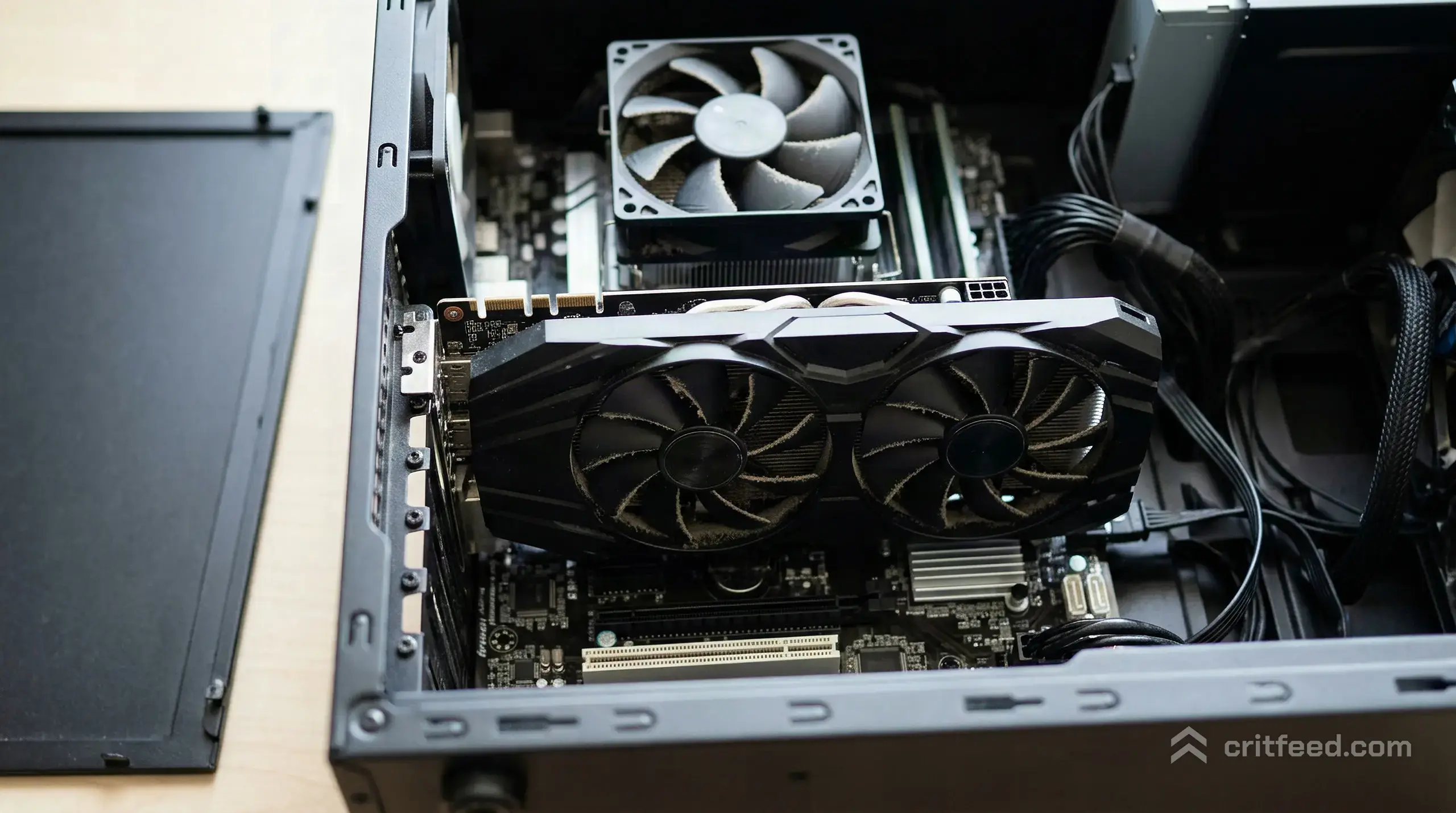
If you suspect driver corruption, run Display Driver Uninstaller (DDU) in Safe Mode, then reinstall the driver fresh. This fixes black screen issues that no in-Windows reinstall can touch.
Fix 4: Verify Game Files
A single corrupted file after a patch can cause the game to hang on a black frame.
- Steam > Library > right-click PUBG: BATTLEGROUNDS > Properties
- Select Installed Files
- Click Verify integrity of game files
Let it finish, even if it takes 20 minutes. Steam will redownload anything that’s broken.
Fix 5: Reinstall BattlEye
BattlEye initialises before PUBG hands rendering to your GPU. When it fails, you get a black screen with no error.
Navigate to:
C:\Program Files (x86)\Steam\steamapps\common\PUBG\TslGame\Binaries\Win64\BattlEyeRun Uninstall_BattlEye.bat, then Install_BattlEye.bat. Launch PUBG again, let the BattlEye service initialise, and the game should push through to the main menu.
Fix 6: Disable Fullscreen Optimisations and HDR
Windows’ fullscreen optimisations and HDR handoff can both cause PUBG to render to a black buffer on launch.
- Right-click TslGame.exe in the PUBG install folder (
...\TslGame\Binaries\Win64\TslGame.exe) - Select Properties > Compatibility
- Check Disable fullscreen optimizations
- Click Change high DPI settings and tick Override high DPI scaling behavior (Application)
- Apply and OK
If you use HDR, open Windows Settings > System > Display and turn Use HDR off before launching PUBG, then re-enable it inside the game.
Fix 7: Match Your Monitor Refresh Rate
A refresh rate mismatch between PUBG’s saved config and your monitor can produce a black screen with audio.
Edit:
C:\Users\\AppData\Local\TslGame\Saved\Config\WindowsNoEditor\GameUserSettings.ini Open it in Notepad and look for these lines:
ResolutionSizeX=1920ResolutionSizeY=1080
FullscreenMode=1
PreferredRefreshRate=60
Set FullscreenMode=2 (windowed) and PreferredRefreshRate to a value your monitor definitely supports (60 is safe). Save, set the file to Read-only, and launch the game.
Once you’re at the main menu, remove the Read-only flag and change settings normally.
Fix 8: Multi-Monitor and GPU Preference
If you run two or more displays, Windows sometimes sends PUBG’s output to the wrong one.
- Unplug secondary monitors and launch PUBG from your primary display only.
- Open Windows Settings > System > Display > Graphics. Find TslGame.exe and set it to High performance (your dedicated GPU) rather than Auto.
Laptops with hybrid graphics are especially prone to launching PUBG on the integrated GPU, which can hand you a black screen on startup.
Fix 9: Last-Resort Clean Install
If nothing above works, do a full reinstall. Uninstall PUBG through Steam, then delete these folders manually:
C:\Users\\AppData\Local\TslGame
C:\Program Files (x86)\Steam\steamapps\common\PUBG
Reinstall from Steam. This clears every stale config, cache and shader file.
Quick Reference Table
| Symptom | Most Likely Fix |
|---|---|
| Black screen with menu audio | Fix 1 (launch options) or Fix 7 (refresh rate) |
| Black screen, no audio, cursor visible | Fix 2 (overlays) or Fix 5 (BattlEye) |
| Crashes to desktop after black screen | Fix 3 (clean driver install) |
| Black screen only after a recent patch | Fix 4 (verify files) |
| Black screen on a laptop | Fix 8 (GPU preference) |
| Nothing above works | Fix 9 (clean reinstall) |
Settings Worth Dialling In Once You’re Back
Once your game loads cleanly, it’s worth checking that the rest of your setup is pulling its weight. Our guide to the best pubg settings covers graphics presets that stop issues like this coming back, and the pubg sensitivity breakdown helps you set DPI and in-game values together rather than fighting one with the other.
If you’re new to the game or came back after a long break, the pubg beginner guide walks through the essentials, and the pubg tips and tricks article is where to go once the basics click. Players rebuilding a stable setup around a reliable mouse will find solid picks in our best gaming mouse for pubg rundown.
The Bottom Line
A PUBG black screen on launch is almost always fixed by one of the first three steps: forcing a windowed resolution through Steam launch options, disabling overlays, or clean-installing your GPU driver. The deeper fixes exist for the stubborn cases, but you rarely need them.
If you work through this list in order, you’ll be back in the plane on Erangel before you’d have finished a full reinstall. The next time a patch drops, come back to Fix 4 first; verifying files after an update is the single habit that prevents most of these headaches.