
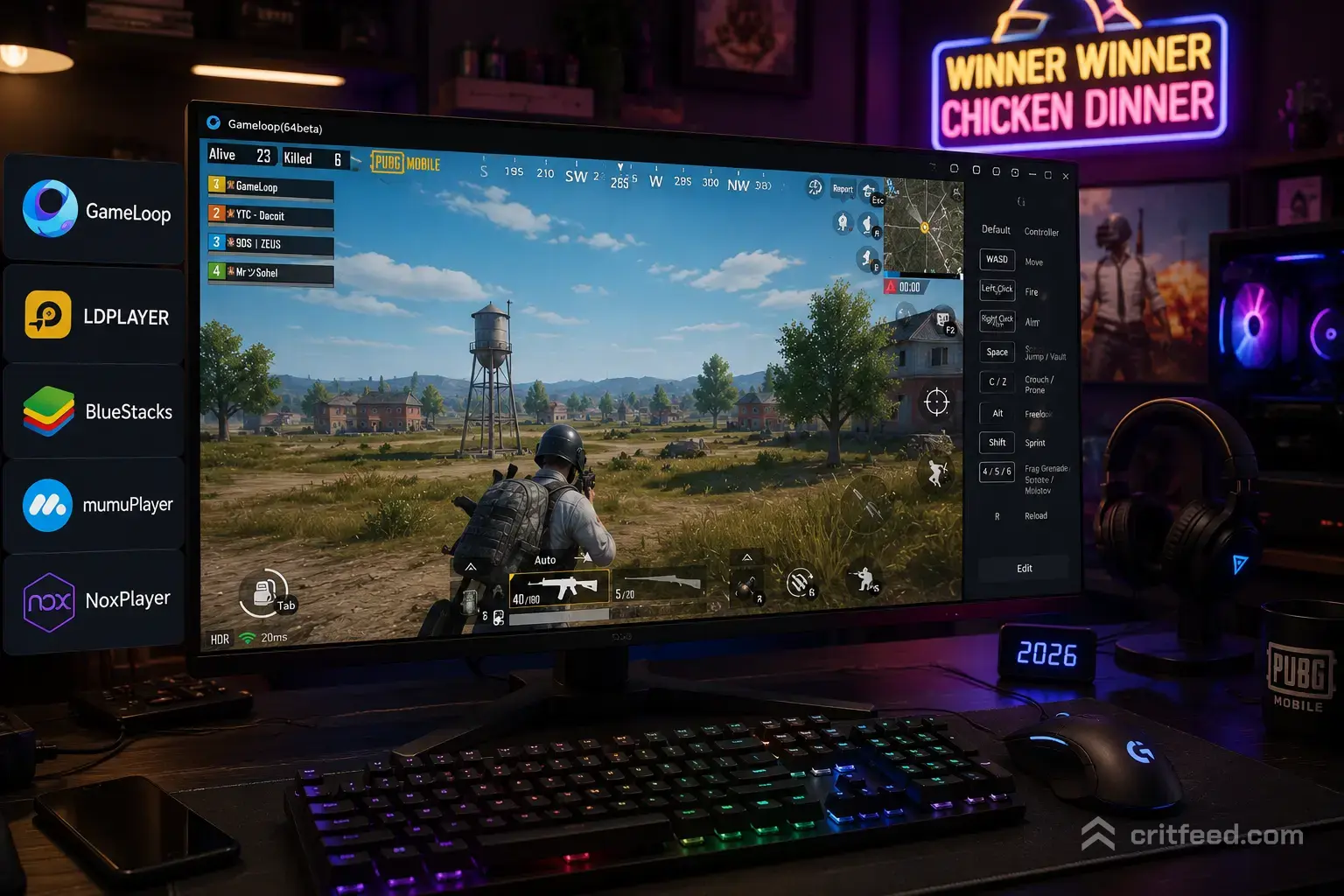
If you want the best emulator for PUBG Mobile on PC, the short answer is Gameloop for pure compatibility, and BlueStacks 5 if you want a smoother all-round experience. But there’s a big catch most guides skip: emulator players are matched only with other emulator players, not with phone users. We’ll break down what actually works, what the settings should look like, and what you’re giving up when you leave your phone behind.
Quick Answer: Which Emulator Wins?
Here’s how the main options stack up for PUBG Mobile in 2025.
| Emulator | Best For | Min RAM | Notes |
|---|---|---|---|
| Gameloop | Official support | 8 GB | Made by Tencent, native PUBG Mobile client |
| BlueStacks 5 | Smooth performance | 8 GB | Best keymapping, lighter than BlueStacks 4 |
| LDPlayer 9 | Low-end PCs | 4 GB | Android 9 build, decent FPS |
| MEmu Play | Older hardware | 4 GB | Aging but stable |
Our pick: Start with Gameloop if you want the cleanest install. Switch to BlueStacks 5 if Gameloop stutters on your rig.
Emulator Matchmaking: Read This First
Before you download anything, you need to know how PUBG Mobile treats emulator accounts.
- Emulator players queue only against other emulator players. You will not be pushed into lobbies with phone users
- Some cosmetics and events are limited or region-gated on emulator clients
- Anti-cheat is strict — running macros, scripts, or key sequences that fire multiple actions from one press will get you banned
If you already tier push on your phone and love it, jumping to PC changes your entire lobby pool. If you’re new, check our pubg mobile beginner guide before you decide which platform to grind on.
Gameloop: The Default Choice
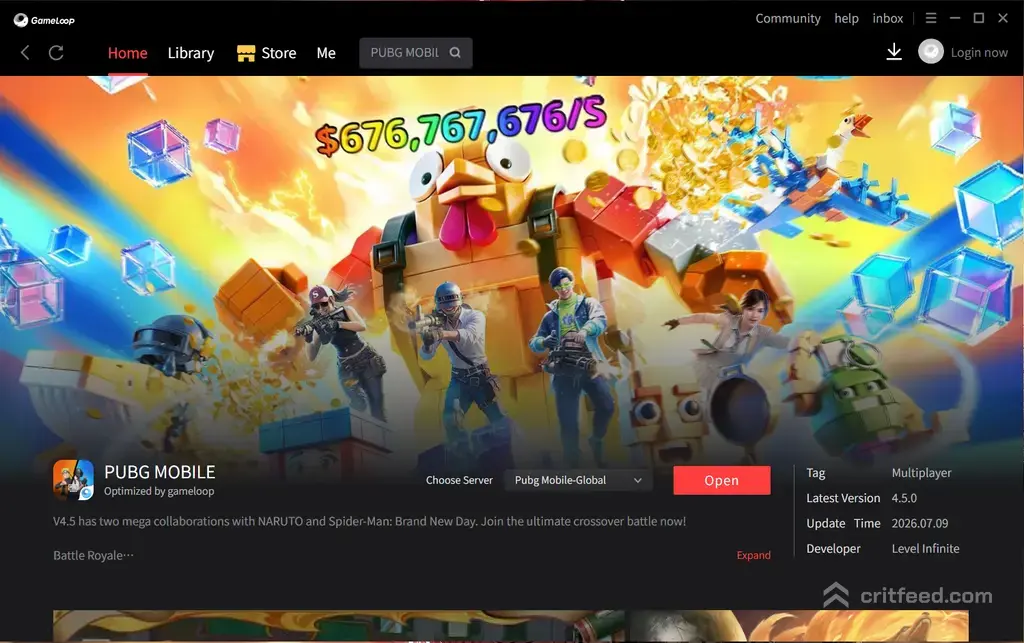
Gameloop is developed by Tencent, the studio behind PUBG Mobile. That’s its biggest advantage — the emulator and the game are built to work together.
Why it works:
- Official Tencent support means fewer update-day crashes
- Comes with a preset keymap tuned for PUBG Mobile
- Handles the HD graphics + Ultra frame rate combo on mid-range PCs
Minimum specs:
- Windows 10 (64-bit)
- Intel or AMD CPU with virtualization enabled
- 8 GB RAM
- 4 GB free disk space
- DirectX 11 GPU
Downsides: The launcher pushes ads and other Tencent games. Some users report input lag on newer Windows 11 builds — turn off “Windowed mode full-screen optimization” if you hit it.
BlueStacks 5: The Performance Pick
BlueStacks 5 rebuilt the engine from BlueStacks 4 and uses noticeably less RAM. If Gameloop feels heavy, this is where to go.
Strengths:
- Multi-instance manager (useful if you run a second account, within TOS)
- Precise keymapping editor — you can dial in ADS sensitivity per weapon
- Eco mode reduces CPU load during long queues
Recommended specs for smooth 60 FPS:
- 8 GB RAM (16 GB if you multi-instance)
- SSD strongly recommended
- GPU with 2 GB VRAM minimum
BlueStacks also handles a plugged-in gamepad well, though PUBG Mobile’s official controller support is limited. See our full breakdown of pubg mobile controller support before you buy any accessory.
LDPlayer 9 and MEmu: The Budget Options
If your PC has 4 GB of RAM and an older CPU, Gameloop and BlueStacks will chug. LDPlayer 9 runs on a lighter Android 9 build and is the practical fallback.
- LDPlayer 9: Better FPS on integrated graphics. Keymap presets for PUBG Mobile ship out of the box
- MEmu Play: Even lighter, but the UI feels dated and updates lag behind the others
Neither will match Gameloop for compatibility on patch day, but they’ll get you into a match.
Recommended In-Game Settings on Emulator
Emulator lobbies are competitive because everyone has a mouse and keyboard. Turn your visual settings down, not up, if you want to win fights.
| Setting | Recommended Value |
|---|---|
| Graphics | Smooth or Balanced |
| Frame Rate | Ultra (or highest available) |
| Style | Classic |
| Anti-aliasing | Off |
| Shadows | Off |
| Auto-adjust graphics | Off |
Mouse sensitivity note: Emulators use mouse input, not gyroscope, so all your phone sensitivity work doesn’t carry over. Start with 3rd person camera at 100%, ADS at 50%, and adjust from there. Our full pubg mobile tips and tricks guide covers ranked-push habits that apply to both platforms.
Keymapping: The One Setting That Matters
Default keymaps are close but not perfect. These are the changes we’d make first:
- Q / E — lean left / lean right (huge in TDM and close-range)
- Middle mouse — throw grenade (faster than scrolling)
- V — swap sights (if you carry a red dot and a 4x)
- Alt (hold) — free look while running
- C — prone, Ctrl — crouch
Do not bind macros. A single key firing multiple in-game actions is what gets accounts flagged.
What You Give Up Leaving Mobile
Playing on PC through the best emulator for PUBG Mobile is not a straight upgrade. Here’s the honest trade-off:
- No gyroscope. Advanced recoil control from a phone doesn’t transfer
- Separate lobby pool. You’re now against other mouse-and-keyboard players
- Some seasonal events run differently or not at all on the emulator client
- Skins earned on your phone show up, but new drops sometimes take longer to appear. If you’re chasing something like the m416 glacier, pull it on the account you play most
The Bottom Line
Gameloop is still the safest default because Tencent builds it. BlueStacks 5 wins if you have the RAM and want cleaner keymapping. LDPlayer is a real option for weaker PCs.
The bigger decision is not which emulator — it’s whether emulator play fits how you want to compete. If you follow the pubg mobile esports nations cup and dream of that stage, note that competitive PUBG Mobile is played on phones and tablets, not emulators.
Pick the emulator that runs cleanly on your hardware, keep macros off, and treat the emulator lobby as its own game mode.