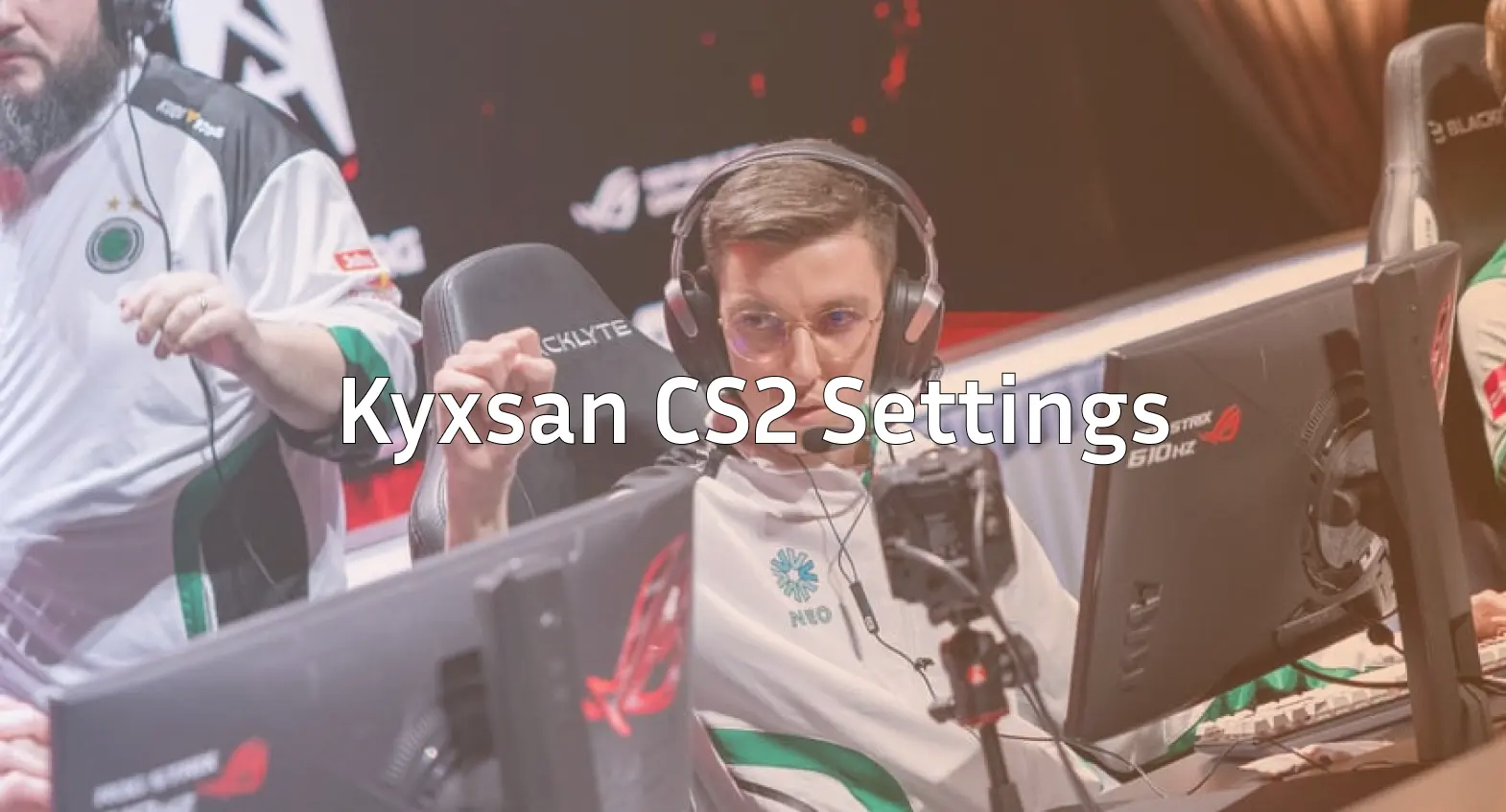
Rasmus “Kyxsan” Kyxsansen has established himself as one of the most cerebral in-game leaders in professional Counter-Strike. If you’re searching for Kyxsan CS2 settings to elevate your gameplay, you’ve found the complete breakdown of his mouse, video, crosshair, and viewmodel configurations.
Known for his tactical approach and clutch performances, Kyxsan’s settings prioritize clarity, consistency, and precision exactly what you need to compete at higher levels.

Kyxsan’s Mouse Settings
Mouse settings form the foundation of your aim. Kyxsan uses a relatively low sensitivity setup, which is standard among professional players for precise micro-adjustments.
| Setting | Value |
|---|---|
| DPI | 800 |
| In-Game Sensitivity | 1.00 |
| eDPI | 800 |
| Zoom Sensitivity | 1.00 |
| Hz (Polling Rate) | 1000 |
| Windows Sensitivity | 6 |
| Raw Input | On |
| Mouse Acceleration | Off |
His eDPI of 800 sits in the middle range for pros—low enough for precision with rifles like the AK-47 and M4A1-S, yet high enough for quick flicks when needed.
Key takeaway: Always disable mouse acceleration and enable raw input for consistent muscle memory.
Video Settings
Kyxsan prioritizes maximum visibility and frame rate over visual fidelity. Here’s his complete video configuration:
| Setting | Value |
|---|---|
| Resolution | 1920×1080 |
| Aspect Ratio | 16:9 |
| Scaling Mode | Native |
| Display Mode | Fullscreen |
Advanced Video Settings
| Setting | Value |
|---|---|
| Boost Player Contrast | Enabled |
| V-Sync | Disabled |
| NVIDIA Reflex Low Latency | Enabled |
| Multisampling Anti-Aliasing | 4x MSAA |
| Global Shadow Quality | High |
| Model/Texture Detail | Low |
| Texture Filtering Mode | Bilinear |
| Shader Detail | Low |
| Particle Detail | Low |
| Ambient Occlusion | Disabled |
| High Dynamic Range | Performance |
| FidelityFX Super Resolution | Disabled |
Playing on native 1920×1080 gives Kyxsan the widest field of view and sharpest enemy models. Many IGLs prefer this resolution because it helps with reading the entire battlefield during executes.
Boost Player Contrast is essential it makes enemies stand out against backgrounds on maps like Mirage and Inferno. If you’re learning CS2 maps, this setting dramatically improves target acquisition.
Kyxsan’s Crosshair Settings
A clean, static crosshair helps Kyxsan maintain focus during intense firefights. His crosshair is small, centered, and distraction-free.
| Setting | Value |
|---|---|
| Style | Classic Static |
| Color | Green (1) |
| Size | 2 |
| Thickness | 0 |
| Gap | -3 |
| Outline | Yes |
| Outline Thickness | 1 |
| Center Dot | No |
| Sniper Crosshair | No |
Crosshair Code
Copy and paste this into your console:
cl_crosshair_drawoutline 1; cl_crosshair_outlinethickness 1; cl_crosshaircolor 1; cl_crosshairgap -3; cl_crosshairsize 2; cl_crosshairstyle 4; cl_crosshairthickness 0; cl_crosshair_sniper_width 1The negative gap pulls the crosshair lines closer together, creating a tighter reference point for headshots. This works exceptionally well when holding angles or tapping with the Desert Eagle.
Viewmodel Configuration
Kyxsan uses a viewmodel that keeps his weapon model out of the way while maintaining good visual feedback.
| Setting | Value |
|---|---|
| Viewmodel FOV | 68 |
| Viewmodel Offset X | 2.5 |
| Viewmodel Offset Y | 0 |
| Viewmodel Offset Z | -1.5 |
| Viewmodel Presetpos | 3 |
| Bob | Disabled |
Viewmodel Commands
viewmodel_fov 68; viewmodel_offset_x 2.5; viewmodel_offset_y 0; viewmodel_offset_z -1.5; viewmodel_presetpos 3; cl_bob_lower_amt 5; cl_bobamt_lat 0.1; cl_bobamt_vert 0.1The “couch” preset (3) positions the weapon lower on screen, maximizing your view of enemy positions. Combined with reduced bob values, your screen stays stable during movement.

Radar Settings
As an IGL, Kyxsan relies heavily on radar information to track teammate positions and coordinate strategies.
| Setting | Value |
|---|---|
| Radar Centers Player | Yes |
| Radar Rotation | Yes |
| Radar Size | 1.0 |
| Radar Map Zoom | 0.5 |
| Radar HUD Size | 1.1 |
A zoomed-out radar (0.5) shows the entire map, crucial for calling rotations and reading enemy positions. This becomes invaluable when climbing CS2 ranks and developing game sense.
Kyxsan’s Keybinds
Efficient keybinds separate good players from great ones. Here are Kyxsan’s essential binds:
| Action | Key |
|---|---|
| Jump | Space / Scroll Wheel |
| Duck | Ctrl |
| Walk | Shift |
| Use | E |
| Drop Weapon | G |
| Inspect Weapon | F |
| Quick Switch | Q |
For jump-throw binds and other advanced configurations, check out our complete CS2 binds guide.
Hardware & Gear
Professional performance requires professional equipment. Here’s what Kyxsan uses:
| Component | Product |
|---|---|
| Mouse | Logitech G Pro X Superlight |
| Mousepad | Logitech G640 |
| Keyboard | Logitech G Pro X |
| Monitor | BenQ ZOWIE XL2546K (240Hz) |
| Headset | Logitech G Pro X |
The 240Hz monitor is non-negotiable at the pro level—it provides smoother visuals and reduced input lag compared to standard 60Hz or 144Hz displays.
How to Apply These Settings
Follow these steps to implement Kyxsan’s configuration:
- Launch CS2 and open the settings menu
- Copy mouse settings exactly DPI must be set in your mouse software
- Apply video settings and restart the game
- Paste crosshair code into the console (enable developer console first)
- Enter viewmodel commands in console
- Save your config using the
host_writeconfigcommand
Need help finding your config file? Our CS2 config location guide walks you through the process.
Tips for Using Pro Settings
Copying Kyxsan’s settings won’t instantly make you an IGL mastermind, but they provide a proven foundation for improvement.
Sensitivity adjustment: If 800 eDPI feels too slow, increase gradually in increments of 50 eDPI until comfortable. Never change sensitivity mid-session.
Resolution choice: Native 1080p requires a capable GPU. If you’re dropping below 200 FPS, consider 1280×960 stretched as an alternative.
Practice consistently: Use CS2 practice commands to warm up with your new settings before jumping into competitive matches.
Final Thoughts
Kyxsan’s CS2 settings reflect his methodical, precision-focused playstyle. The combination of low sensitivity, native resolution, and a minimal crosshair creates an optimal environment for tactical play and clutch situations.
While settings matter, remember that game sense, positioning, and communication ultimately determine your success. Use this configuration as your starting point, then refine based on your personal preferences.