
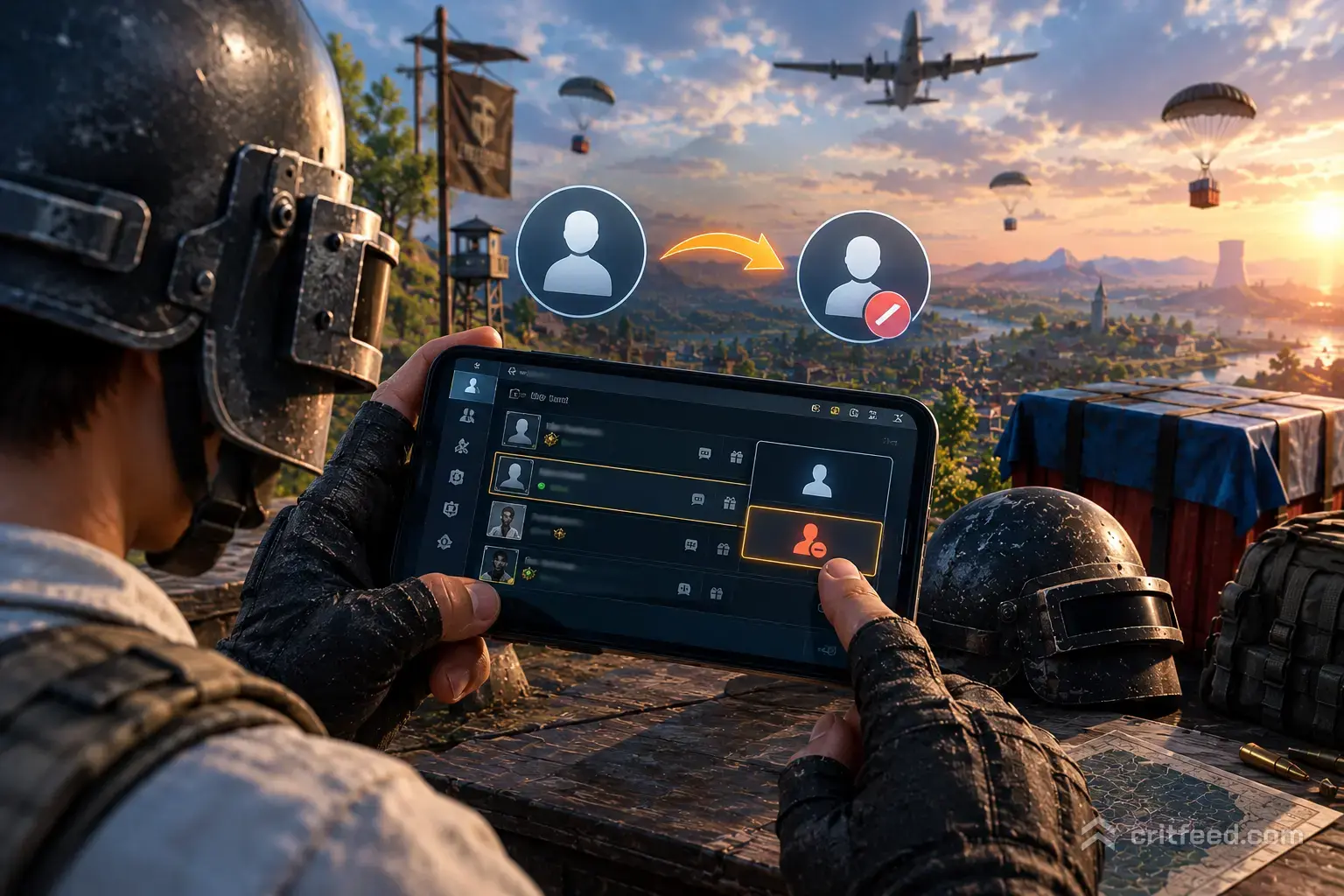
Your BGMI friends list is packed, your invite spam is endless, and half the names are people you added for one classic squad match months ago. If you want to know how to unfriend in BGMI, the process takes about 15 seconds once you know where to tap — and we’ll walk you through every step, plus the block and report options most guides skip.
How to Unfriend in BGMI (Fastest Method)
The unfriend button lives inside the Friends panel on the lobby screen. You don’t need to open settings, and you don’t need to be in a match.
Here’s the exact path:
- Launch BGMI and wait until you’re on the main lobby screen.
- Tap the Friends icon (the two-person silhouette on the right side of the lobby).
- Open the Friends tab at the top of the panel.
- Tap the name of the friend you want to remove.
- A profile card will pop up — tap the three-dot menu (⋮) in the top-right corner of that card.
- Select Delete Friend (some devices show it as “Unfriend”).
- Confirm by tapping OK.
That’s it. The player is gone from your list, and you’ll disappear from theirs too. BGMI does not send a notification when you unfriend someone, so the removal is silent.
How to Unfriend Multiple Friends at Once
If you’re cleaning house after a long break, tapping profiles one-by-one is painful. BGMI has a bulk option hidden in the same Friends panel.
- Open the Friends tab.
- Tap the Manage or Edit icon (usually a pencil or gear at the top of the list).
- Select the checkboxes next to every player you want to remove.
- Tap Delete at the bottom and confirm.
This is the fastest way to clear out inactive accounts and old squad fillers in one go.
How to Block a Player in BGMI
Unfriending removes someone from your list, but it doesn’t stop them from adding you again or messaging you. If a player is toxic, spam-inviting, or someone you never want to hear from, block them instead.
To block:
- Tap the player’s name anywhere in-game (lobby, chat, or match result screen).
- Open the three-dot menu on their profile card.
- Select Add to Blocklist.
- Confirm the action.
Blocked players cannot:
- Send you friend requests
- Message you in private chat
- Invite you to rooms or squads
You can manage your blocklist under Settings → Basic → Blocklist, where you can also unblock players later.
Unfriend vs Block vs Report — Which Should You Use?
New players often confuse these three options. Here’s a quick breakdown so you pick the right one.
| Action | What It Does | When to Use |
|---|---|---|
| Unfriend | Removes player from your Friends list | Cleaning inactive friends, decluttering |
| Block | Prevents all contact, blocks re-adding | Toxic players, spam invites, harassment |
| Report | Sends complaint to Krafton for review | Cheaters, hackers, verbal abuse, teaming |
Reporting is a separate action from blocking. You can report a player through the death cam after a match or from their profile card by tapping Report and choosing a reason (cheating, verbal abuse, teamkilling, etc.).
How to Manage Friend Requests
If you’re getting flooded with random invites after a good match, you can tighten your privacy so fewer strangers add you in the first place.
- Go to Settings → Basic.
- Scroll to Privacy Settings.
- Set Friend Requests to Ask Me First or Friends Only.
You can also turn off “Show me in Recently Played” so opponents from public matches can’t find your profile.
Common Questions About Unfriending in BGMI
Does the other player know I unfriended them?
No. BGMI sends no notification. They’ll only find out if they check their own Friends list.
Can I re-add someone I unfriended?
Yes. Search their in-game ID or name from the Add Friend screen and send a new request.
What happens to our chat history?
Private chats with an unfriended player are cleared from your chat panel. Screenshots you took are still on your device.
Will unfriending affect my Synergy points?
Any synergy or partner points tied to that player will be lost. If you’re grinding a partner mission, finish it before you unfriend.
Can I unfriend someone who is offline?
Yes. Online status doesn’t matter — the delete action works either way.
Keep Your Lobby Clean
A tidy Friends list means faster squad invites, less spam, and no more scrolling past accounts you don’t recognize before a pubg mobile ranks push. If you’re still setting up your account, our pubg mobile beginner guide covers the essentials new players miss.
Want to freshen up your profile after the cleanup? Check our walkthrough on how to change name in pubg mobile, or grind for that legendary m416 glacier skin. And if you’re looking to save on cosmetics, our guide on how to get free uc in pubg mobile is worth a read.
The Bottom Line
Unfriending in BGMI takes four taps: Friends icon → player name → three-dot menu → Delete Friend. Use block for toxic players and report for cheaters — they’re not the same tool. Your Friends list is your lobby’s front door, so keep it curated.