
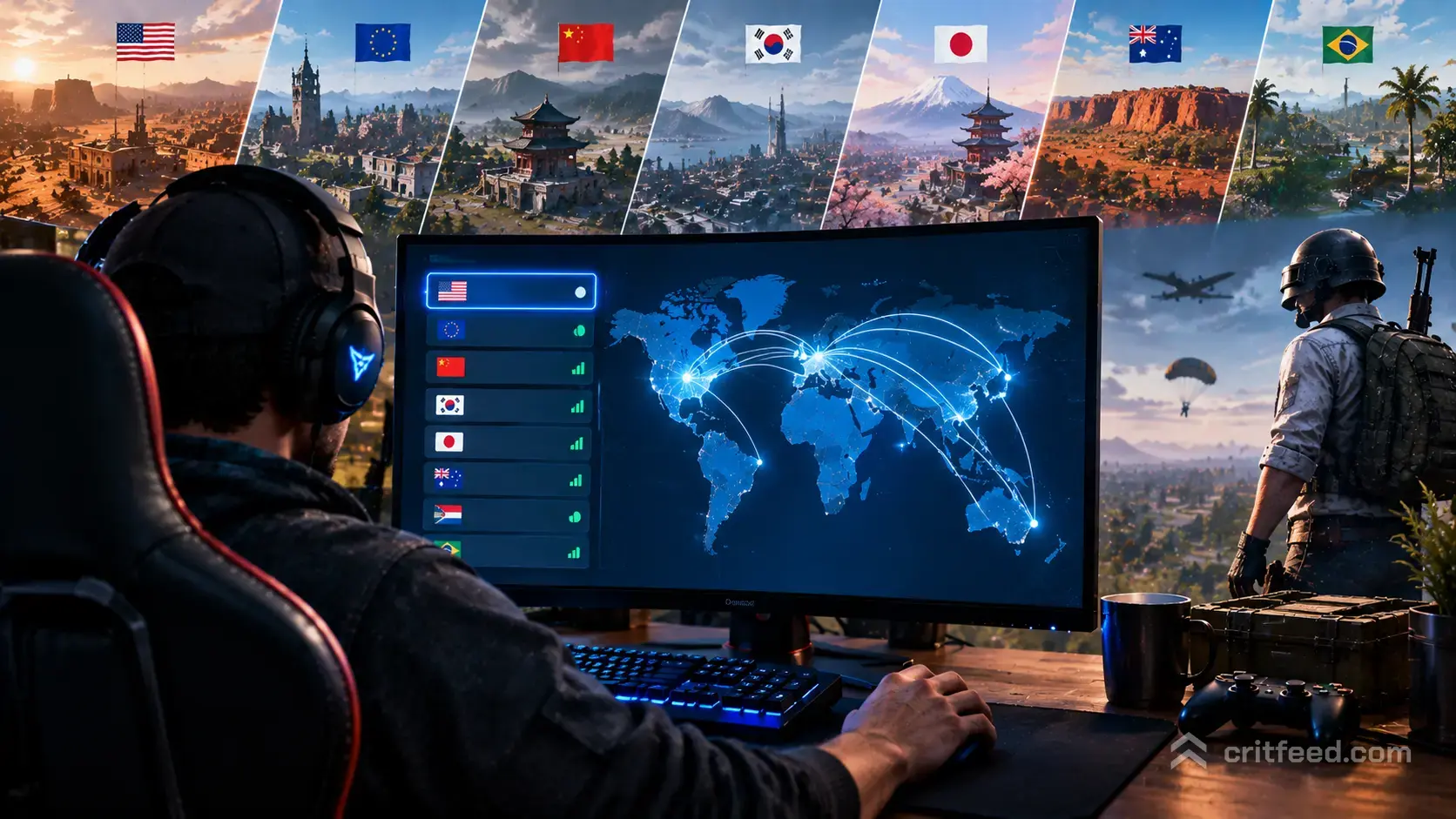
If you keep landing in lobbies full of players a continent away, learning how to change server in PUBG is the fastest fix for your ping, your aim, and your sanity. On PC, PUBG: BATTLEGROUNDS routes you to a region automatically based on your connection, and if that choice is wrong you get rubber-banding, delayed hit registration, and lost gunfights that were never fair to begin with.
The good news: you can override it. The not-so-good news: Krafton does not expose a one-click “change region” button inside the game the way some titles do. We will walk you through every working method, from in-game matchmaking filters to the Steam-level tricks that actually force a new region.
Can You Change Your Server in PUBG PC?
Short answer: yes, but not from a drop-down menu. PUBG PC assigns your matchmaking region based on your network, and the client does not include a traditional “server select” screen the way the mobile version does.
What you can control on PC:
- Matchmaking region filter inside the Play menu (lets you queue into specific regional pools when matchmaking allows it)
- Your actual network route (via VPN) to force the client to connect to a different regional data centre
- Steam download region, which affects patches but not matchmaking
If you are coming from PUBG Mobile and expecting an “NA / EU / SEA / KRJP” tap-to-switch button, that interface does not exist on the PC version. The methods below are the real options.
Method 1: Change Your Matchmaking Region In-Game
This is the first thing you should try, and most players never realise it is there.
- Launch PUBG: BATTLEGROUNDS from Steam
- On the main lobby, open the Play menu
- Look for the region/server selector near the game mode and map selection panels
- Pick the region you want to queue in (available options typically include North America, Europe, Asia, KRJP, SEA, and South America, depending on game mode)
- Confirm, then queue as normal
Important caveats:
- Not every mode supports every region. Ranked in particular locks you to your home region to protect the integrity of pubg ranks and prevent cross-region boosting.
- Queue times get longer the further you travel. Picking SEA from Europe at 03:00 local time might leave you waiting several minutes.
- Casual queues like pubg casual mode and training are often restricted to your detected region only.
Method 2: Use a VPN to Force a New Region
If the in-game filter does not offer what you want, or you are travelling and the client has locked you to a region you dislike, a VPN is the reliable workaround.
How It Works
PUBG’s client checks your IP address to decide which regional server cluster is closest. Route your traffic through a VPN endpoint in a different country, and the client thinks you are physically there.
Step-by-Step
- Install a reputable VPN with servers in your target region (free VPNs typically have too much packet loss for a competitive shooter)
- Fully close PUBG and the Steam client
- Connect to a VPN server in the region you want (for example, a Tokyo endpoint for KRJP or Frankfurt for EU)
- Relaunch Steam, then PUBG
- Check the region indicator in the lobby to confirm the switch
VPN Trade-offs
| Factor | Impact |
|---|---|
| Ping | Will be higher than your true home region, almost always |
| Packet loss | Depends entirely on VPN quality |
| Account safety | Krafton’s terms discourage region manipulation; use at your own risk |
| Ranked eligibility | Often blocked or reset when connecting from a mismatched region |
A VPN is best used for playing with friends in another region or escaping a quiet queue, not for climbing the ladder.
Method 3: Change Your Steam Download Region (Patches Only)
This one gets confused with server changing all the time, so we will clear it up.
Steam’s Download Region setting only controls where you pull game files from. It has zero effect on which PUBG matchmaking server you connect to.
To change it anyway (useful during a slow patch day):
- Open Steam > Settings > Downloads
- Click the Download Region drop-down
- Pick a region closer to you or with less congestion
- Click OK and restart Steam
Use this when a new patch is crawling, or when you are grabbing the pubg experimental server build and want faster downloads. Do not expect it to change your in-match ping.
Which Server Should You Pick?
Choosing a region is about more than geography. Each cluster has its own flavour.
| Region | Typical Strength | Watch Out For |
|---|---|---|
| KRJP | Fastest average TTK, aggressive drops, strong Taego meta | Highest skill floor, brutal for newcomers |
| Asia (AS) | Huge player base, varied playstyles | Hacker reports have historically been higher |
| North America (NA) | Balanced aggression, strong vehicle play | Lower population in off-peak hours |
| Europe (EU) | Methodical rotations, strong late-circle play | Longer average match length |
| SEA | Fast lobbies, high-octane fights | Variable ping across the region |
| South America (SA) | Growing scene, less saturated | Smallest player pool, longer queues |
If you are new to the game, stay on your home region and work through our pubg beginner guide before chasing a specific meta.
Troubleshooting: Server Won’t Change or Match Won’t Start
Changed regions and something is broken? Run through this list.
- Full client restart. The region check happens at launch. Changing a VPN mid-session does nothing.
- Flush your DNS. Open Command Prompt as admin and run:
ipconfig /flushdns- Check for ongoing pubg server maintenance. Regional downtime is the single most common reason a server appears “missing” from your list.
- Verify game files through Steam if the lobby refuses to load after a region switch.
- Disable overlays (Discord, GeForce Experience, MSI Afterburner) that can conflict with region handshakes.
Does Changing Server Affect Your Rank or Stats?
Yes, and this part matters.
- Ranked progress is region-locked. Your rating in NA does not travel with you to EU. You start a fresh climb in each region you queue in.
- Normal match stats generally pool together, but regional leaderboards are separate.
- Reports and penalties follow your account, not your region. If you spot wall-hackers abroad, use the in-game pubg report tool exactly as you would at home. Our breakdown of how PUBG handles pubg cheaters covers what happens next.
Playing With Friends in a Different Region
The most common reason people search how to change server in PUBG is simple: a friend lives in another country and the game keeps splitting the squad.
The workaround:
- The player with the better connection flexibility (or a VPN) switches to the other region
- Party up in the lobby
- Queue together in Normal matches (Ranked almost always refuses mixed-region parties)
Expect one of you to play on noticeably worse ping. Pick maps that forgive it: slower, long-sightline rotations on Miramar or Erangel are kinder to a 150-ping player than close-quarters fights on Sanhok or Karakin.
The Bottom Line
On PUBG PC today, there is no single “change server” button. You pick a region through the in-game matchmaking filter where the mode allows it, or you reroute your connection with a VPN when it does not. Steam’s download region only affects patch speed, not matches.
Open questions that depend on your account and region:
- Whether Ranked will let you queue in a non-home region at all (varies by season and mode)
- Whether your preferred region supports every map rotation, including rarer picks like Paramo or Karakin
- Whether VPN usage will flag your account under current Krafton policy
If anything in that list changes with a future update, we will refresh this page.
Final Thoughts
Switching regions is a tool, not a shortcut. Use it to play with friends, escape dead queues, or sample the KRJP meta on a quiet night, but keep your Ranked climb on your home server where your ping is honest. If you want to make the most of whatever region you land in next, our round-up of pubg tips and tricks and the pubg best weapons and attachments guide will get you ready for the first drop.