
Nothing kills a tier push faster than PUBG Mobile crashing right as the plane drops over Erangel. If your game is freezing, closing to the home screen, or kicking you mid-fight, the fix is almost always on your device, not the servers. We will walk you through the exact steps that stop crashes on Android and iOS, in the order you should try them.
Why PUBG Mobile Keeps Crashing
Crashes come from a short list of causes. Knowing which one you are dealing with saves you from reinstalling for no reason.
- Not enough free RAM because too many apps are running in the background
- Low storage on the device (the game needs headroom to cache map data)
- Graphics settings too high for your phone’s chipset or thermal limits
- Corrupted resource files from a bad update or a dropped download
- Overheating throttling the CPU and GPU until the app force-closes
- Outdated OS or outdated game client
- Unstable network that disconnects you right as a match loads
Most “random” crashes are actually one of the top three. Start there before you nuke the install.
Quick Fixes to Try First
Run these in order. Each takes less than a minute and solves most cases of PUBG Mobile crashing on both Android and iPhone.
- Close every background app. Swipe them away from the recents tray. Music, chat and browser tabs all steal RAM.
- Restart the phone. A full power cycle clears memory leaks that a swipe-away does not.
- Check free storage. Keep at least 3-4 GB free. The game caches assets as you move around the map.
- Update the game from Google Play or the App Store. Old builds crash on new resource packs.
- Update your OS. iOS and Android security patches often fix the graphics driver bugs that take the game down.
- Toggle off Wi-Fi and back on, or switch to mobile data for one match. Rules out a flaky router.
If the game still closes, move on to the deeper fixes below.
Lower Your Graphics Settings
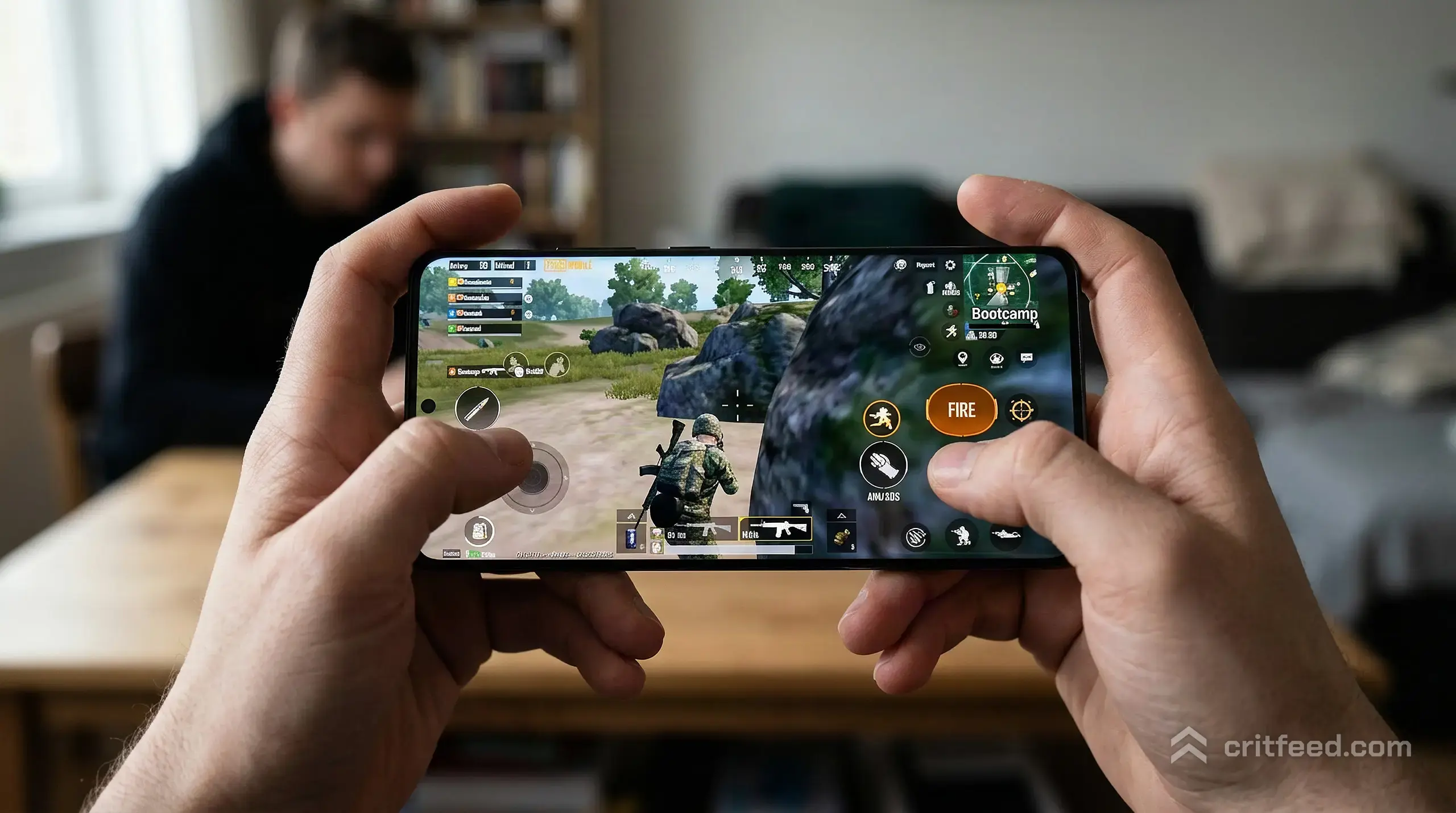
Pushing Ultra frame rate on a mid-range phone is the single most common reason PUBG Mobile keeps crashing. The chipset heats up, throttles, and the game dies.
Open Settings > Graphics inside the game and try this safe baseline first:
| Setting | Mid-range phone | Flagship phone |
|---|---|---|
| Graphics | Smooth | Balanced or HD |
| Frame Rate | Ultra | Extreme (or higher if available) |
| Style | Classic | Classic |
| Anti-Aliasing | Off | Off for ranked, On for casual |
| Shadows | Off | Off (gives a slight visibility edge too) |
Smooth + Ultra beats HD + High nine times out of ten for stability and aim. If crashes stop at Smooth, you can nudge quality back up one notch at a time.
Turn off Auto-Adjust Graphics so the game stops swinging settings around mid-match. For more frame-rate wins, our guide on how to reduce lag in pubg mobile matches covers the exact HUD and background tweaks that pair with this.
Free Up Storage and RAM
The game writes temporary files constantly. Low storage is a silent killer.
- Delete unused apps and old videos. Aim for 15% of total storage free.
- Clear the game’s cache. On Android: Settings > Apps > PUBG Mobile > Storage > Clear Cache. On iOS, offloading the app and reinstalling is the equivalent.
- Disable high-RAM apps at startup: cloud photo sync, screen recorders, overlays and launchers.
- Turn off power-saving mode during matches. It caps the CPU and causes random freezes that look like crashes.
If your device has only 4 GB of RAM, expect the game to kill itself when you alt-tab to reply to a message. Treat PUBG Mobile as the only app running.
Fix Crashes at Launch or on the Loading Screen
If PUBG Mobile crashes before you even reach the lobby, the problem is almost always files, not performance.
Repair the Resource Pack
- Launch the game and let it reach the main menu (if it can).
- Go to Settings > Basic > Download Resource Package.
- Delete and redownload only the pack you use (Low-spec or HD).
- Restart the game.
Clear App Data (Android)
This logs you out but keeps your account safe since progress is server-side.
- Settings > Apps > PUBG Mobile > Storage > Clear Data
- Relaunch and sign in with the same linked account (Google, Facebook, X, etc.)
Reinstall the Game
If nothing else works, uninstall and reinstall. Link your account first. Open the game, tap your profile, and bind at least one social login so your progress, UC and Royale Pass items survive the wipe.
Stop the Phone From Overheating
Thermal throttling is the hidden cause of most “random” mid-match crashes. The game runs fine for 10 minutes, then closes right as a fight starts. That is heat.
- Take the case off during long sessions. Cases trap heat against the back glass.
- Do not charge while playing. The battery heats the chipset directly.
- Play away from direct sunlight and off soft surfaces like beds and sofas.
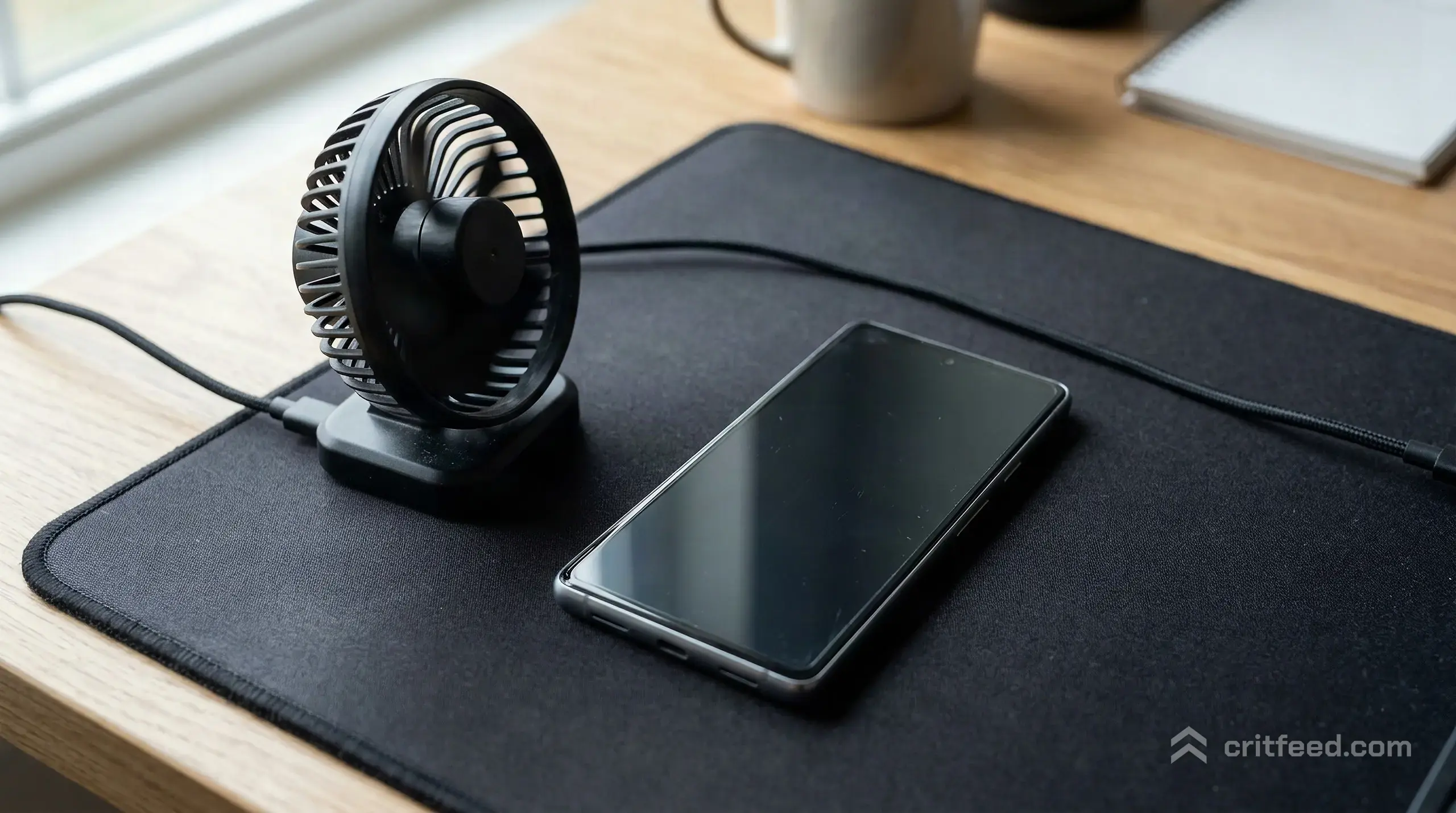
- Use a clip-on cooler fan if you grind ranked for more than an hour at a time.
- Lower frame rate by one step on hot days. Extreme to Ultra drops thermals noticeably.
Tablet players are not immune. An iPad can throttle hard after 45 minutes of HDR + Extreme, so if you are picking a device for serious play, check our list of the best ipad for pubg mobile for models that hold frame rate under load.
Network Issues That Look Like Crashes
A sudden disconnect that boots you to the lobby is not technically a crash, but it feels like one and costs you the same rating. Fix it the same way:
- Switch regions only if you have high ping to the default one. Wrong region means packet loss.
- Avoid 2.4 GHz Wi-Fi when a 5 GHz network is available.
- Disable VPNs unless you need one for regional access. If you do, a quality service matters, see our picks for the best vpn for pubg mobile.
- Turn off auto-updates on other devices on the same network during matches.
If the Return to Game prompt keeps appearing, your connection is the problem, not the client.
Device-Specific Tips
Android
- Turn on Game Mode or Game Booster in settings. Samsung, Xiaomi and OnePlus all have one, and they genuinely help.
- Disable Developer Options > Force 4x MSAA. It tanks performance and can crash the game.
- Avoid custom launchers with heavy animations during play.
iOS
- Keep Background App Refresh off for apps you do not need live.
- Turn off Low Power Mode before launching.
- If you updated iOS and crashes started that day, wait for the next point release. Apple graphics driver bugs on fresh major versions are common.
When Nothing Works
If you have tried every fix and PUBG Mobile is still crashing, two things are left.
- Submit a ticket in-game. Settings > Basic > Customer Service > scroll to Game Crashes. Attach your device model, OS version and the time of the last crash. The support team can check server-side logs tied to your account.
- Factory reset is a last resort and almost never needed. Try a clean reinstall after a full phone restart first.
New to the game and already fighting technical gremlins? The pubg mobile beginner guide will get the fundamentals locked in while you sort stability out, and pubg mobile tips and tricks has small habits that matter once the game stops closing on you.
The Bottom Line
PUBG Mobile crashing is almost always a device problem, not a bad client. Free up storage, drop graphics to Smooth + Ultra, kill background apps, and keep the phone cool. Those four changes stop the overwhelming majority of crashes before you ever need to reinstall. If a specific update breaks things for everyone, Krafton usually ships a hotfix within a few days, so update the moment one lands.