
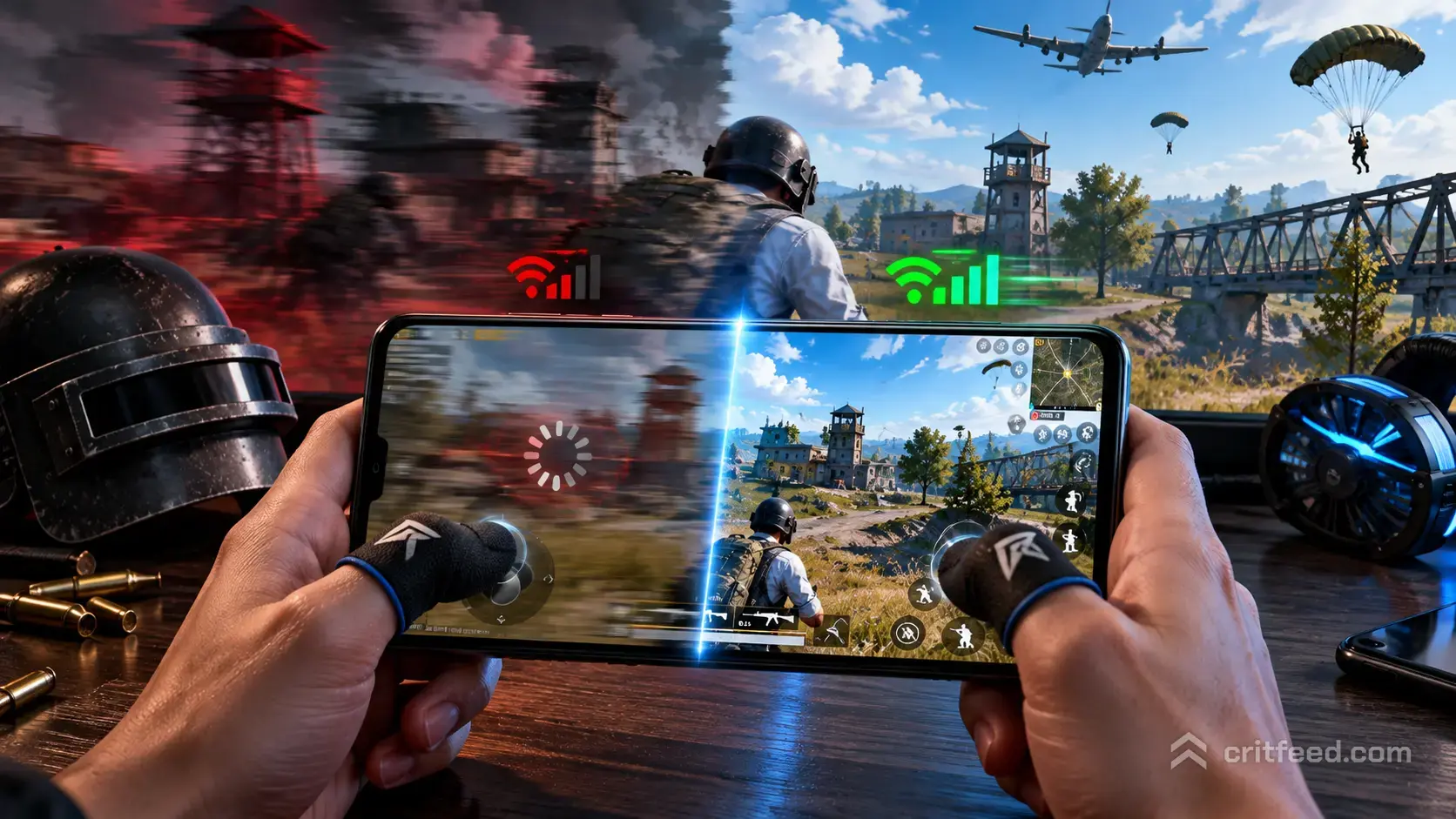
You line up a clean headshot in the final circle, the screen stutters, and your character teleports back ten meters. If you want to know how to reduce lag in PUBG Mobile matches, the first step is realizing not all lag is the same. Network lag, FPS drops, and desync each have different causes, and the wrong fix wastes your time while your rank slides.
This guide breaks lag into three categories, shows you how to diagnose which one you have, and gives you the exact fixes that work on both Android and iPhone.
The Three Types of Lag in PUBG Mobile
Before you touch any setting, figure out what you are actually fighting. Chasing the wrong cause is why most guides never solve the problem.
| Problem Type | Common Symptoms | Root Cause |
|---|---|---|
| Network Lag | Rubberbanding, delayed shots, “reconnecting” message, enemies teleporting | High ping, packet loss, unstable routing |
| FPS Drops | Visual stutter, frozen frames, slideshow feel during fights | Overheating device, CPU/GPU bottleneck |
| Desync | Bullets not registering, dying behind cover, hit markers but no damage | Mismatch between client and server state |
The quick test: open the match with the ping and FPS indicator turned on (Settings → Basic → Display → Network Latency and Device Info). If ping spikes while FPS stays stable, it is a network problem. If FPS tanks while ping holds steady, it is your device. If both look fine but you still die behind walls, that is desync.
Fix Network Lag and High Ping
Network lag is the most common and the most fixable. Here is the order to attack it in.
1. Pick the Right Server
PUBG Mobile matches you to a server based on your account region, not your physical location. If you are on the wrong one, your ping will never be good.
- Asia server for South and Southeast Asia
- KRJP for Korea and Japan
- North America for US and Canada
- Europe for EU players
- South America for Brazil and nearby
Rule of thumb: anything under 60 ms is competitive. 60-100 ms is playable. Over 120 ms and you will lose gunfights you should win.
2. Switch From Wi-Fi to Mobile Data (or Vice Versa)
If your home Wi-Fi runs on 2.4 GHz, every microwave and neighbor is sharing your channel. Try these in order:
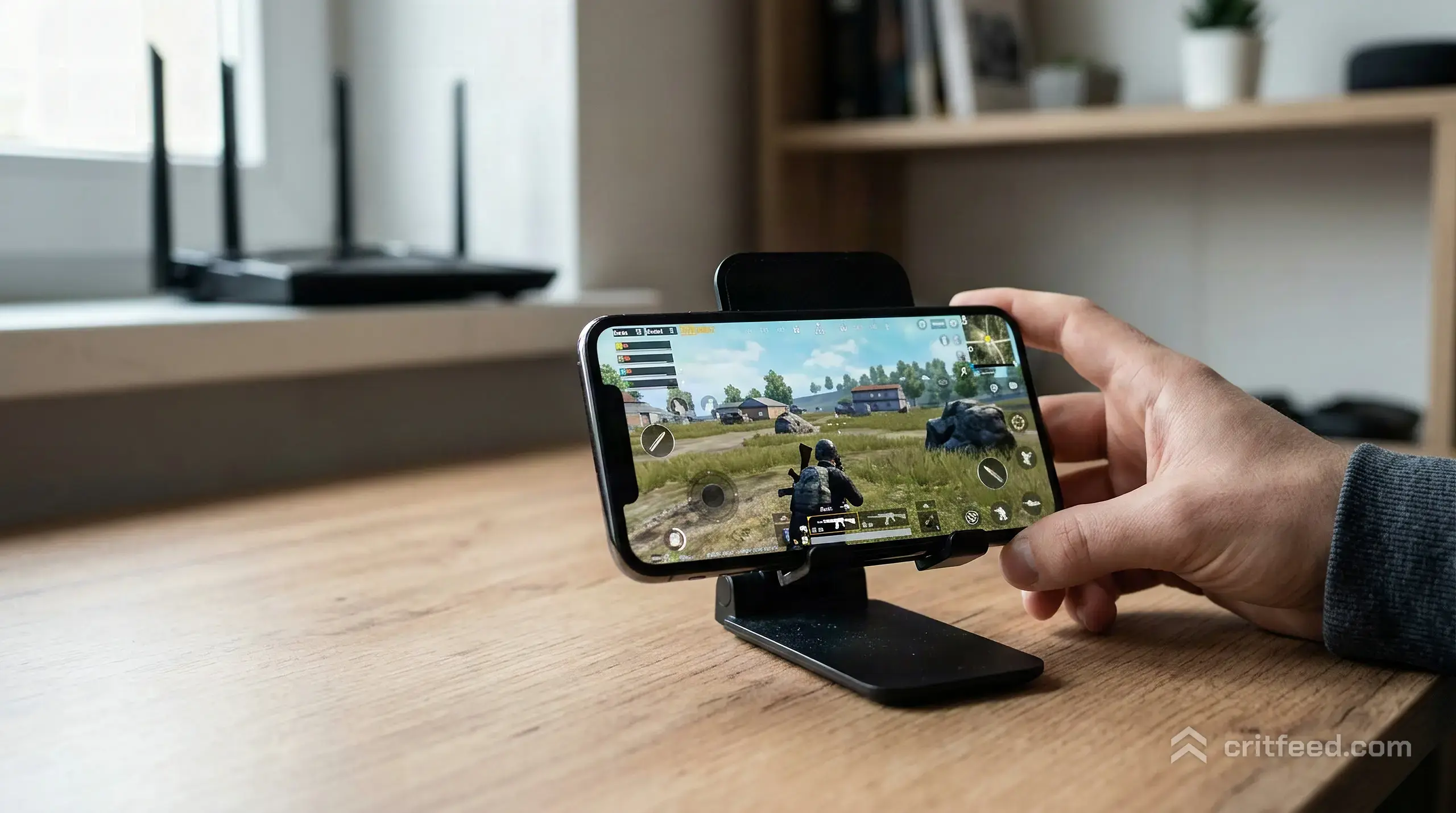
- Move to a 5 GHz Wi-Fi band if your router supports it
- Get within line of sight of the router
- If Wi-Fi is still unstable, switch to 4G or 5G mobile data
- Enable Airplane Mode for five seconds, then re-enable mobile data to force a tower reconnect
3. Close Background Bandwidth Hogs
Cloud backup, auto-updates, and streaming apps steal bandwidth mid-match. Before you queue:
- Disable auto-sync for Google Photos, iCloud, and OneDrive
- Pause system updates in Settings
- Kill any streaming apps (YouTube, Spotify, Netflix)
- Turn off hotspot sharing if your phone is tethering other devices
4. Use a VPN Only When Routing Is Broken
A VPN cannot make a bad connection faster, but it can route around a bad ISP path. If your traceroute shows packet loss at a specific hop between you and the server, a gaming-grade VPN with low-latency routes can bypass it. Pick one with servers physically close to your PUBG Mobile region. We have a full breakdown of the best VPN for PUBG Mobile that goes into which services actually lower ping instead of raising it.
Fix FPS Drops and Device Lag
If your frame rate is the problem, no amount of VPN tweaking will help. You need to free up your phone’s CPU and GPU.
Match Graphics to Your Hardware
The biggest mistake players make is cranking HDR graphics and Ultra frame rate on a mid-range device, then wondering why the phone cooks itself after six minutes. Pick a combo your hardware can actually hold:
| Device Tier | Graphics | Frame Rate | Style |
|---|---|---|---|
| Entry-level (4GB RAM, older chip) | Smooth | High | Classic |
| Mid-range (6-8GB RAM) | Balanced | Ultra | Realistic |
| Flagship (12GB+ RAM, modern chip) | HDR | Extreme / Extreme+ | Realistic / Colorful |
Lower graphics, higher frame rate. Competitive players almost always run Smooth + Extreme because fluid aim beats pretty shadows every single time.
Kill Background Apps and Overlays
Android and iOS keep apps running in the background even after you swipe them away. Before each session:
- Force-stop messaging apps, browsers, and anything with notifications
- Turn off Game Mode overlays that record or display stats on top of the game
- Disable Discord screen-share or voice-call overlays
- On Android, enable Developer Options → Don’t Keep Activities for aggressive memory cleanup
Stop the Phone From Overheating
Thermal throttling is the silent killer of FPS. Once your phone hits around 40°C internally, the chip downclocks and your frame rate collapses.
- Play with the case off for better heat dissipation
- Keep the phone out of direct sunlight
- Charge before or after, not during matches
- Use a clip-on cooling fan if you grind long ranked sessions
- Give the phone a 10-minute break between heavy matches
Clear Game Cache and Resources
Corrupted texture packs and resource files cause random stutters that look like network lag but are not. In the lobby, go to Settings → Basic → Clear Cache. If stutters continue, uninstall and reinstall the game to redownload all map resources cleanly.
Fix Desync and Rubberbanding
Desync is the worst because your network and FPS can both look perfect while you still die behind cover. It happens when your phone and the server disagree on where you are.
What causes it:
- Packet loss above 2% (check with the in-game network icon)
- Jitter, where ping bounces between 40 and 200 ms
- Wi-Fi interference from other devices on the same channel
- Server-side load during peak hours in your region
What actually fixes it:
- Run a ping test to your server and look for packet loss, not just average ping
- Reboot your router (unplug for 30 seconds, plug back in)
- Avoid queueing during your region’s peak hours if you can
- If you are on mobile data, move to a window or balcony for a stronger signal
PUBG Mobile Settings That Reduce Lag
A few in-game toggles make a huge difference and most players never touch them.
- Anti-Aliasing: OFF on anything below flagship level
- Shadows: OFF always. Zero competitive value, high GPU cost
- Auto-adjust graphics: OFF so the game stops changing your settings mid-fight
- Peek and Fire: ON if you have it enabled, reduces input calls
- Aim Assist: OFF for serious ranked play, it causes extra server calls
- FPS display: ON so you can see drops in real time
If you are serious about pushing rank, dial in your sensitivity alongside these fixes. Our PUBG Mobile tips and tricks guide covers the full competitive setup, and the PUBG Mobile beginner guide is worth reading if you are still finding your settings.
Platform-Specific Fixes
Android
- Enable Developer Options → Force GPU Rendering
- Set Animation Scale to 0.5x for faster UI response
- Turn on Game Boost or Game Mode in your phone’s system settings
- Disable Battery Saver during matches (it caps CPU performance)
iPhone and iPad
- Turn off Low Power Mode before queueing
- Disable Background App Refresh for non-essential apps
- Keep iOS updated: Apple’s updates often fix Metal API stutters
- If you play on an iPad, our breakdown of the best iPad for PUBG Mobile covers which models hold Extreme frame rate without throttling
Emulator Players
If you have moved to PC because mobile lag is unbearable, you will want to play PUBG Mobile on PC through the official emulator, which has its own matchmaking pool and generally lower lag thanks to wired ethernet and stronger hardware.
When to Blame the Game, Not You
Sometimes the problem is on PUBG Mobile’s end. Signs it is not you:
- Everyone in your squad lags at the same time
- Social media posts flood with complaints about the same server
- The lag only appears right after a patch
In those cases, your best move is to wait for a hotfix. The dev team usually pushes server-side fixes within 24-48 hours of a bad patch. Check the official PUBG Mobile social accounts before you spend an hour troubleshooting your own phone.
The Bottom Line
The reason most players never fix their lag is that they treat all three types the same. Diagnose first with the ping and FPS overlay, then apply the matching fix: server and connection for high ping, graphics and heat management for FPS drops, and router or peak-hour avoidance for desync.
If you only change one thing today, drop your graphics to Smooth and your frame rate to Extreme. Fluid aim wins gunfights, and a cooler phone keeps that smoothness for the full match instead of just the first drop.