
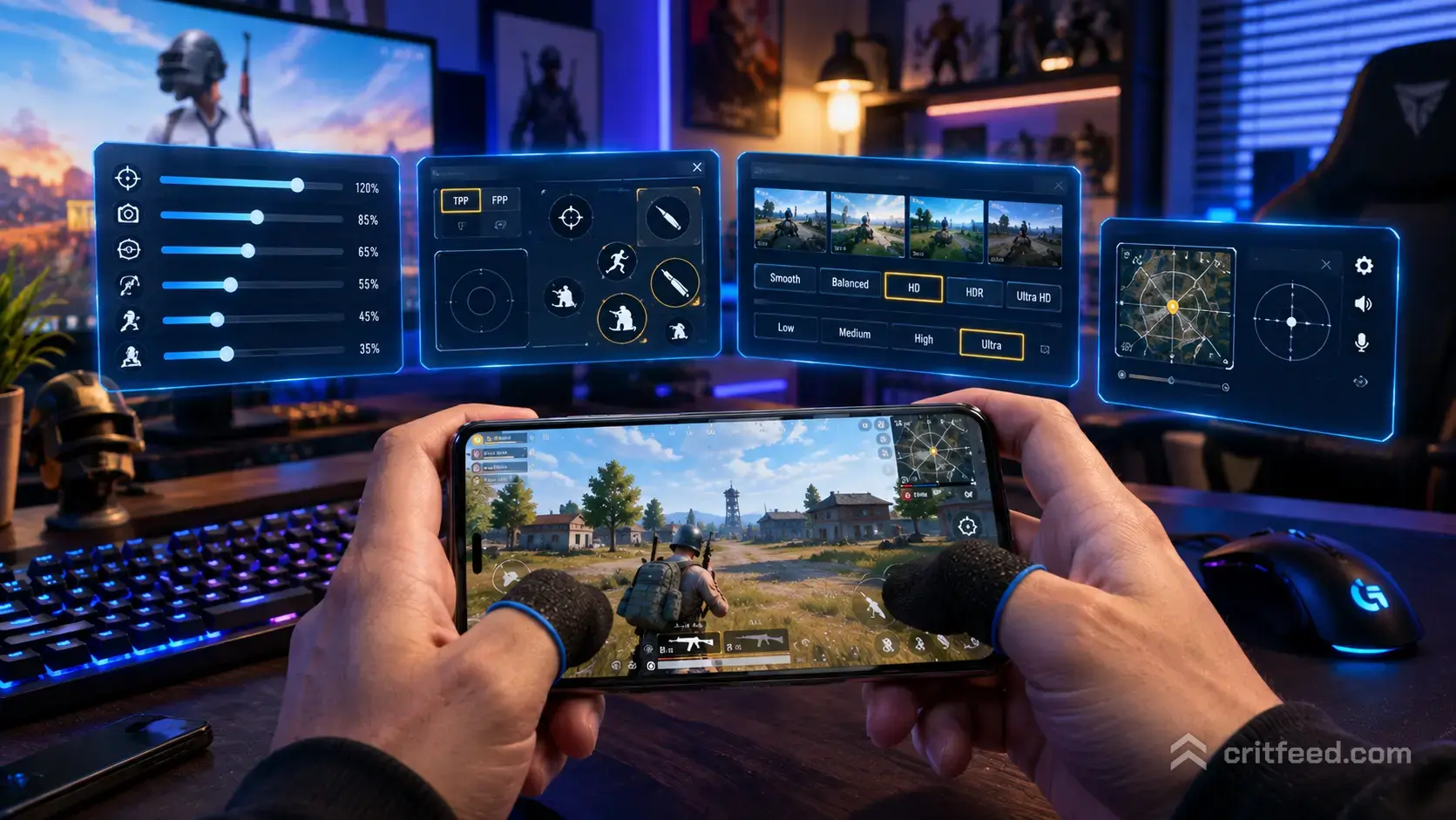
Chasing the best PUBG Mobile settings is a moving target, because the “right” numbers depend on your device, your finger claw, and whether you use Gyroscope. This guide skips one-size-fits-all copy-paste sheets and shows you how to build a stable, no-recoil setup that survives patch updates and ranked pressure.
We will cover sensitivity sets, gyroscope tuning, HUD layout, graphics presets, and the small tweaks pros use before every match.
How Sensitivity Actually Works in PUBG Mobile
PUBG Mobile splits sensitivity into three separate menus, and mixing them up is the number one reason players cannot control spray.
- Camera sensitivity: how fast the free camera turns when you are not aiming
- ADS (Aim Down Sight) sensitivity: how fast the camera turns while holding a scope
- Gyroscope sensitivity: how much movement your phone’s motion sensor adds while aiming
The core rule: your ADS values control recoil, your Camera values control tracking, and your Gyroscope values control the fine-tune while spraying. Change one at a time or you will never know what fixed the shake.
Best Camera Sensitivity (No ADS)
Camera sensitivity is for scanning, hip-fire, and turning. Higher values feel snappy but sacrifice precision at long range. These are strong baselines for phones with 6.5-inch screens and a 2 to 4-finger claw.
| Scope | Camera Sensitivity |
|---|---|
| 3rd Person No Scope | 130-150% |
| 1st Person No Scope | 110-130% |
| Red Dot, Holo, Aim Assist | 60-70% |
| 2x Scope | 45-55% |
| 3x Scope, Win94 | 30-40% |
| 4x Scope, VSS | 20-25% |
| 6x Scope | 12-15% |
| 8x Scope | 8-10% |
Bump the no-scope values up if you play close-range aggressive. Drop them if you are on a smaller screen or single-thumb.
Best ADS Sensitivity (Recoil Control)
ADS is where spray control lives. Lower ADS values mean less shake per bullet, at the cost of slower tracking on a moving target.
| Scope | ADS Sensitivity |
|---|---|
| Red Dot, Holo, Aim Assist | 50-60% |
| 2x Scope | 40-50% |
| 3x Scope, Win94 | 25-35% |
| 4x Scope, VSS | 18-25% |
| 6x Scope | 10-15% |
| 8x Scope | 6-8% |
Test in Training Ground: pick a Beryl or M416 with a 4x scope, hold spray on a wall from 50 meters, and lower ADS by 2% until the pattern goes vertical without you fighting it. That is your number.
If you are still learning weapon recoil, our list of the best guns in PUBG Mobile is a good place to see which rifles are worth practicing sprays on first.
Best Gyroscope Settings
Gyroscope aiming is what separates ranked grinders from PMGC-tier players. It lets you spray while your right thumb stays free to strafe. If you play “Always On”, these values give you a strong starting point.
| Scope | Gyroscope Sensitivity |
|---|---|
| 3rd Person No Scope | 300% |
| 1st Person No Scope | 300% |
| Red Dot, Holo, Aim Assist | 300% |
| 2x Scope | 300% |
| 3x Scope, Win94 | 280-300% |
| 4x Scope, VSS | 200-250% |
| 6x Scope | 100-140% |
| 8x Scope | 60-80% |
Turn Gyro to “Always On” if you have room on your grip. “Scope On” is a compromise, but it means your hip-fire stays touch-only.
New to motion aim? Start Gyro at 200% across the board and raise it in 20% steps in the training map until you can flick from left shoulder to right shoulder without lifting your thumb.
Best Graphics Settings for Performance
High graphics look pretty. They also cost you frames and a lot of thermal headroom, which means input lag in the last circle. The goal is the highest framerate your phone can hold, not the highest visuals.
| Setting | Recommended |
|---|---|
| Graphics | Smooth |
| Frame Rate | Extreme or higher (device-dependent) |
| Style | Classic or Colorful |
| Anti-Aliasing | Off |
| Shadows | Off |
| Auto-adjust Graphics | Off |
| Brightness | 60-70% |
If your phone throttles after 15 minutes, drop resolution to HD instead of pushing Ultra HD. A rock-solid 60 FPS beats a stuttering 90 FPS every time.
Serious about hardware? Check our picks for the best iPad for PUBG Mobile and the best tablet for PUBG Mobile if you are planning an upgrade.
HUD Layout: The Setting Most Players Ignore
The default HUD is built for two-finger players. If you claw with three or four fingers, you must rebuild it. This is where minutes of tinkering save hours of losses.
Priorities when moving buttons:
- Fire button: duplicate it and place a second one on the top-left, so your index finger can shoot while your right thumb aims
- Jump and Crouch: put them where your right index finger can reach without lifting off aim
- Scope button: near your right thumb, big enough to hit under pressure
- Reload: middle of the screen, out of the way, big hitbox
- Peek buttons: enable them and place them on the shoulders of the screen for cover play
Save your layout with a name like “4-Finger TDM” so you can swap loadouts by mode. Different fights need different HUDs.
Controls and Movement Tweaks
A few smaller toggles change the feel of the whole game.
- Aim Assist: on for beginners, off once you use Gyroscope confidently. It fights your motion input
- Peek and Fire: on. It saves your body from full exposure in doorways
- Auto-open doors: off. It ruins stealth plays in the final zones
- 3D sound: on. Enemy footsteps directional accuracy jumps noticeably
If you are just getting started, our PUBG Mobile beginner guide walks through the basics before you start tuning advanced values.
Device Context: Settings Are Not Universal
A 60 Hz phone cannot replicate a 120 Hz pro setup. Higher refresh rate means your Camera and ADS values can go slightly lower because you are getting more frames of correction. If you play on 60 Hz, keep values on the higher end of our ranges.
Screen size matters too. On a 6-inch phone, your thumb travels less pixel distance to make the same in-game turn, so lower sensitivity works better. On a tablet, you often need to raise Camera values by 10-20% just to complete a full spin.
Playing on an emulator or PC changes everything again. Our guide on how to play PUBG Mobile on PC covers those setups separately, because keyboard aim uses a completely different sensitivity engine.
Testing Your Settings Properly
Copying a pro’s sensitivity sheet almost never works. Their fingers, phone, and refresh rate are not yours. Here is how to actually dial in yours.
- Enter Training Ground with an M416 and a 4x scope
- Turn Auto-adjust Graphics off
- Spray one full mag at a target 50 meters away, ADS only, no Gyro
- Adjust ADS 4x by 2% at a time until the pattern is straight
- Turn Gyro on, repeat, adjusting Gyro 4x until you correct the last third of the mag with tilt alone
- Repeat for 2x, 3x, and 6x
Save each set as a separate profile. Sensitivity presets in PUBG Mobile let you swap between casual, ranked, and TDM in one tap.
Ranked Push Tips Beyond Settings
Settings are half the fight. If you are grinding up the PUBG Mobile ranks, the other half is game sense: rotation, safe drops, and end-zone positioning. For more on that, our PUBG Mobile tips and tricks breakdown covers what to focus on after your aim is sorted.
The Bottom Line
The best PUBG Mobile settings for you are the ones you tested on your own device, not the ones on a top player’s stream. Use the tables above as starting points, run the Training Ground test, and lock in one setting at a time. Then leave it alone for at least a week before touching anything again.
Ready to keep improving? Bookmark this page, because we update these ranges when major control changes ship in-game.