
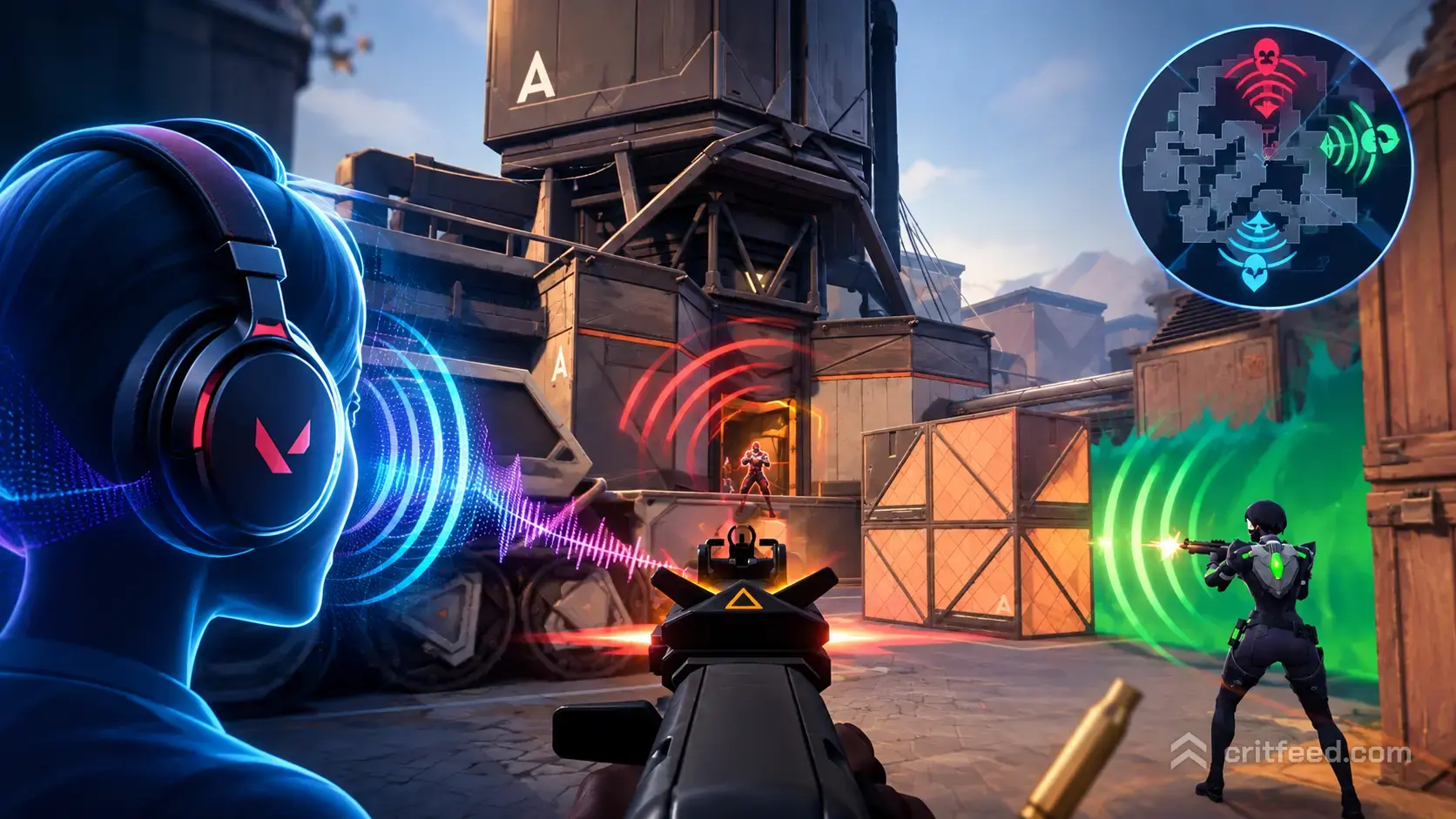
If you’ve ever died to a flanker you swore you couldn’t hear, your audio settings are probably to blame. HRTF is the single most important audio toggle in Valorant, and understanding what it does can turn muddy footsteps into pinpoint enemy locations. In this guide, we’ll break down what is HRTF Valorant, how it works, and exactly how to set it up.
What Is HRTF in Valorant?
HRTF stands for Head-Related Transfer Function. It’s a spatial audio technology that simulates the way your ears naturally process 3D sound in the real world.
When a sound hits you in real life, tiny differences in timing, volume, and frequency between your left and right ear tell your brain where the sound came from — above, below, in front, or behind. HRTF recreates that effect through stereo headphones so games can trick your brain into “hearing” direction on a flat two-channel output.
In Valorant, Riot uses HRTF to make footsteps, reloads, and ability sounds far easier to place in 3D space. Without it, a Raze on Heaven and a Raze below you can sound almost identical.
How Does HRTF Work in Valorant?
Valorant’s audio engine is built around stereo output, not surround sound. HRTF sits on top of that stereo signal and applies filters that mimic how your outer ear (the pinna) bends incoming sound waves.
The result is a much clearer sense of vertical and front-back positioning. That’s the axis stereo audio traditionally struggles with — left-right is easy, but knowing whether an enemy is above you on A Heaven or below you on A Hell is where HRTF actually earns its keep.
Key thing to remember: HRTF is designed for stereo headphones. It does not work correctly on speakers or on headsets forced into virtual 7.1 modes.
Should You Turn HRTF On or Off?
For the vast majority of players, you should turn HRTF on. Riot has continued to refine it since launch, and pros across the VCT circuit run it enabled.
That said, there are a few things worth knowing before you flip the switch:
- Sounds will feel slightly different at first. Give it 5 to 10 games before judging it.
- HRTF only works properly with stereo headphones, not speakers.
- You must disable third-party spatial audio (Dolby Atmos, Windows Sonic, DTS) or you’ll get phase issues that smear directional cues.
- If you have a hearing difference between your left and right ear, HRTF may feel less accurate for you personally — this is a known limitation of generic HRTF profiles.
How to Enable HRTF in Valorant
Turning it on takes about ten seconds:
- Launch Valorant and open Settings.
- Go to the Audio tab.
- Click the Overall sub-tab.
- Set Speaker Configuration to Stereo.
- Toggle HRTF to On.
If HRTF is greyed out, your Speaker Configuration is set to something other than Stereo. Change it first.
The Best Valorant Audio Settings to Pair With HRTF
HRTF is powerful, but it only shines when the rest of your audio stack is clean. Here are the values that squeeze every drop of information out of the game’s sound engine.
| Setting | Recommended Value | Why |
|---|---|---|
| Master Volume | 50–70% | Prevents listening fatigue in late rounds |
| Sound Effects | 100% | Footsteps, reloads, and abilities live here |
| Voice-Over | 25–40% | Agent callouts shouldn’t drown out movement |
| All Music Volume | 0–10% | Round-start music masks early aggression |
| Speaker Configuration | Stereo | Valorant is built for stereo output |
| HRTF | On | Adds vertical and front-back cues |
Do not crank Master Volume to 100%. It sounds intense for a round, but your brain adapts and stops picking out quiet audio cues — the exact ones you need to hear.
Windows Settings That Break HRTF
This is where most players sabotage themselves without knowing. If you have Windows spatial audio on, HRTF is fighting a second spatial layer, and the result is worse than either alone.
Disable Windows Spatial Sound:
- Right-click the speaker icon in your taskbar.
- Open Sound Settings.
- Select your output device.
- Set Spatial Sound to Off.
Set your sample rate to 48 kHz. Valorant outputs at 48 kHz, so matching your system format prevents resampling artifacts. In your device properties under Advanced, set the default format to 24-bit, 48000 Hz (Studio Quality).
Turn off audio enhancements. Bass boost, virtual surround, and loudness equalization all mangle the clean signal Valorant’s HRTF depends on.
How Footstep Audio Actually Works
HRTF gives you the direction, but knowing what you’re hearing matters just as much.
- Running footsteps are audible from roughly 50 meters.
- Walking footsteps carry about 15 meters.
- Crouch walking is heard from around 12 meters.
- Shift walking is completely silent.
Footsteps also change based on surface. Metal is sharp and high-pitched. Wood is deeper and more resonant. Hearing metal on Icebox? Someone is on pipes. That kind of surface awareness pairs beautifully with HRTF — you get the direction and the location context. If you want a deeper breakdown of every battleground, our valorant maps guide covers the layouts you’ll be listening on.
EQ Tweaks That Make Footsteps Louder
If your headset has companion software with an equalizer, a small boost between 1 kHz and 4 kHz (around 1 to 3 dB) brings out footstep frequencies without making gunshots painful.
Avoid heavy bass boosting. It adds rumble that masks the exact mid-range frequencies you’re trying to hear.
Common HRTF Mistakes to Avoid
We see the same setup errors constantly. Skip these traps:
- Running Speaker Configuration on 5.1 or 7.1 while HRTF is enabled — this defeats the point.
- Leaving Windows Sonic or Dolby Atmos on — creates conflicting spatial layers.
- Using HRTF on speakers — it’s built for stereo headphones and won’t work correctly.
- Judging HRTF after one match — your brain needs a few sessions to recalibrate to the new sound profile.
For more setup wins beyond audio, our valorant tips and tricks covers the small adjustments that add up across a ranked session.
Does HRTF Help at Every Rank?
Yes — arguably more at lower ranks than higher ones. New players often rely almost entirely on visual information, so adding a reliable audio channel gives you an edge your opponents aren’t using. If you’re just starting out, pair HRTF with our valorant beginners guide for a full ramp-up.
At Immortal and Radiant, HRTF is essentially standard. Every pro on stage has it enabled, and the small vertical-cue advantage matters when duels come down to who heard the peek first.
The Bottom Line
HRTF in Valorant is a stereo spatial audio feature that gives you clearer vertical and front-back positioning for footsteps and abilities. Turn it on, run Speaker Configuration on Stereo, disable Windows spatial audio, and give yourself a few games to adjust.
It’s one setting, it’s free, and it’s arguably the highest-impact audio change you can make. If Riot adjusts HRTF behavior in a future patch, we’ll update this guide — check our valorant patch notes hub for anything that might affect your audio stack. And if teammate comms are ruining the audio you just optimized, here’s how to mute in valorant.