Want to play like one of the most consistent riflers on the scene? We’ve compiled the complete d0cc CS2 settings setup — including his sensitivity, crosshair, viewmodel, video settings, and launch options — so you can copy the exact config that powers his aim in ranked and pro matches.
Whether you’re chasing tighter tracking or just curious about how the pros configure CS2, this guide has every value you need.
Who Is d0cc?
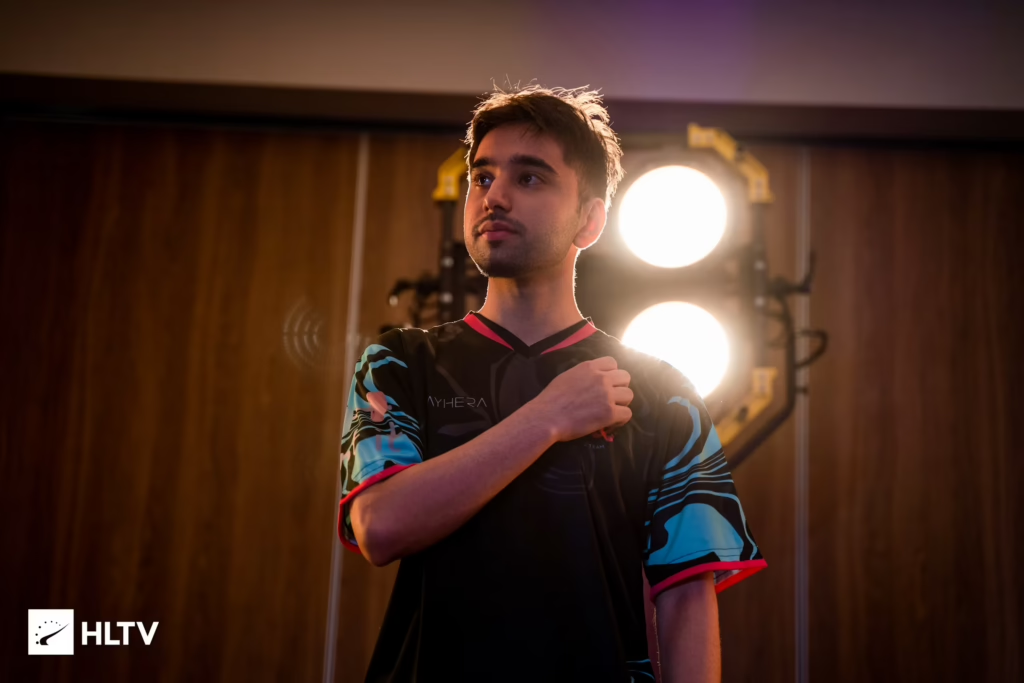
d0cc is a Free Agent CS2 player known for his precision rifling and clean aim mechanics. He’s built a reputation for a minimalist, no-nonsense setup — the kind of config other pros actually copy. His settings prioritize raw visibility, low input latency, and a stable crosshair that stays snappy under pressure.
d0cc CS2 Mouse Settings
The foundation of any pro’s config is the mouse setup. d0cc runs a low-to-mid sens that favors flick precision over spray tracking.
| Setting | Value |
|---|---|
| DPI | 400 |
| Sensitivity | 2.00 |
| eDPI | 800 |
| Zoom Sensitivity | 1.00 |
| Hz (Polling Rate) | 1000 |
| Windows Sensitivity | 6 |
| Raw Input | On |
| Mouse Acceleration | Off |
Key takeaway: An 800 eDPI puts d0cc squarely in the “pro standard” range — the same tier as most tier-1 riflers. If you’re switching to his config, don’t ignore the zoom sensitivity of 1.00; it keeps AWP and scoped rifle flicks consistent with your hip-fire muscle memory.
Looking to upgrade your own aim? Pair these settings with a solid best CS2 graphic settings guide for a full performance boost.
d0cc CS2 Crosshair Code
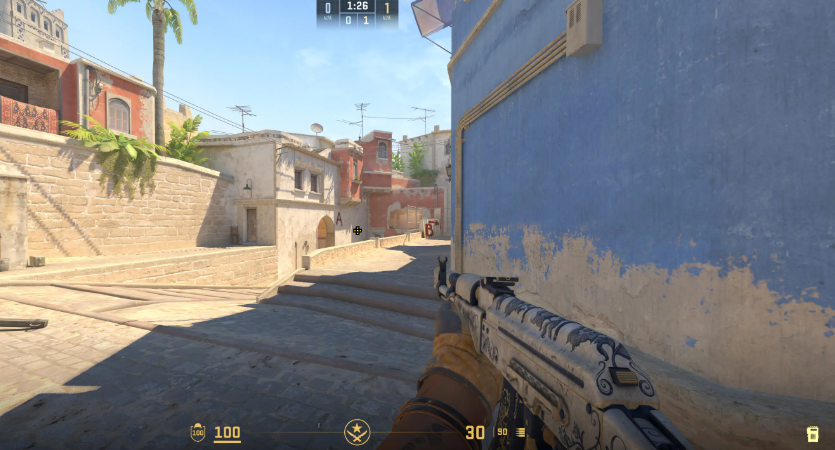
d0cc uses a small, static crosshair with a center dot — classic pro style for one-taps and headshot lineups.
CSGO-Om9DE-6bvKy-JCuJz-4CJKS-tJEHOCrosshair breakdown:
| Parameter | Value |
|---|---|
| Style | 4 (Classic Static) |
| Size | 2 |
| Thickness | 0 |
| Gap | -3 |
| Center Dot | Yes |
| Outline | 1 |
| Color | Green |
| Alpha | 255 |
Copy the code above, paste it in-game via the crosshair menu, and you’re set. The tight gap and center dot help with pixel-perfect aim on long angles like Mid on Mirage or A Long on Dust II.
d0cc CS2 Viewmodel Settings
d0cc runs a fairly standard viewmodel — nothing exotic, just clean visibility of his weapon models.
| Setting | Value |
|---|---|
| viewmodel_fov | 68 |
| viewmodel_offset_x | 2.5 |
| viewmodel_offset_y | 0 |
| viewmodel_offset_z | -1.5 |
| viewmodel_presetpos | 3 |
| cl_bob_lower_amt | 5 |
| cl_bobamt_lat | 0.1 |
| cl_bobamt_vert | 0.1 |
| cl_viewmodel_shift_left_amt | 0.5 |
| cl_viewmodel_shift_right_amt | 0.25 |
If you’re a fan of ak-47 skins, this viewmodel keeps the weapon model prominent without eating up your screen.
d0cc CS2 Video Settings
Pro players optimize for frames and clarity — not eye candy. d0cc’s video config is built for high FPS on a competitive monitor.
Resolution & Display
| Setting | Value |
|---|---|
| Resolution | 1280 x 960 |
| Aspect Ratio | 4:3 |
| Scaling Mode | Stretched |
| Display Mode | Fullscreen |
| Refresh Rate | 240Hz+ |
Advanced Video Options
| Setting | Value |
|---|---|
| Boost Player Contrast | Enabled |
| Wait for Vertical Sync | Disabled |
| Multisampling Anti-Aliasing | CMAA2 |
| Global Shadow Quality | High |
| Model / Texture Detail | Low |
| Texture Filtering | Bilinear |
| Shader Detail | Low |
| Particle Detail | Low |
| Ambient Occlusion | Disabled |
| High Dynamic Range | Quality |
| FidelityFX Super Resolution | Disabled (Highest) |
| NVIDIA Reflex Low Latency | Enabled + Boost |
Why 4:3 stretched? Models appear wider, giving you a slightly bigger target — a common preference among rifle-heavy players. It’s also easier on the eyes during long sessions.
d0cc CS2 Launch Options
Keep your launch options minimal. Overloading them can actually hurt performance in CS2.
-novid -console -allow_third_party_software-novid— skips the intro video-console— enables developer console on startup-allow_third_party_software— allows OBS overlays and similar tools
That’s it. Anything beyond this is unnecessary for CS2.
d0cc CS2 Config File Highlights
A few key binds and console commands from d0cc’s config worth copying:
bind "mwheelup" "+jump"bind "mwheeldown" "+jump"
bind "shift" "+speed"
bind "x" "slot12" // C4 quick-drop
cl_righthand "1"
fps_max "400"
snd_mixahead "0.025"
cl_use_opens_buy_menu "0"
The snd_mixahead value tightens audio timing — crucial for best CS2 crosshair setups that rely on positional sound like footsteps and reloads.
d0cc CS2 Gear & Peripherals
Settings only get you so far — hardware matters too. Here’s the peripherals side of the d0cc setup:
| Gear | Model |
|---|---|
| Monitor | 240Hz+ Gaming Monitor |
| Mouse | Lightweight wireless FPS mouse |
| Keyboard | Low-profile mechanical (linear switches) |
| Headset | Closed-back gaming headset |
| Mousepad | Large cloth pad (control-oriented) |
If you’re building a setup to match, don’t overspend. A 240Hz monitor and a decent 400 DPI mouse cover 90% of what any pro config actually needs.
How to Apply d0cc’s Settings
Getting his setup running takes about five minutes:
- Copy the crosshair code into your Game Settings > Crosshair menu.
- Set your DPI to 400 in your mouse software.
- Set in-game sensitivity to 2.00 and zoom sensitivity to 1.00.
- Apply the video settings in Options > Video.
- Paste the launch options in Steam > CS2 > Properties.
- Warm up — don’t expect instant results. Muscle memory takes time to adjust.
Want to compare with other pros? Check out our karrigan CS2 settings guide for a veteran IGL’s config or the w0nderful CS2 settings guide if you’re more of an AWPer.
Final Thoughts
The full d0cc CS2 settings package is a masterclass in minimalism — 400 DPI, 2.00 sens, a tight static crosshair, and video settings tuned for pure FPS. No gimmicks, no clutter. Just a clean, competitive config that lets skill do the talking.