
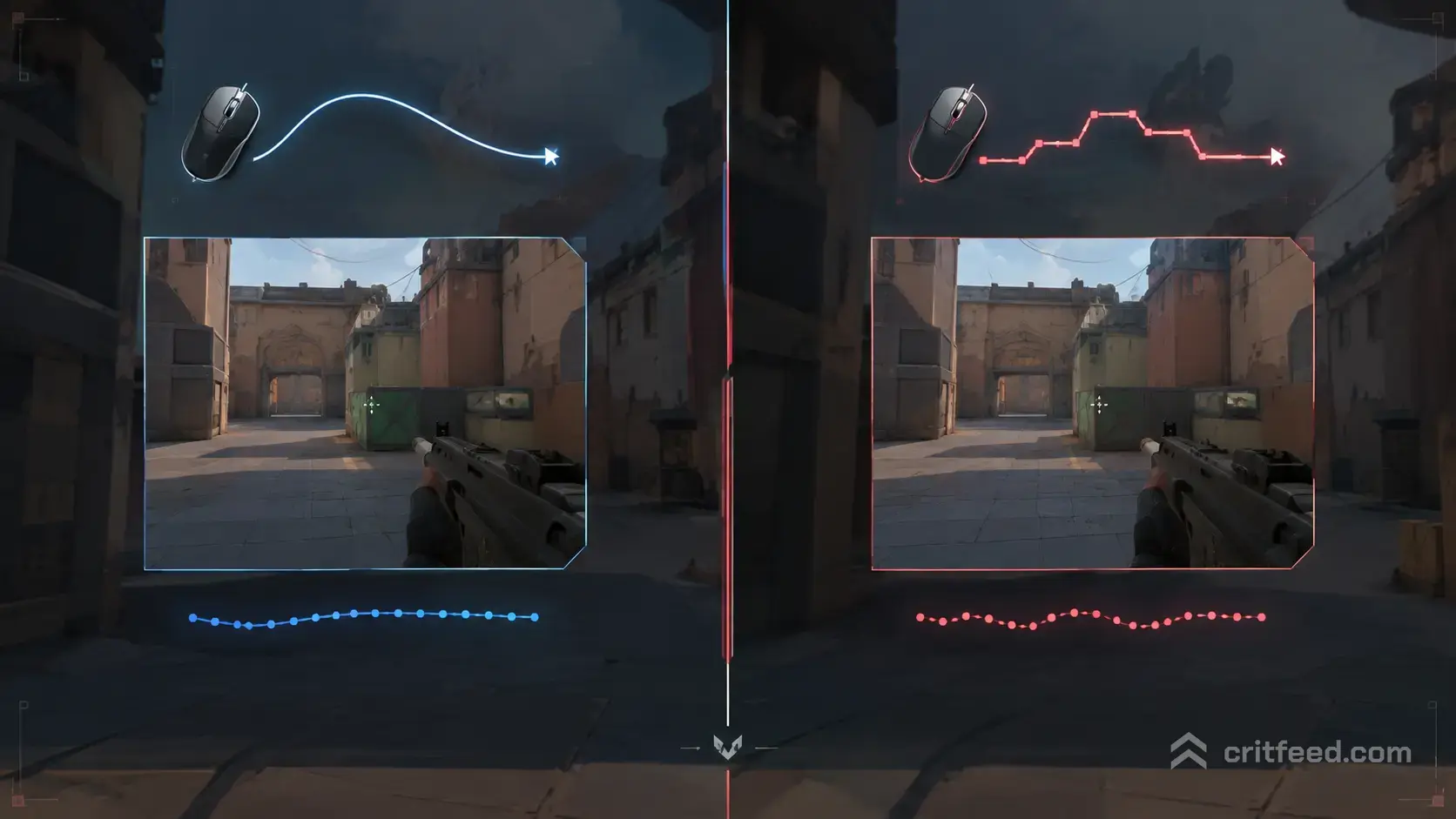
Raw Input vs Raw Input Buffer in Valorant Explained
If you have ever dug through your mouse software or Valorant’s settings looking for a raw input Valorant toggle, you have probably hit a wall of conflicting advice. The short version: Valorant handles mouse input differently from most shooters, and the setting people actually argue about is Raw Input Buffer, not a classic “raw input” switch.
We will explain the difference, tell you which one Valorant uses by default, and show you how to make your preferred setup feel its best.
What “Raw Input” Actually Means
Raw input is a Windows API that lets a game read mouse movement directly from the device. It skips the standard Windows pointer pipeline, which means no pointer acceleration, no Windows sensitivity curve, and no cursor smoothing between you and your crosshair.
In most games, “Raw Input: On” is a tickbox you flip in the options menu. In Valorant, there is no such tickbox for your mouse. Valorant reads your mouse through a raw method by default. You do not need to enable it, and you cannot turn it off.
That is why searching the video settings for a raw input slider leaves you empty-handed. The thing you are looking for already exists; it is just not labeled the way CS or Overwatch veterans expect.
What Raw Input Buffer Is
Raw Input Buffer is a different beast. It is a Windows feature that lets a game pull multiple mouse input events at once from a system buffer, instead of grabbing them one at a time through the normal message queue.
Here is the practical difference:
- Without buffer: The game reads each mouse movement event as the OS delivers it. Simple, predictable, slightly more overhead per event.
- With buffer: The game grabs a batch of mouse events in a single system call. Less CPU overhead on the main thread, which can matter at high polling rates (1000Hz, 4000Hz, 8000Hz).
Valorant exposes this as a toggle in the settings. You will find it under Settings → General → Mouse, listed as Raw Input Buffer.
Raw Input vs Raw Input Buffer: The Real Comparison
People often use these two terms as if they are the same thing. They are not. Here is how they stack up inside Valorant specifically.
| Feature | Raw Input (default) | Raw Input Buffer (toggle) |
|---|---|---|
| What it does | Reads mouse directly, bypasses Windows cursor pipeline | Pulls batched input events in one call |
| User control in Valorant | Always on, no toggle | On/Off toggle in Mouse settings |
| Main benefit | 1:1 aim, no pointer accel | Lower CPU cost at high poll rates |
| Best for | Everyone | High polling-rate mice, lower-end CPUs |
| Risk if misused | None, it is automatic | Rare input hitches on some setups |
The key takeaway: Raw input is the foundation; raw input buffer is an optimization on top of it.
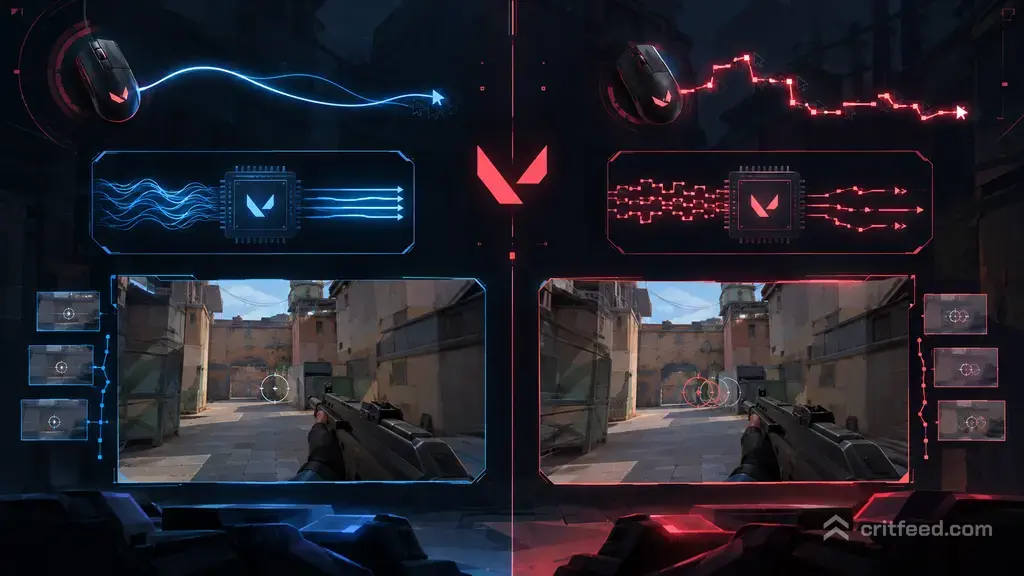
Which One Is Valorant Actually Using?
Valorant uses raw mouse input at all times. That part is not optional and not configurable. Your 400 DPI, 0.4 sens setup is being read directly from the device, with no Windows acceleration layered on top, as long as you also have Enhance Pointer Precision turned off in Windows itself.
Raw Input Buffer, on the other hand, is a choice you make. Riot ships it as a toggle because the honest answer about whether it helps you depends on your hardware:
- If you run a 1000Hz+ polling rate mouse and a mid-range or older CPU, turning the buffer on can smooth out frametimes.
- If you run a standard 1000Hz mouse on a strong CPU, you may feel no difference at all.
- If you have ever noticed micro-stutters tied to flicks or wide swipes, trying the buffer off is worth a test.
For a deeper dive into the toggle itself, our guide on the raw input buffer Valorant setting walks through the mechanics in more detail.
How to Make Your Preferred Setting Work Best
Whichever side of the buffer debate you land on, the aim pipeline only feels as clean as its weakest link. Here is how to get the most out of your choice.
1. Lock Down Windows First
Raw input in Valorant does nothing for you if Windows is still mangling the signal before the game sees it.
- Open Mouse Settings → Additional mouse settings → Pointer Options.
- Uncheck Enhance pointer precision.
- Set the pointer speed slider to the 6th notch (the middle default). This is the only slider position with no scaling applied.
2. Match Your Polling Rate to Your Hardware
Higher is not always better. A 4000Hz or 8000Hz mouse on a weak CPU can actually cause frame drops that feel like network issues. If your aim feels inconsistent, check our breakdown of Valorant network RTT spikes to rule out the connection side before blaming your mouse.
Start at 1000Hz. Only go higher if your CPU has headroom.
3. Pick the Buffer Setting That Matches Your System
Here is the simple test:
- Load a Deathmatch or the Range.
- Play 10 minutes with Raw Input Buffer On. Note any hitches on wide swipes.
- Play 10 minutes with it Off. Compare.
- Keep whichever felt more consistent, not whichever “should” be faster on paper.
Trust feel over theory. The right answer varies by CPU, mouse, polling rate, and even background software.
4. Keep Your Frames Stable
Input feel is tightly linked to frametime consistency. Valorant is generally light, but background apps, overlays and recording software still eat CPU time. If you want to understand what is pulling on your system, our piece on whether Valorant is CPU or GPU intensive explains where the load actually lands.
Cap your FPS a bit below what your system can sustain. A stable 240 feels better than a jumpy 320.
5. Rule Out In-Game Factors
Sometimes “my aim feels off” is not the mouse at all. It is the fight. Economy, positioning and crosshair placement matter more than any input setting. If you are still climbing, the fundamentals in our Valorant tips and tricks guide will do more for your rank than any buffer toggle.
New to the game entirely? Start with our Valorant beginners guide and come back to tuning once your basics are solid.
Common Myths, Quickly Debunked
- “Valorant has no raw input.” False. It uses raw input by default and gives you no option to disable it.
- “Raw Input Buffer makes your aim faster.” It does not reduce click-to-pixel latency. It reduces input processing overhead, which can indirectly stabilize frametimes.
- “Pros all use the same setting.” They do not. Some streamers run it on, others off. It is hardware-dependent.
- “Turning it on fixes stutter.” Sometimes. Sometimes it causes it. Test both.
The Bottom Line
Raw input in Valorant is not a toggle, it is a default. The actual decision you can make is Raw Input Buffer: On or Off, and the correct answer depends on your mouse, your CPU and your polling rate rather than on any universal “best” setting.
The highest-leverage move most players can make is boring: disable Enhance Pointer Precision in Windows, keep your frames stable, and spend five minutes A/B testing the buffer in Deathmatch. Pick what feels consistent, then stop touching settings and go play.