
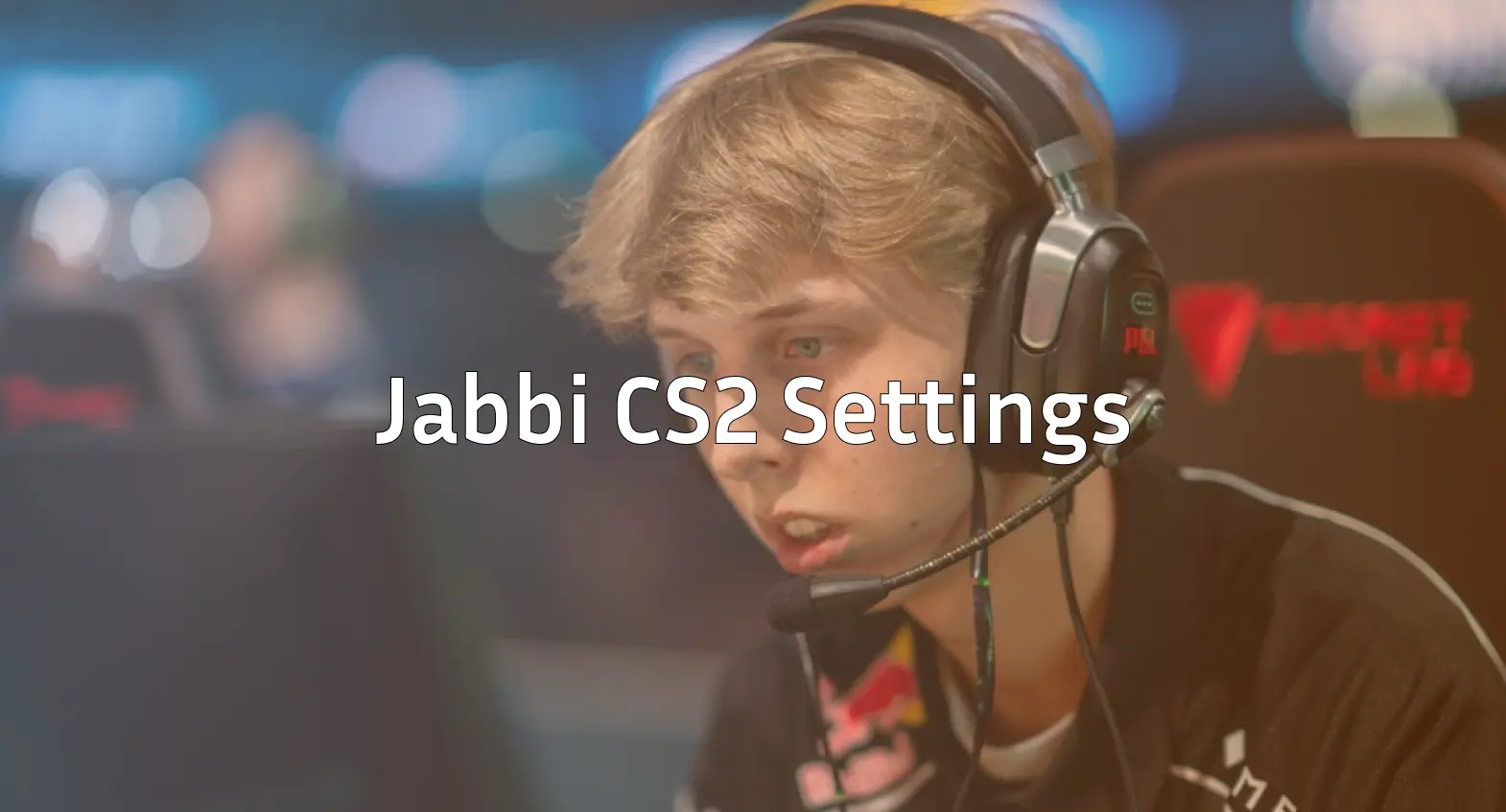
Jakob “Jabbi” Nygaard has quickly become one of the most exciting riflers in professional Counter-Strike. The Danish star’s aggressive playstyle and crisp aim have made him a key player on the international stage. If you want to learn from one of CS2’s rising talents, copying his settings is a solid starting point.
In this guide, we break down everything about Jabbi CS2 settings from his mouse sensitivity and crosshair to his video configuration and gaming gear.
Who Is Jabbi?
Jabbi is a Danish professional CS2 player known for his explosive rifle plays and clutch potential. He made his name in the Danish scene before stepping onto bigger stages, where his mechanical skill and game sense have consistently impressed.
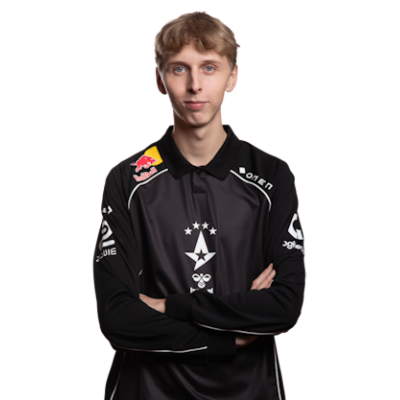
His playstyle favors aggressive positioning and quick peeks, which demands precise settings that allow for both fast flicks and controlled spray transfers. Understanding his config helps explain why he’s so effective in high-pressure situations.
Jabbi Mouse Settings
Mouse settings are the foundation of any pro player’s aim. Jabbi uses a relatively low sensitivity, giving him precise control during rifle duels.
| Setting | Value |
|---|---|
| DPI | 800 |
| In-Game Sensitivity | 0.9 |
| eDPI | 720 |
| Zoom Sensitivity | 1.0 |
| Hz (Polling Rate) | 1000 |
| Windows Sensitivity | 6 |
| Raw Input | On |
An eDPI of 720 sits in the low-to-medium range for professionals. This gives Jabbi enough precision for long-range AK-47 sprays while still allowing quick 180-degree turns when needed.
Key takeaway: If you’re transitioning from higher sensitivity, drop gradually. Going straight to 720 eDPI can feel sluggish if you’re used to faster settings.
Jabbi Crosshair Settings
Jabbi uses a clean, static crosshair that provides clear visibility without cluttering the screen. Here’s how to replicate it:
| Setting | Value |
|---|---|
| Style | 4 (Classic Static) |
| Color | Green (1) |
| Size | 2 |
| Thickness | 0 |
| Gap | -3 |
| Outline | No |
| Dot | No |
Crosshair Code
Copy and paste this into your console:
CSGO-Oc7Oa-rVPdW-VztYJ-uSXwK-hzoYDThis crosshair is small and tight, ideal for precise headshot placement. The negative gap pulls the lines closer together, creating a focused aiming point that doesn’t obstruct enemy models.
If you’re still experimenting with your aim, check out our guide on cs2 binds to set up a crosshair toggle for testing different styles.
Jabbi Video Settings
Pro players prioritize performance over visuals, and Jabbi is no exception. His video settings maximize frame rates while maintaining enough clarity to spot enemies.
| Setting | Value |
|---|---|
| Resolution | 1280×960 |
| Aspect Ratio | 4:3 |
| Scaling Mode | Stretched |
| Display Mode | Fullscreen |
Advanced Video Settings
| Setting | Value |
|---|---|
| Boost Player Contrast | Enabled |
| V-Sync | Disabled |
| NVIDIA Reflex Low Latency | Enabled |
| Multisampling Anti-Aliasing | 4x MSAA |
| Global Shadow Quality | Medium |
| Model/Texture Detail | Low |
| Texture Filtering Mode | Bilinear |
| Shader Detail | Low |
| Particle Detail | Low |
| Ambient Occlusion | Disabled |
| High Dynamic Range | Performance |
| FidelityFX Super Resolution | Disabled |
Stretched 4:3 resolution makes player models appear wider, which many pros find easier to track. The tradeoff is reduced horizontal field of view, but Jabbi’s positioning compensates for this.
For optimal performance, ensure you’ve configured your cs2 launch options correctly.
Jabbi Viewmodel Settings
Viewmodel preferences are largely personal, but Jabbi’s setup keeps his weapon model out of the way while maintaining good visual feedback.
| Setting | Value |
|---|---|
| Viewmodel FOV | 68 |
| Viewmodel Offset X | 2.5 |
| Viewmodel Offset Y | 0 |
| Viewmodel Offset Z | -1.5 |
| Viewmodel Presetpos | 3 |
You can apply these with the following commands:
viewmodel_fov 68viewmodel_offset_x 2.5
viewmodel_offset_y 0
viewmodel_offset_z -1.5
viewmodel_presetpos 3
This setup pushes the weapon slightly to the right and down, maximizing screen real estate for spotting enemies.
Jabbi Gaming Gear
Hardware matters at the professional level. Here’s what Jabbi uses:
| Equipment | Product |
|---|---|
| Mouse | Logitech G Pro X Superlight |
| Mousepad | Logitech G640 |
| Keyboard | Logitech G Pro X |
| Monitor | BenQ ZOWIE XL2546K (240Hz) |
| Headset | Logitech G Pro X |
The G Pro X Superlight is one of the most popular mice among professionals due to its lightweight design (63g) and flawless sensor. Combined with a large cloth mousepad, it’s perfect for low-sensitivity players who need ample space for arm movements.
How to Apply Jabbi’s Config
To use Jabbi’s settings:
- Navigate to your cs2 config location
- Open your autoexec.cfg file (create one if it doesn’t exist)
- Paste the relevant commands
- Add
host_writeconfigat the end to save changes - Launch CS2 and verify settings applied correctly
If you’re setting up a practice server to test these settings, our cs2 practice commands guide will help you create the perfect environment.
Should You Copy Pro Settings?
Copying Jabbi’s exact settings won’t instantly make you a professional player. However, using pro configs as a baseline offers several benefits:
- Proven effectiveness — These settings work at the highest level
- Balanced approach — Pros optimize for both performance and precision
- Starting point — Easier to adjust from a working config than build from scratch
That said, personal preference matters. If Jabbi’s sensitivity feels too slow, increase it gradually until you find your sweet spot. The same applies to crosshair size and video settings.
For comparison, you might also want to explore NiKo’s CS2 settings or Shroud’s CS2 settings to see how different pros approach their configurations.
Conclusion
Jabbi’s CS2 settings reflect his aggressive, aim-heavy playstyle—low sensitivity for precision, stretched resolution for wider models, and a minimal crosshair for clean headshots. While copying his config won’t guarantee the same results, it provides a solid foundation to build upon.
Start with these settings, spend time in aim trainers and deathmatch, and adjust based on what feels natural.