
If you’ve ever crashed mid-match or lost a config after a patch, you already know why a solid cs2 backup plan matters. Counter-Strike 2 uses backups in two very different ways round backups inside a live match, and file-level backups of your install, configs and demos. We’ll cover both, in plain language, so you can recover fast without breaking anything.
The Two Types of CS2 Backup
Before you start copying folders around, get the terminology straight. These are not the same thing and confusing them is how people lose configs.
| Backup Type | What It Saves | Where It Lives | When You Use It |
|---|---|---|---|
| Round backup | The exact state of a match at the start of a round | Your CS2 install folder as .txt files | Restore a match after a crash or disconnect |
| Config backup | Your video, crosshair, keybinds, autoexec | \cfg\ folder inside CS2 | Preserve settings across reinstalls |
| Steam game backup | A compressed copy of the game files | Wherever you save the backup archive | Move CS2 to a new PC without redownloading |
| Demo backup | Recorded matches for review | \replays\ folder | Rewatch your own matches |
Key point: A “Steam backup” of the whole game is not officially supported the way it used to be for older Source titles, and Counter-Strike 2 is a live service game that must stay updated. We’ll get to the workaround.
Round Backups: Restoring a Live Match
Round backup files are the built-in system for saving a match state. If a server crashes or a player disconnects at a critical moment, admins can restore the round instead of replaying the whole map.
How Round Backup Files Work
Every round, CS2 writes a small .txt file to your game directory that stores the score, side, money, and player states. The default naming pattern is:
backup_round_XX.txtWhere XX is the round number. These files are readable text you can open one to sanity-check what was saved.
Console Commands to Restore a Round
On a server you control (private match, community server, or LAN), use these commands in the developer console:
mp_backup_restore_list_filesThis lists all available round backup files in your CS2 install. Then, to load one:
mp_backup_restore_load_file backup_round_15.txtReplace the filename with whichever round you want to jump back to. To force new backups to be written on your own server, keep this on:
mp_backup_round_file_pattern "backup_round_%round%.txt"
mp_backup_round_auto 1
Heads up: You need sv_cheats or admin permissions on the server. You cannot restore a round backup on Valve official Premier or Competitive matchmaking that’s server-side only.
Config and Autoexec Backups
Losing your crosshair, sensitivity and binds after a reinstall is the most avoidable disaster in Counter-Strike 2. Back these up manually.
What to Save
config.cfg— main settings fileautoexec.cfg— your custom launch commandsvideo.txt— resolution and graphics settings- Any custom
.cfgfiles (crosshair configs, buy binds, practice configs)
Where CS2 Stores Them
The config folder path is:
Steam\userdata\[YourSteamID]\730\local\cfg\Copy that entire cfg folder to a cloud drive, USB, or a second folder on your PC. That’s your config backup restore it by pasting the files back after a reinstall.
If you’re rebuilding your setup from a pro’s numbers, our breakdowns of s1mple’s CS2 settings and ZywOo’s CS2 settings are a good reference for sensitivity, crosshair, and video values.
The “Steam Backup” Question
Reddit threads keep asking the same question: can someone send me a Steam backup of CS2 so I don’t have to redownload?
The short, honest answer: not really, and you shouldn’t rely on it. Here’s why.
Why a Full Game Backup Is Awkward
- Counter-Strike 2 is a live service title. Any offline copy goes stale the moment Valve ships a patch, and you’ll have to update on first launch anyway.
- Steam’s classic “Backup and Restore Games” feature works inconsistently with modern Source 2 titles.
- Sharing installed game files with another user violates Steam’s terms of service.
The Practical Alternative
If your goal is to avoid a slow redownload, do this instead:
- Copy the
steamapps\common\Counter-Strike Global Offensivefolder to an external drive before uninstalling. - On the new PC, install CS2 through Steam. Let it start, then close it.
- Paste your copied folder over the freshly created one.
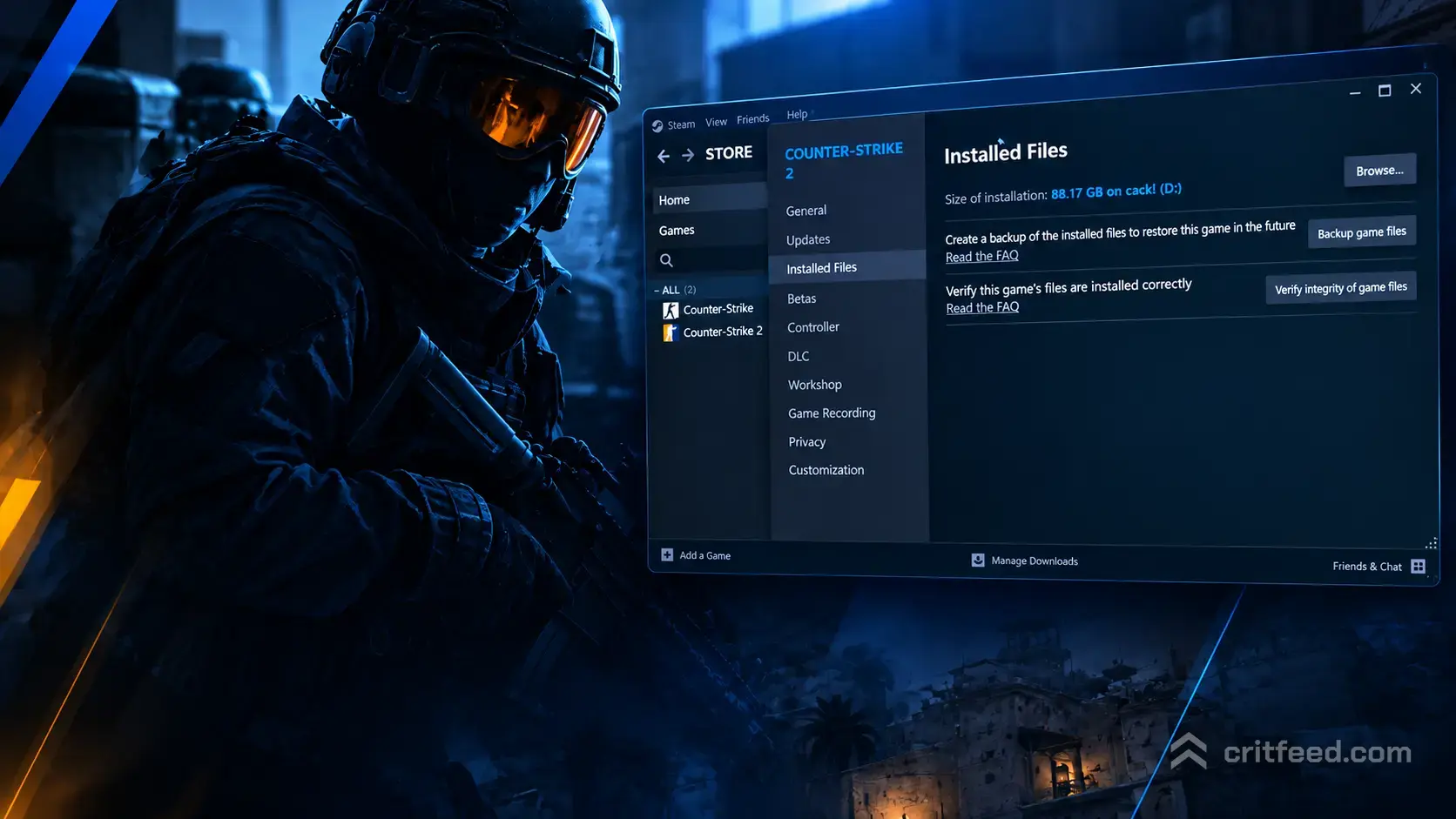
- Restart Steam and hit Verify integrity of game files in Properties → Installed Files.
Steam will only download the patch delta, not the full game. That’s the closest thing to a working CS2 backup for the install itself.
Demo Backups: Don’t Lose Your Best Matches
Match demos are gold for reviewing mistakes. CS2 saves your Premier and Competitive matches to:
Steam\steamapps\common\Counter-Strike Global Offensive\game\csgo\replays\Copy that folder somewhere safe periodically. Demos get overwritten as new ones save, and Valve’s server-side demos have a limited lifespan. If you’re building a highlight reel or clip library maybe featuring one of your best golden CS2 skins on an ace round local demo backups are the only reliable source.
Quick Backup Checklist
Do these four things and you’re covered against 99% of loss scenarios:
- Copy your
cfgfolder to a cloud drive after any settings change - Enable Steam Cloud for CS2 in the game’s Properties → General
- Back up your
replaysfolder monthly, or after any match worth keeping - Save your Steam authenticator recovery code losing your account is the ultimate data loss
Troubleshooting Common Backup Errors
“mp_backup_restore_load_file” does nothing. You’re on an official Valve server. This command only works on private/community servers where you have console access.
Config didn’t load after paste. Make sure CS2 is fully closed before pasting, and check that the file isn’t read-only. Right-click the file → Properties → uncheck Read-only.
Missing crosshair after reinstall. Crosshair codes live in config.cfg. If you didn’t save it, use the in-game Share Crosshair code from a screenshot, or grab a pro reference like our donk CS2 settings guide.
Steam says the game is corrupted after a folder paste. Run Verify integrity of game files Steam will re-download only the mismatched pieces.
The Bottom Line
A proper cs2 backup routine is really three small habits: copy your cfg folder, keep your important demos, and know the round-restore commands for when a match goes sideways. There is no supported way to skip the CS2 download entirely on a fresh install the game is live service and must stay patched but copying steamapps files across drives cuts most of the wait.
If you’re rebuilding a rig or moving to a new PC, back up your configs first and let Steam handle the rest. And once you’re back in game, check current CS2 skin prices or browse all weapon cases on cs2.ad to see what’s moving in the market.