
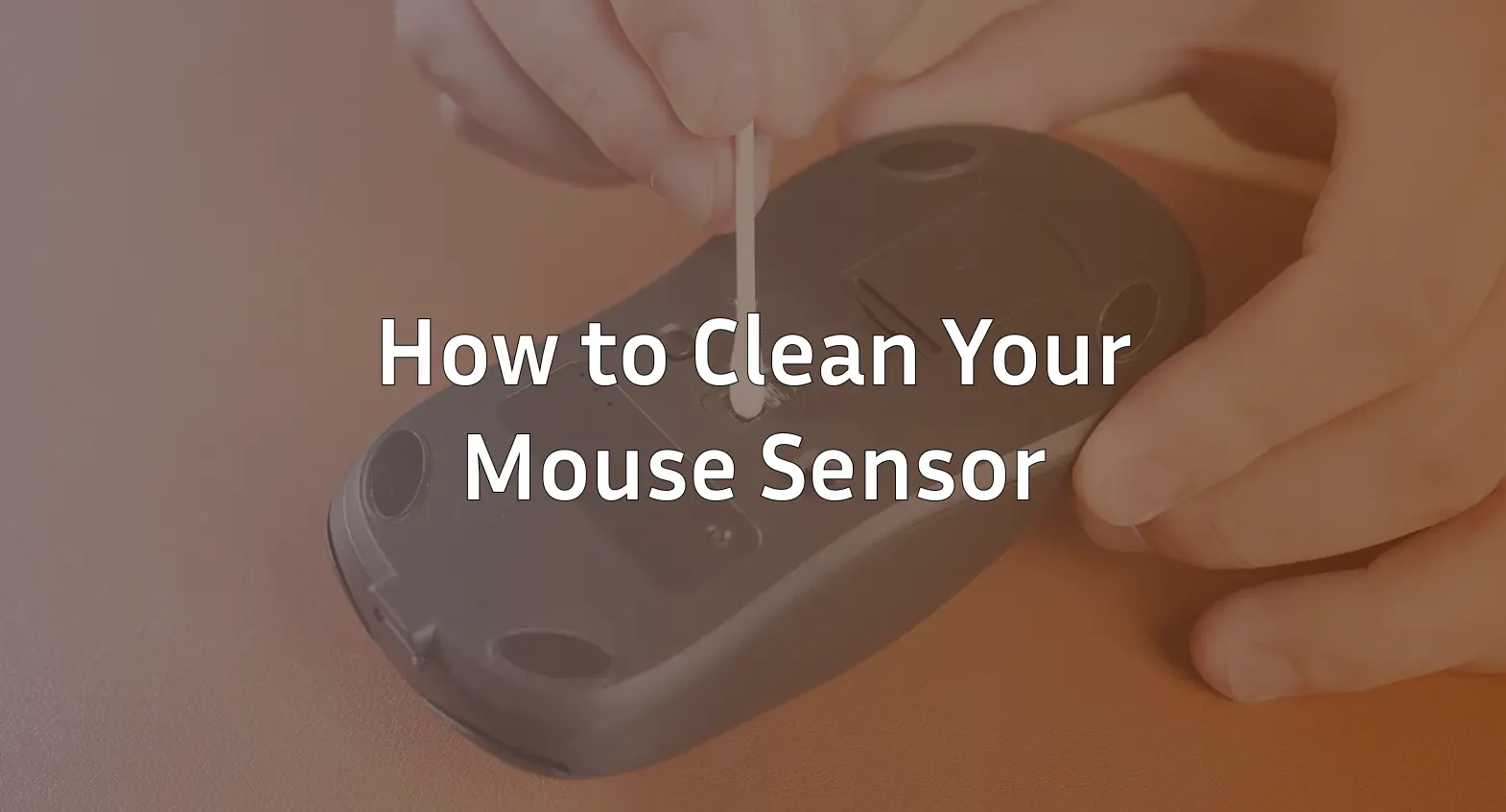
How to Clean Mouse Sensor
If your aim feels “off” in CS2 — like your crosshair randomly skips, drags, or stutters — there’s a good chance your mouse sensor is dirty.
A dusty sensor can completely ruin tracking, flicks, and spray control, even if your settings are perfect.
This guide will show you exactly how to clean a mouse sensor safely, including optical mice and popular esports models like the Logitech G Pro.
Why Cleaning Your Mouse Sensor Matters (Especially in CS2)
Your mouse sensor is basically the heart of your aim.
When dust, hair, or grime builds up underneath, you might notice:
- Cursor skipping or jitter
- Weird acceleration feelings
- Inconsistent flick shots
- Tracking feels “floaty”
- Random spin-outs in-game
Before you blame your sensitivity, always check your sensor first.
Also, if you want to fine-tune aim after cleaning, check out this guide on CS2 mouse acceleration.
What You Need to Clean a Mouse Sensor
You don’t need fancy tools. Just keep it simple:
| Item | Why It Helps |
| Microfiber cloth | Safe for plastic + lens |
| Cotton swabs | Perfect for sensor area |
| Compressed air (optional) | Blows out dust instantly |
| Isopropyl alcohol (70%+) | Removes grime safely |
Avoid: water, rough paper towels, or sharp objects.
How to Clean a Mouse Sensor (Step-by-Step)
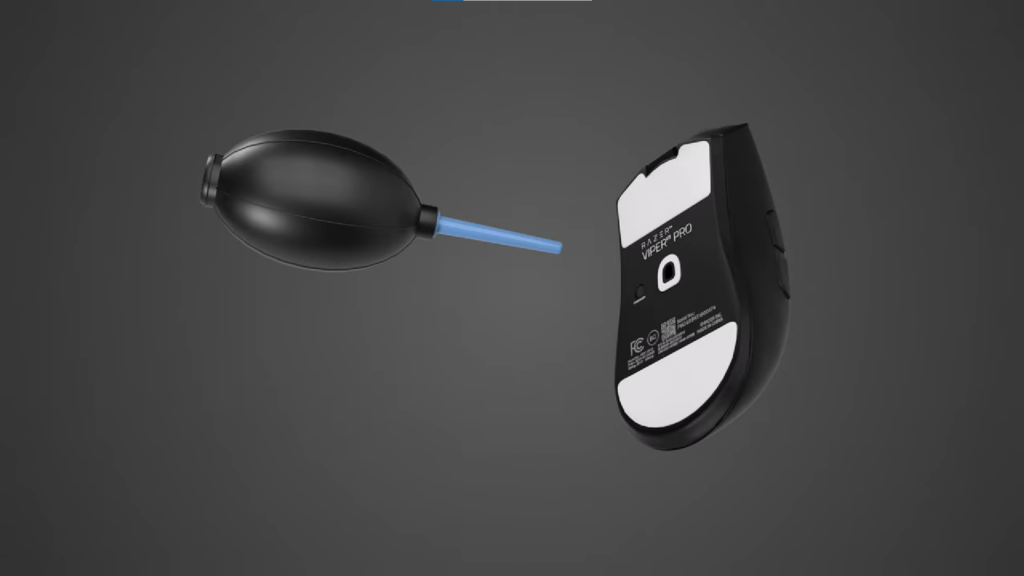
Step 1: Turn Off and Unplug Your Mouse
Before cleaning:
- Power off wireless mice
- Unplug wired mice
- Remove batteries if possible
This prevents damage and accidental clicks.
Step 2: Inspect the Sensor Area
Flip your mouse over and look closely at the sensor lens.
Common dirt sources:
- Dust from mousepads
- Pet hair
- Dead skin buildup (yes, gross but real)
Even tiny particles can mess up aim.
Step 3: Blow Out Loose Dust First
If you have compressed air:
- Use short bursts
- Hold it a few inches away
- Don’t spray too close
If not, just gently blow with your mouth.
This removes debris without rubbing it in.
Step 4: Clean With a Cotton Swab
This is the safest method for how to clean optical mouse sensor lenses.
- Take a dry cotton swab
- Gently wipe around the sensor opening
- Use light pressure only
Do NOT press hard directly onto the lens.
Step 5: Use Alcohol for Sticky Grime (Optional)
If the sensor area looks greasy:
- Dip the swab lightly in isopropyl alcohol
- Wipe carefully around the sensor
- Let it dry for 2–3 minutes
Alcohol evaporates fast and is safe for electronics.
Step 6: Clean the Mouse Feet + Bottom Surface
Sometimes tracking issues aren’t only the sensor.
Wipe the bottom of the mouse, especially:
- Around the skates
- Dust buildup edges
- Hair stuck near feet
Dirty skates can cause drag and uneven movement.
How to Clean Mouse Sensor G Pro (Logitech Pro Tips)
The Logitech G Pro is one of the most popular CS2 esports mice, but it still collects dust.
Extra tips:
- Clean once every 2–3 weeks if you play daily
- Use a soft swab because the sensor lens is sensitive
- Don’t open the mouse — external cleaning is enough
Want pro-level settings to match your clean sensor?
Check out s1mple’s CS2 settings.
Common Mistakes to Avoid
A lot of players accidentally damage sensors by doing these:
- Using toothpicks or pins
- Scrubbing too hard
- Pouring liquid directly onto the mouse
- Cleaning while the mouse is still plugged in
Treat the sensor like a camera lens — gentle is best.
How Often Should You Clean Your Mouse Sensor?
Here’s a good gamer schedule:
| Player Type | Cleaning Frequency |
| Casual player | Once a month |
| Daily CS2 grinder | Every 2 weeks |
| LAN/tournament player | Before every event |
| Dusty room / pet owner | Weekly |
Extra Tips to Keep Your Sensor Clean Longer
Cleaning once helps, but prevention is even better:
- Wash or replace your mousepad regularly
- Avoid eating snacks mid-game
- Store your mouse in a clean spot
- Use quality pads for consistent glide
If you like experimenting with training setups, you can also try custom practice maps:
CS2 Custom Maps
Quick Sensor Cleaning Checklist (60 Seconds)
If you’re in a hurry before a match:
Unplug mouse
Blow out dust
Swab around sensor
Dry wipe bottom
Plug back in
Done.
Frequently Asked Questions (FAQs)
How do I know if my mouse sensor is dirty?
If your crosshair skips, jitters, or feels inconsistent even with stable FPS, it’s likely dirt on the sensor.
Can a dirty sensor affect aim in CS2?
Yes — even tiny dust can ruin flick accuracy and spray tracking.
Is it safe to use alcohol on my mouse sensor?
Yes, as long as it’s isopropyl alcohol and only a small amount on a swab.
How to clean a mouse sensor without compressed air?
Just use a dry cotton swab and microfiber cloth — it works perfectly.
Should I open my mouse to clean the sensor?
No. External cleaning is enough for almost every mouse, including the G Pro.
Final Thoughts
If your CS2 aim feels inconsistent, don’t instantly change sensitivity or buy a new mouse.
Sometimes the fix is simple:
Clean your mouse sensor, and your tracking instantly improves.
And if you’re upgrading your CS2 gear or style, you might also enjoy checking out: