
Want to hit those crisp AWP flicks like one of Poland’s rising stars? The xKacpersky CS2 settings we’re breaking down today will give you the exact configuration this talented player uses to dominate on the server.
xKacpersky has made a name for himself with aggressive AWP plays and consistent rifle performances. His settings reflect a balance between precision aiming and smooth gameplay—perfect for players looking to elevate their game.
xKacpersky Mouse Settings

Mouse settings form the foundation of your aim. xKacpersky uses a relatively low sensitivity setup that allows for precise micro-adjustments while still enabling quick flicks.
| Setting | Value |
|---|---|
| DPI | 400 |
| In-Game Sensitivity | 2.0 |
| eDPI | 800 |
| Zoom Sensitivity | 1.0 |
| Hz (Polling Rate) | 1000 |
| Windows Sensitivity | 6 |
| Raw Input | On |
His eDPI of 800 sits in the comfortable middle ground—low enough for precision but high enough for checking corners without lifting your mouse constantly. If you’re transitioning from higher sensitivity, check out our guide on cs2 mouse sensitivity to find your ideal balance.
Why This Sensitivity Works
An 800 eDPI requires roughly 45cm for a 360-degree turn. This gives you:
- Precise AWP flicks without overshooting
- Consistent spray control with rifles
- Enough speed for quick site checks
xKacpersky Video Settings

Performance matters. xKacpersky prioritizes frame rate over visual fidelity, ensuring smooth gameplay even during chaotic firefights.
| Setting | Value |
|---|---|
| Resolution | 1280×960 |
| Aspect Ratio | 4:3 |
| Scaling Mode | Stretched |
| Display Mode | Fullscreen |
Graphics Quality Settings
| Setting | Value |
|---|---|
| Global Shadow Quality | Medium |
| Model/Texture Detail | Low |
| Texture Filtering Mode | Bilinear |
| Shader Detail | Low |
| Particle Detail | Low |
| Ambient Occlusion | Disabled |
| High Dynamic Range | Performance |
| FidelityFX Super Resolution | Disabled |
| NVIDIA Reflex Low Latency | Enabled |
The stretched 4:3 resolution makes player models appear wider, potentially making targets easier to hit. Many pro players prefer this setup—it’s worth experimenting with if you’re serious about improving. For more optimization tips, our cs2 video settings guide covers everything in detail.
xKacpersky Crosshair Settings
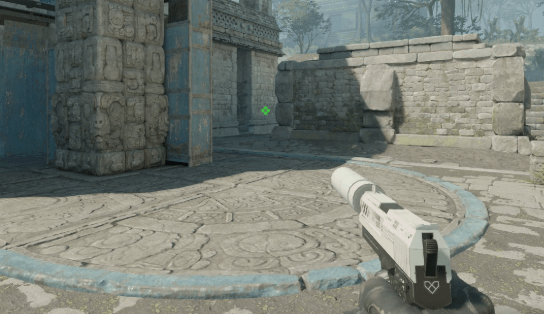
A clean, visible crosshair is essential for consistent aim. xKacpersky uses a static crosshair that provides clear feedback without distracting movement.
| Setting | Value |
|---|---|
| Style | Classic Static |
| Color | Green (1) |
| Size | 2 |
| Gap | -2 |
| Thickness | 0 |
| Outline | Yes |
| Outline Thickness | 1 |
| Dot | No |
Crosshair Code
Copy and paste this into your console:
cl_crosshair_drawoutline 1; cl_crosshair_outlinethickness 1; cl_crosshaircolor 1; cl_crosshairdot 0; cl_crosshairgap -2; cl_crosshairsize 2; cl_crosshairstyle 4; cl_crosshairthickness 0This creates a tight, precise crosshair ideal for both AWP quickscopes and rifle headshots. The negative gap pulls the lines closer together, giving you a smaller center point for accurate placement.
xKacpersky Viewmodel Settings
Viewmodel positioning affects your peripheral vision and overall screen clarity.
| Setting | Value |
|---|---|
| Viewmodel FOV | 68 |
| Viewmodel Offset X | 2.5 |
| Viewmodel Offset Y | 0 |
| Viewmodel Offset Z | -1.5 |
| Viewmodel Presetpos | 3 |
This configuration keeps the weapon model compact and positioned to the right, maximizing your visible play area. Apply these settings with:
viewmodel_fov 68; viewmodel_offset_x 2.5; viewmodel_offset_y 0; viewmodel_offset_z -1.5; viewmodel_presetpos 3xKacpersky Radar Settings
Radar awareness separates good players from great ones. xKacpersky’s radar setup provides maximum map information.
| Setting | Value |
|---|---|
| Radar Centers The Player | Yes |
| Radar Is Rotating | Yes |
| Radar HUD Size | 1.0 |
| Radar Map Zoom | 0.4 |
A zoomed-out radar lets you see teammate positions across the entire map, crucial for mid-round rotations and reading the enemy’s strategy. For a deeper dive into radar optimization, check our cs2 radar settings guide.
Launch Options
xKacpersky keeps his launch options minimal for stability:
-novid -tickrate 128- -novid: Skips the intro video for faster game launch
- -tickrate 128: Sets offline server tickrate to 128
Avoid cluttering your launch options with outdated commands. Most legacy CS:GO parameters no longer work in CS2. If you’re chasing more frames, our cs2 max fps guide has proven optimization methods.
xKacpersky’s Gear
Your peripherals matter almost as much as your settings.
| Equipment | Model |
|---|---|
| Mouse | Logitech G Pro X Superlight |
| Mousepad | ZOWIE G-SR |
| Keyboard | HyperX Alloy FPS Pro |
| Monitor | BenQ ZOWIE XL2546K (240Hz) |
| Headset | HyperX Cloud II |
The G Pro X Superlight is one of the most popular mice among professional players due to its lightweight design and flawless sensor. Paired with a control pad like the G-SR, it provides consistent tracking for low-sensitivity play.
Key Binds Worth Copying
A few utility binds can streamline your gameplay:
bind "mouse4" "slot6"bind “mouse5” “slot7”
bind “c” “slot8”
These binds place smoke, flashbang, and decoy on easily accessible buttons—essential for quick utility deployment during executes.
How to Apply These Settings
- Launch CS2 and open the console (~)
- Paste the crosshair code and press Enter
- Paste the viewmodel commands and press Enter
- Adjust video settings through the game menu
- Set your sensitivity in the game settings
- Add launch options through Steam (right-click CS2 → Properties → Launch Options)
Should You Copy Pro Settings?
xKacpersky’s settings work for his playstyle, but they might not suit everyone. Use these as a starting point, then adjust based on:
- Your mousepad size
- Your monitor’s native resolution
- Your comfort with stretched resolutions
- Your role (AWPer vs. rifler)
Compare these settings with other pros like donk or zywoo to see what top players have in common—and where they differ.
Final Thoughts
The xKacpersky CS2 settings offer a solid foundation for players seeking a balanced, performance-focused configuration. His low eDPI rewards precise aim, while the stretched resolution and minimal graphics settings ensure buttery-smooth gameplay.
Copy these settings, hop into a deathmatch, and give yourself time to adjust. Once comfortable, you’ll have the same technical foundation as one of Poland’s promising talents.