
Phzy has emerged as one of the most exciting young talents in competitive Counter-Strike, showcasing incredible mechanical skill and game sense. If you’re searching for phzy CS2 settings to elevate your gameplay, you’ve come to the right place. This guide breaks down his complete setup, including crosshair, viewmodel, mouse settings, and video configuration.
Who Is Phzy?
Phzy is a professional CS2 player known for his aggressive playstyle and exceptional aim. He’s built a reputation in the competitive scene through consistent performances and highlight-worthy plays.
His settings reflect a preference for maximum visibility and precise aim, making them worth studying whether you’re grinding cs2 ranks or just looking to improve your mechanics.
Phzy’s Mouse Settings

Mouse settings form the foundation of any pro player’s aim. Phzy uses relatively standard sensitivity values that allow for both precision and quick flicks.
| Setting | Value |
|---|---|
| DPI | 800 |
| In-Game Sensitivity | 0.9 |
| eDPI | 720 |
| Zoom Sensitivity | 1.0 |
| Hz (Polling Rate) | 1000 |
| Windows Sensitivity | 6 |
| Raw Input | On |
His eDPI of 720 falls within the typical pro range (600-1000), offering a balance between tracking enemies smoothly and making fast adjustments during intense firefights.
Key takeaway: If you’re new to lower sensitivities, gradually decrease yours rather than copying Phzy’s settings immediately. Your muscle memory needs time to adapt.
Phzy’s Crosshair Settings
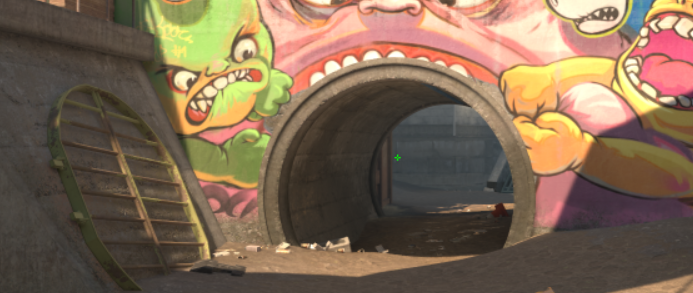
A clean, visible crosshair is essential for landing shots consistently. Phzy uses a small, static crosshair that doesn’t obstruct his view of enemy heads.
cl_crosshair_drawoutline 0cl_crosshair_dynamic_maxdist_splitratio 0.35
cl_crosshair_dynamic_splitalpha_innermod 1
cl_crosshair_dynamic_splitalpha_outermod 0.5
cl_crosshair_dynamic_splitdist 7
cl_crosshair_outlinethickness 1
cl_crosshair_sniper_width 1
cl_crosshair_t 0
cl_crosshairalpha 255
cl_crosshaircolor 1
cl_crosshaircolor_b 50
cl_crosshaircolor_g 250
cl_crosshaircolor_r 50
cl_crosshairgap -3
cl_crosshairsize 1
cl_crosshairstyle 4
cl_crosshairthickness 0
cl_crosshairusealpha 1
The green color (crosshaircolor 1) provides excellent contrast against most CS2 map textures. His small size and tight gap ensure minimal screen clutter while maintaining a clear aiming point.
You can test different crosshair configurations using cs2 practice commands in a private server before taking them into competitive matches.
Phzy’s Video Settings
Phzy prioritizes performance and visibility over visual fidelity. His video settings maximize frame rates while keeping enemies easy to spot.
| Setting | Value |
|---|---|
| Resolution | 1280×960 |
| Aspect Ratio | 4:3 |
| Scaling Mode | Stretched |
| Display Mode | Fullscreen |
Graphics Settings
| Setting | Value |
|---|---|
| Global Shadow Quality | Medium |
| Model/Texture Detail | Low |
| Texture Filtering Mode | Bilinear |
| Shader Detail | Low |
| Particle Detail | Low |
| Ambient Occlusion | Disabled |
| High Dynamic Range | Performance |
| FidelityFX Super Resolution | Disabled |
| Boost Player Contrast | Enabled |
The 4:3 stretched resolution makes player models appear wider, potentially easier to hit. Many pros prefer this despite the reduced field of view. Boost Player Contrast is crucial—it makes enemies stand out against backgrounds.
For optimal performance, consider reviewing your cs2 launch options to complement these video settings.
Phzy’s Viewmodel Settings

Viewmodel positioning affects how much screen space your weapon occupies. Phzy uses a classic viewmodel that keeps his weapon out of the way.
viewmodel_fov 68viewmodel_offset_x 2.5
viewmodel_offset_y 0
viewmodel_offset_z -1.5
viewmodel_presetpos 3
cl_righthand 1
This configuration pushes the weapon model to the side and down, maximizing your view of the action. If you prefer playing left-handed, check out our guide on the left hand command cs2.
Phzy’s Keybinds
Efficient keybinds allow for faster utility usage and weapon switching. While personal preference plays a huge role, here are some notable binds Phzy uses:
| Action | Key |
|---|---|
| Jump | Space / Mouse Wheel Down |
| Crouch | Left Ctrl |
| Walk | Left Shift |
| Inspect Weapon | F |
| Drop Weapon | G |
Using mouse wheel for jumping is standard among pros as it makes bunny hopping more consistent. For a complete breakdown of useful bindings, explore our cs2 binds guide.
How to Apply Phzy’s Config
To use Phzy’s settings:
- Locate your CS2 config folder using our cs2 config location guide
- Create a backup of your current autoexec.cfg
- Copy the relevant commands into your autoexec
- Launch CS2 and verify settings applied correctly
Alternatively, enter commands directly into the console during gameplay to test individual settings before committing.
Should You Copy Pro Settings?
Copying phzy CS2 settings provides a solid starting point, but remember:
- Hardware matters — Your mouse, mousepad, and monitor affect how settings feel
- Personal preference varies — What works for Phzy might not suit your playstyle
- Adaptation takes time — Give new settings at least a week before judging them
Use pro configs as a baseline, then tweak based on your comfort. The best settings are ones you’ve refined through practice.
Conclusion
Phzy’s CS2 settings emphasize clean visuals, consistent aim, and maximum performance. His low sensitivity, small crosshair, and stretched resolution represent a classic pro setup that’s proven effective at the highest level.
Start by implementing his crosshair and sensitivity settings, then adjust based on your results. Want to practice your aim with pro settings? Load up a private match and experiment with cs2 bot commands to test against moving targets.