
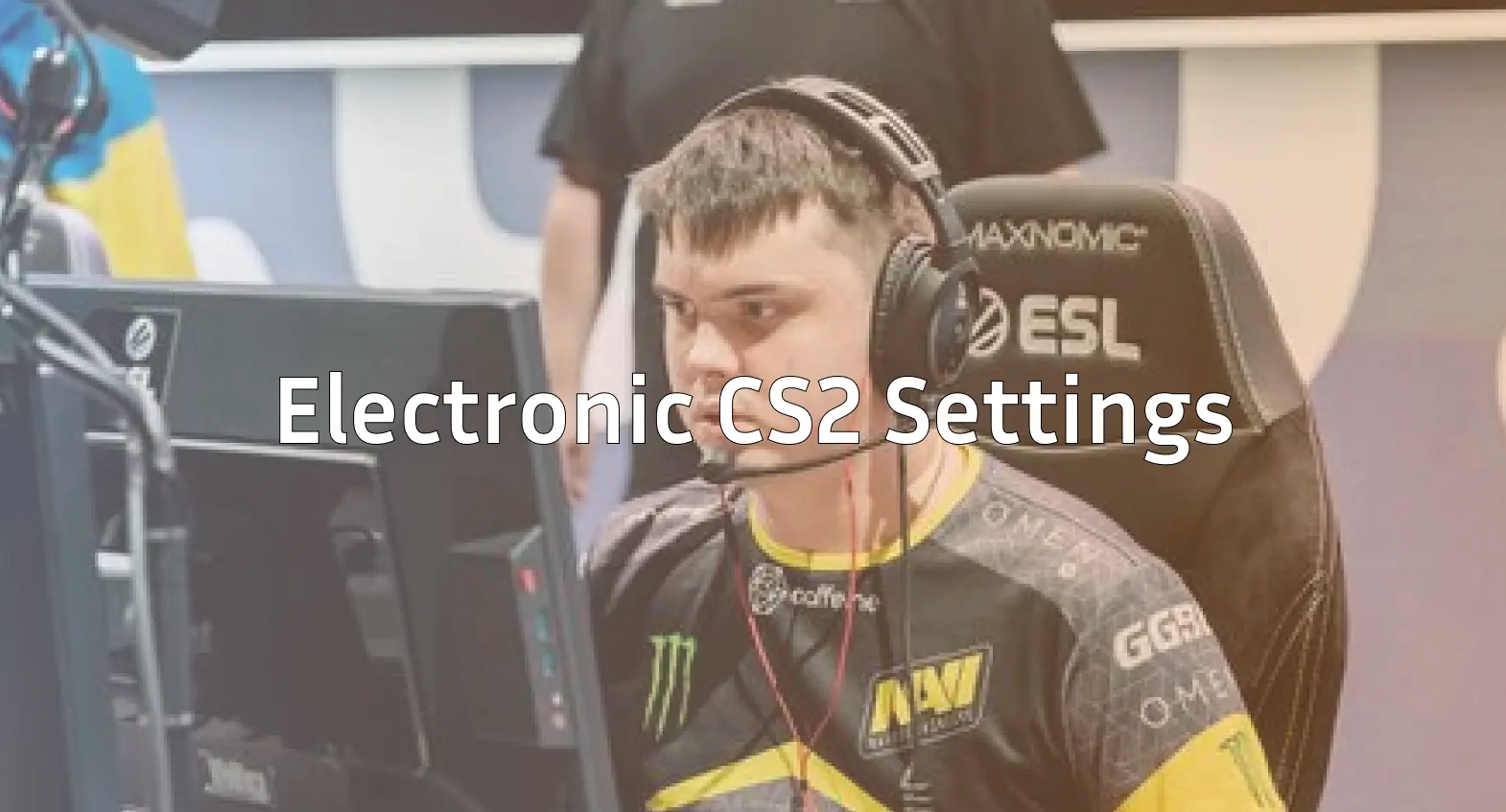
Denis “electronic” Sharipov stands among the elite riflers in professional Counter-Strike. His electronic CS2 configuration balances precision aiming with smooth movement, making it a popular choice for players looking to elevate their game.
In this guide, we break down electronic’s complete setup—from mouse sensitivity to crosshair settings so you can test his config yourself.
Who Is electronic?
Electronic is a Russian professional CS2 player known for his aggressive playstyle and clutch potential. He’s spent years competing at the highest level, earning multiple Major titles and establishing himself as one of the most consistent fraggers in the scene.

His settings reflect a balanced approach not too extreme in any direction which makes them accessible for players of various skill levels.
electronic’s Mouse Settings
Mouse settings directly impact your aim consistency. Electronic uses relatively standard sensitivity values that many pros favor.
| Setting | Value |
|---|---|
| DPI | 400 |
| In-Game Sensitivity | 1.35 |
| eDPI | 540 |
| Zoom Sensitivity | 1.0 |
| Hz (Polling Rate) | 1000 |
| Windows Sensitivity | 6 |
| Raw Input | On |
| Mouse Acceleration | Off |
His eDPI of 540 sits in the mid-range for professional players. This allows for precise micro-adjustments while still enabling quick 180-degree turns when needed.
If you’re experimenting with AWP skins and want to hit those flick shots, electronic’s sensitivity provides enough control without feeling sluggish.
electronic’s Crosshair Settings
A clean crosshair helps you focus on the target. Electronic uses a simple, static crosshair without unnecessary visual clutter.
cl_crosshairsize 1.5cl_crosshairgap -3
cl_crosshairthickness 0
cl_crosshairdot 0
cl_crosshaircolor 1
cl_crosshair_drawoutline 0
cl_crosshairstyle 4
cl_crosshairalpha 255
Crosshair Breakdown
- Style 4: Classic static crosshair no movement feedback
- Size 1.5: Compact for precise headshot placement
- Gap -3: Tight center for better focus on the target
- Color 1: Green, which stands out against most map textures
This crosshair works well on maps like Mirage and Inferno where quick target acquisition matters. If you’re practicing your aim, check out CS2 practice commands to set up a proper training environment.
electronic’s Video Settings
Performance matters more than visuals at the pro level. Electronic’s video settings prioritize high FPS and visibility.
| Setting | Value |
|---|---|
| Resolution | 1280×960 |
| Aspect Ratio | 4:3 |
| Scaling Mode | Stretched |
| Display Mode | Fullscreen |
Graphics Settings
| Setting | Value |
|---|---|
| Global Shadow Quality | High |
| Model/Texture Detail | Low |
| Texture Filtering Mode | Bilinear |
| Shader Detail | Low |
| Particle Detail | Low |
| Ambient Occlusion | Disabled |
| High Dynamic Range | Performance |
| FidelityFX Super Resolution | Disabled |
| NVIDIA Reflex Low Latency | Enabled |
The 4:3 stretched resolution makes player models appear wider, potentially easier to hit. Many pros prefer this setup despite the reduced field of view.
For optimal performance, combine these settings with proper CS2 launch options to maximize your frame rate.
electronic’s Viewmodel Settings
Viewmodel positioning affects how much screen space your weapon takes up. Electronic keeps his viewmodel compact.
viewmodel_fov 68viewmodel_offset_x 2.5
viewmodel_offset_y 0
viewmodel_offset_z -1.5
viewmodel_presetpos 3
cl_righthand 1
These settings push the weapon model slightly to the side and down, giving you more visibility in the center of your screen. This matters when you’re holding angles with rifles like the AK-47 or M4A1-S.
electronic’s Keybinds
Efficient keybinds reduce the time between decision and action. Here are some of electronic’s notable binds:
| Action | Key |
|---|---|
| Jump | Space / Mouse Wheel Down |
| Crouch | Left Ctrl |
| Walk | Left Shift |
| Primary Weapon | 1 |
| Secondary Weapon | 2 |
| Knife | 3 |
| Grenades | 4 |
| Bomb | 5 |
Using mouse wheel for jumping helps with bunny hopping and movement techniques. If you want to explore more binding options, our CS2 binds guide covers advanced configurations.
electronic’s Gear
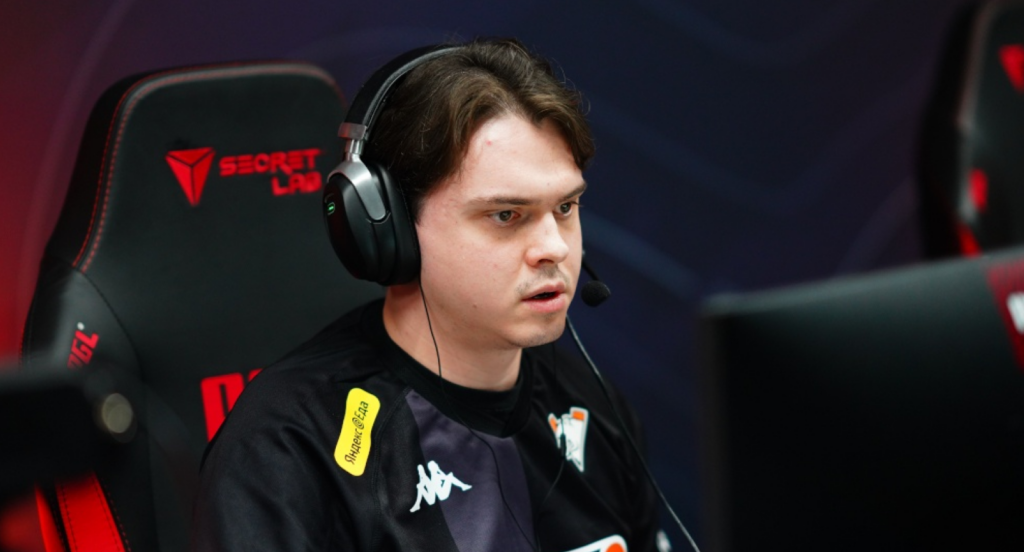
Professional players invest in quality peripherals. Here’s what electronic uses:
| Peripheral | Product |
|---|---|
| Mouse | Logitech G Pro X Superlight |
| Mousepad | Logitech G640 |
| Keyboard | Logitech G Pro X |
| Headset | Logitech G Pro X |
| Monitor | BenQ ZOWIE XL2546K (240Hz) |
The G Pro X Superlight weighs only 63 grams, allowing for quick flicks without fatigue. The 240Hz monitor ensures smooth visuals with minimal input lag.
Should You Copy electronic’s Settings?
Electronic’s settings work for him because he’s practiced with them for thousands of hours. Use his config as a starting point, not a magic solution.
Here’s how to approach it:
- Test the sensitivity for a few days before judging
- Keep the crosshair if it feels comfortable
- Adjust video settings based on your PC’s performance
- Modify keybinds to match your hand positioning
Your ideal setup depends on your mouse grip, desk space, and personal preferences. What matters most is consistency—pick settings and stick with them long enough to build muscle memory.
Conclusion
Electronic’s CS2 settings offer a well rounded configuration used by one of the game’s best riflers. His moderate sensitivity, clean crosshair, and performance-focused video settings create a solid foundation for competitive play.
Try his config, give it time, and adjust what doesn’t feel right.