
Looking to copy nqz CS2 settings and dominate with the AWP like this rising star? You’re in the right place.
Lucas Soares Assumpção e Silva “NQZ” has quickly established himself as one of the most exciting young AWPers in professional Counter-Strike. Known for his aggressive positioning and lightning-fast flick shots, nqz brings a unique style that’s earned him recognition in the competitive scene.
In this guide, we’ll break down his complete setup so you can test these settings yourself.
Who Is nqz?
nqz is a Brazilian professional CS2 player who has made waves with his exceptional AWP skills. His playstyle combines calculated aggression with mechanical precision, allowing him to take fights that most AWPers would avoid.
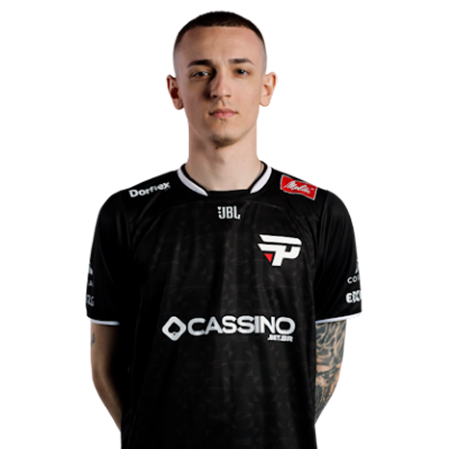
What sets nqz apart is his confidence in taking early-round duels. He doesn’t wait for information he creates it. This aggressive approach requires pinpoint accuracy, which his settings help facilitate.
nqz Mouse Settings
The foundation of any AWPer’s game is their mouse configuration. Here’s what nqz uses:
| Setting | Value |
|---|---|
| DPI | 800 |
| In-Game Sensitivity | 1.0 |
| eDPI | 800 |
| Zoom Sensitivity | 1.0 |
| Polling Rate | 1000 Hz |
| Windows Sensitivity | 6 |
| Raw Input | On |
An eDPI of 800 sits in the medium-low range for professional players. This gives nqz enough precision for long-range AWP shots while maintaining the ability to flick onto targets quickly.
His 1.0 zoom sensitivity means scoped sensitivity matches his hipfire feel exactly a preference many elite AWPers share because it creates muscle memory consistency.
nqz Crosshair Settings
Even though AWPers spend most rounds scoped, crosshair settings matter for pistol rounds, eco situations, and no-scope flicks.
cl_crosshairsize 2cl_crosshairgap -2
cl_crosshairthickness 1
cl_crosshairdot 0
cl_crosshaircolor 1
cl_crosshair_drawoutline 0
cl_crosshairstyle 4
nqz uses a small, static crosshair in green. The tight gap and minimal size keep his screen clean while providing a precise aiming point. This style works well for players who rely on crosshair placement rather than spray patterns.
If you’re experimenting with crosshairs, check out settings from other pros like NiKo’s CS2 setup to compare different approaches.
nqz Video Settings
Performance matters more than visuals at the professional level. Here’s nqz’s video configuration:
| Setting | Value |
|---|---|
| Resolution | 1280×960 |
| Aspect Ratio | 4:3 |
| Scaling Mode | Stretched |
| Display Mode | Fullscreen |
nqz plays on 4:3 stretched, a classic choice among AWPers. This resolution makes player models appear wider, potentially making targets easier to hit. The trade-off is reduced peripheral vision, but AWPers typically hold angles rather than clearing wide spaces.
Graphics Settings
| Setting | Value |
|---|---|
| Global Shadow Quality | Medium |
| Model/Texture Detail | Low |
| Shader Detail | Low |
| Particle Detail | Low |
| Ambient Occlusion | Disabled |
| Boost Player Contrast | Enabled |
Boost Player Contrast is essential it makes enemies stand out against backgrounds, which is crucial for spotting players at long range with the AWP.
nqz Viewmodel Settings
Viewmodel positioning affects visual clarity and personal comfort:
viewmodel_fov 68viewmodel_offset_x 2.5
viewmodel_offset_y 0
viewmodel_offset_z -1.5
viewmodel_presetpos 3
This configuration pushes the weapon model to the right side and slightly down, maximizing screen real estate. When you’re holding long angles on maps like Dust II or Mirage, every pixel of visibility helps.
nqz Keybinds
Efficient keybinds separate good players from great ones. While nqz’s exact binds aren’t fully public, professional AWPers typically optimize for:
- Quick-switch bind: Essential for canceling the AWP’s bolt animation
- Jump-throw bind: Consistent utility deployment
- Dedicated smoke/flash keys: Faster grenade access
For setting up your own optimized binds, our CS2 binds guide covers everything you need.
How to Apply nqz’s Settings
Want to test this configuration? Follow these steps:
- Locate your config folder using our CS2 config location guide
- Back up your current settings before making changes
- Apply settings incrementally start with sensitivity, then crosshair, then video
- Give yourself time to adjust at least 10-15 hours of gameplay
Don’t expect immediate results. Professional settings require practice to feel natural.
Should You Copy nqz’s Settings?
Here’s the honest truth: settings are personal.
nqz’s configuration works for his playstyle, hand size, mousepad dimensions, and years of muscle memory. What matters more than copying exact values is understanding why he uses them:
- Low eDPI: Precision over speed
- 4:3 stretched: Wider targets, focused field of view
- Simple crosshair: Clean visual reference
- Low graphics: Maximum FPS and visibility
Use his settings as a starting point, then adjust based on your comfort. If 800 eDPI feels too slow, try 880 or 960. If stretched resolution gives you headaches, try native.
Improve Beyond Settings
Settings only take you so far. To actually play like nqz, focus on:
- Positioning: Learn common AWP angles on every map
- Movement: Master counter-strafing for accurate shots
- Game sense: Predict where enemies will peek
- Economy management: Know when to save your AWP and when to force
Practice these fundamentals in private servers using CS2 practice commands to drill your mechanics.
Conclusion
The nqz CS2 settings provide a solid foundation for aspiring AWPers. His medium-low sensitivity, stretched resolution, and clean crosshair create an optimized environment for long-range precision.
Remember these settings won’t instantly make you a pro. Use them as inspiration, adjust to your preferences, and put in the practice hours.